
iPhone does not offer a built-in setting that automatically turns Airplane Mode on and off at scheduled times. That means you cannot set it from the Settings app the same way you can schedule Sleep, Focus, or Do Not Disturb.
If you want your iPhone to stay offline during certain hours, there are a few practical workarounds. The best option depends on whether you want to silence notifications, disable wireless connections, or automate Airplane Mode as closely as iPhone allows.
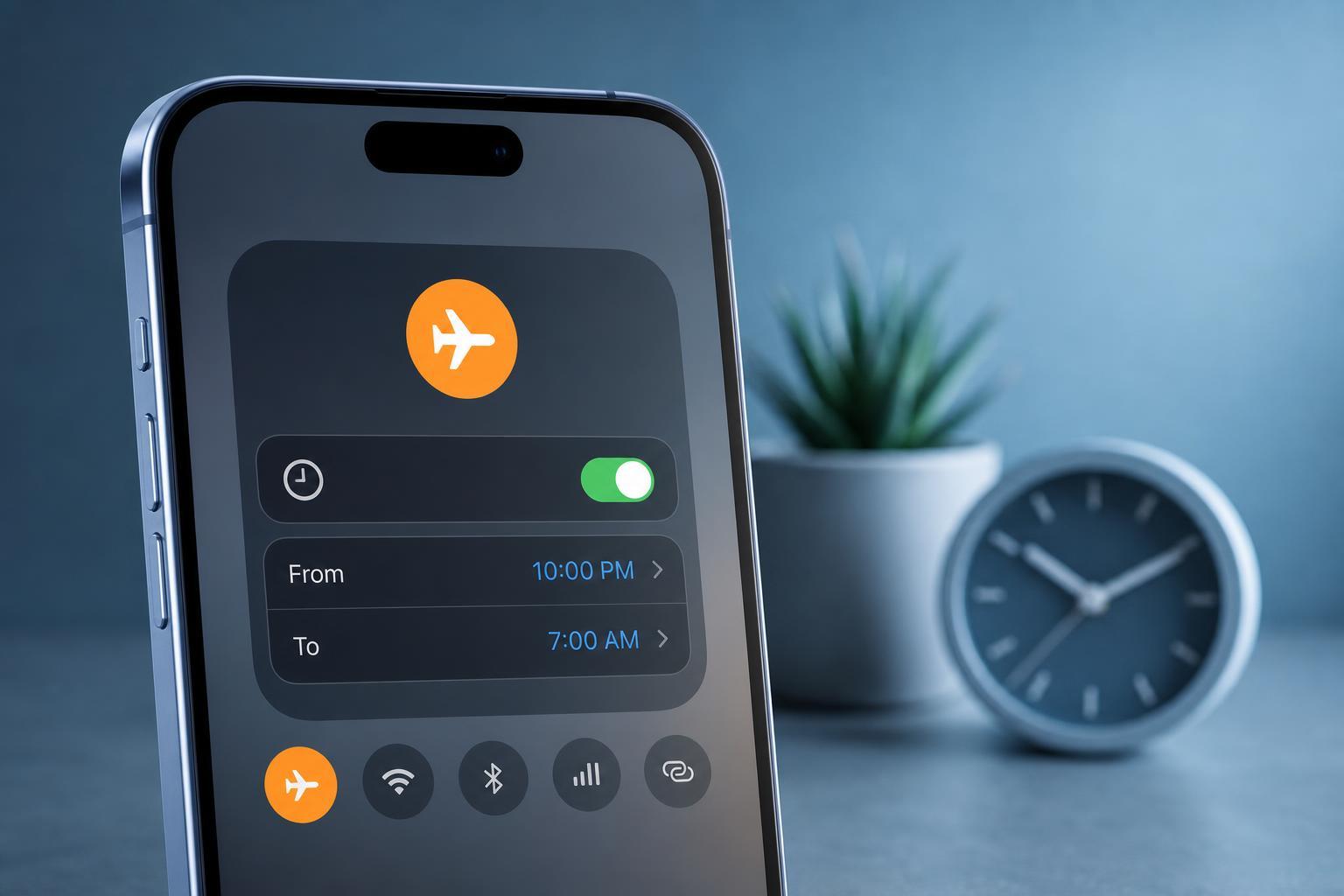
What Airplane Mode Does on iPhone
Airplane Mode turns off the iPhone’s wireless radios. That usually means cellular data, Wi‑Fi, and Bluetooth are disconnected until you turn them back on. It is useful when you want to reduce interruptions, save battery in some situations, or comply with travel requirements.
The Closest Built-in Alternative: Focus Modes
If your goal is to avoid distractions at certain times, a Focus mode is usually the better solution. Focus can schedule when notifications are silenced, and it can be set to turn on automatically by time, location, or app use.
- Open Settings and tap Focus.
- Choose an existing Focus mode or create a new one.
- Tap Add Schedule or Automation.
- Select Time and set the days and hours you want.
- Choose which apps and people are allowed to break through if needed.
How to Automate Airplane Mode with Shortcuts
If you truly want Airplane Mode to turn on at a specific time, the Shortcuts app is the main workaround. You can create an automation that toggles Airplane Mode on at one time and another automation that turns it off later.
- Open the Shortcuts app.
- Tap Automation at the bottom.
- Tap the plus button, then choose Time of Day.
- Set the time you want Airplane Mode to turn on.
- Tap Next, then add the action Set Airplane Mode.
- Choose Turn Airplane Mode On, then tap Done.
- Repeat the same steps to create a second automation for the time you want it turned off, using Turn Airplane Mode Off.
If You Only Want to Reduce Distractions
A lot of people really want scheduled quiet time, not strictly scheduled Airplane Mode. In that case, you may get a better result by combining a Focus mode with Wi‑Fi, Bluetooth, and notification settings instead of disconnecting the phone completely.
- Use Focus if you want scheduled silence but still need internet access.
- Use Airplane Mode if you want all wireless connections off.
- Use both only if you understand how they interact and need very strict offline time.
When Airplane Mode Scheduling Is Not the Right Tool
Airplane Mode scheduling is not ideal if you need calls, alarms, Find My access, or constant connectivity. It can also affect messaging apps, notifications, and background syncing in ways that may be inconvenient if you forget the mode is still on.
- Missed calls and messages while Airplane Mode is active
- Delayed app sync and cloud updates
- No cellular access until the mode is turned off
- Possible Bluetooth disconnections depending on how you use the setting
Troubleshooting Scheduled Airplane Mode
If your shortcut automation does not work, check that it is enabled, that the trigger time is correct, and that the shortcut contains the right action. Also confirm that Low Power Mode or other automation settings are not interfering with how the shortcut runs.
- Open Shortcuts and check the Automation tab.
- Make sure the automation is switched on.
- Open the automation and confirm the time and repeat days.
- Verify that the action really sets Airplane Mode On or Off.
- Test the automation with a near-future time to see whether it runs as expected.
The Best Option for Most iPhone Users
For most people, Focus is the simplest and most reliable way to schedule a quiet period on iPhone. If you specifically need wireless radios turned off, Shortcuts is the best workaround. The right choice depends on whether you want less interruption or a true offline state.





