
Closing Chrome by accident can wipe out a whole session of open tabs, especially if you were working across multiple windows. The good news is that Chrome gives you several ways to save your tabs before you close the browser and to bring back lost tabs later.
This guide covers the simplest built-in options first, then shows how to recover tabs after Chrome has already been closed.
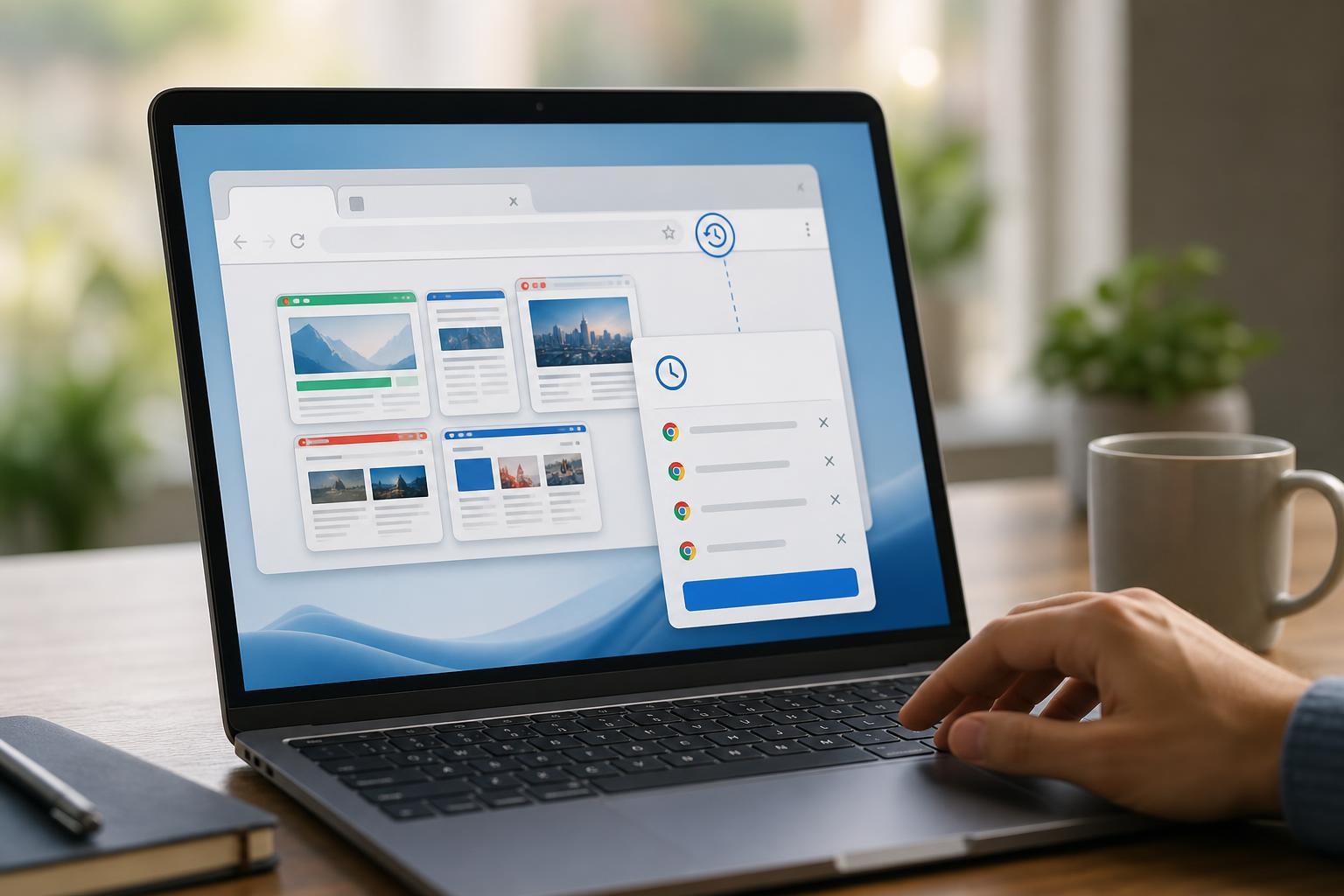
Save Your Tabs Before Closing Chrome
If you know you are about to close Chrome but want to keep your tabs for later, the most reliable option is to make Chrome reopen the same pages when you start it again.
- Open Chrome and click the three-dot menu in the top-right corner.
- Select Settings.
- Open the On startup section.
- Choose Continue where you left off.
With this setting enabled, Chrome restores your previous session when you reopen the browser. That includes most tabs and windows from your last session, which makes it the easiest way to preserve your work.
Use Bookmarks for Tabs You Want to Keep
If you want to save only certain tabs instead of the entire session, bookmarking is more controlled. It is also useful when you want to keep a group of pages for later without leaving Chrome set to reopen everything automatically.
- Right-click any tab and choose Add all tabs to bookmarks if you want to save the whole window.
- Or press Ctrl + Shift + D to bookmark every tab in the current window.
- Choose a folder name, then save the bookmarks.
- Open the bookmarks later from the bookmarks bar or the bookmarks menu.
Restore Tabs You Closed by Mistake
If you accidentally closed a tab, Chrome makes it easy to get it back.
- Press Ctrl + Shift + T to reopen the most recently closed tab.
- Press it again to restore earlier closed tabs, one by one.
- You can also right-click the tab bar and choose Reopen closed tab, if that option is available.
This shortcut is one of the fastest ways to recover from accidental tab closures. It usually works whether you closed a single tab or several tabs in sequence.
Restore a Whole Chrome Window
If you closed an entire browser window instead of just one tab, Chrome can usually restore that too.
- Open Chrome.
- Press Ctrl + Shift + T repeatedly until the missing window returns, if needed.
- If Chrome had a crash recovery prompt, click Restore when it appears.
Check Chrome History for Missing Tabs
When restore shortcuts do not bring back everything, Chrome History is the next place to look. This is especially useful for tabs that were opened long enough to be recorded in your browsing history.
- Press Ctrl + H to open History.
- Look for the pages you need in the Recent tabs or full history list.
- Click each entry to reopen it in a new tab.
If you were signed in to Chrome and syncing history across devices, you may also be able to find recently closed tabs from another device.
Turn on Chrome’s Session Restore Behavior
If Chrome does not consistently reopen your tabs, check whether startup behavior or conflicting settings are getting in the way.
- Make sure On startup is set to Continue where you left off.
- Check whether an extension is managing startup tabs.
- Avoid closing Chrome with a force quit unless necessary, since that can reduce recovery options.
- Confirm that Chrome is not being launched in Guest mode or a temporary profile.
What to Do If Chrome Still Won't Restore Your Tabs
If the usual recovery methods fail, the issue is often related to a crash, profile problem, or data that was already overwritten. At that point, the best fallback is to check History, bookmarks, and any synced devices you use with the same Google account.
- Use Ctrl + H to search for the sites you need.
- Check other devices signed into the same Chrome profile.
- Look for bookmarked folders if you previously saved a tab set.
- If a session was lost after a crash, try reopening Chrome once more before closing anything else.
The Safest Habit for Heavy Chrome Users
For everyday use, the best approach is to combine Chrome’s session restore setting with a habit of bookmarking important tab groups. That gives you both quick recovery after accidental closures and a more permanent backup for tabs you cannot afford to lose.
If you only use a few tabs, Ctrl + Shift + T may be enough. If you regularly run dozens of tabs, saving a bookmark folder before closing Chrome is the most dependable option.





