
Saving an Outlook email as a PDF is a simple way to keep a permanent copy of a message, share it with someone who does not use Outlook, or archive important details outside your inbox. The exact steps vary a little depending on whether you are using Outlook on a desktop computer or the mobile app.
This guide shows the easiest ways to turn an Outlook email into a PDF on Windows, Mac, iPhone, and Android, along with a few useful notes for formatting and troubleshooting.
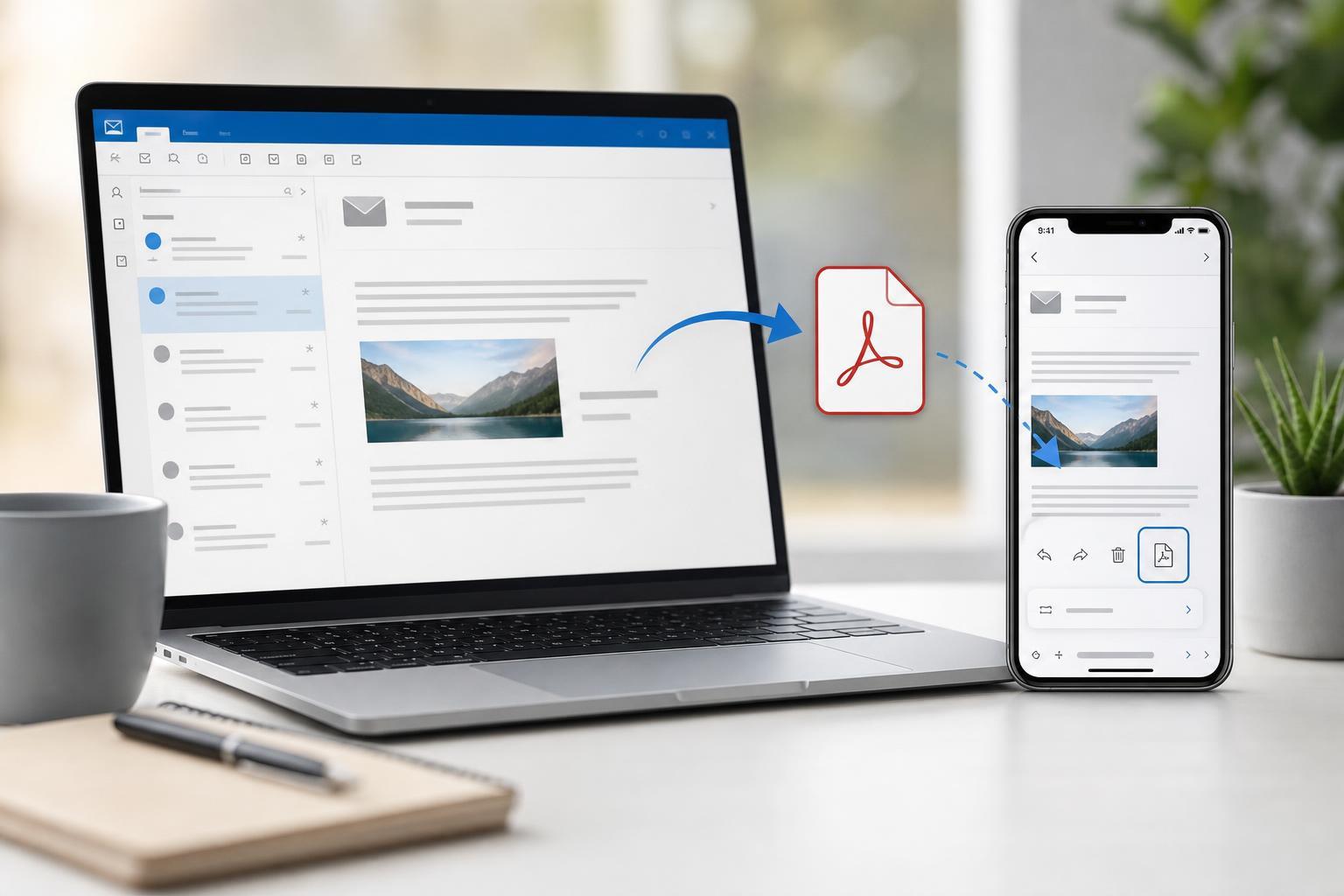
Save an Outlook Email as a PDF on Windows
On Windows, the easiest method is to print the email and choose a PDF printer. This works in Outlook desktop and usually gives you the cleanest result.
- Open the email you want to save in Outlook.
- Click File, then choose Print. In some versions, you may see a printer icon instead.
- Under Printer, select Microsoft Print to PDF.
- Adjust the print layout if needed, such as page orientation or margins.
- Click Print.
- Choose a file name and save location, then click Save.
Save an Outlook Email as a PDF on Mac
On a Mac, Outlook also uses the print menu to create a PDF.
- Open the email in Outlook.
- Go to File and choose Print, or press Command + P.
- In the print dialog, look for the PDF menu in the lower-left corner.
- Select Save as PDF.
- Enter a file name, choose where to save it, and click Save.
Save an Outlook Email as a PDF on iPhone
The Outlook mobile app does not usually offer a direct Save as PDF button, but you can use the iPhone share and print workflow to create one.
- Open the email in the Outlook app.
- Tap the three-dot menu or the Share option, depending on what appears.
- Choose Print.
- In the print preview, use a two-finger outward pinch gesture on the preview to open it as a PDF.
- Tap the Share button again, then choose Save to Files or another destination.
Save an Outlook Email as a PDF on Android
On Android, you can usually create a PDF from the Outlook app by printing the message to a PDF destination.
- Open the email in Outlook for Android.
- Tap the menu icon or Share option.
- Select Print.
- Choose Save as PDF or a PDF printer from the list of printers.
- Tap the PDF icon or Save button.
- Pick a folder and save the file.
What to Do If Outlook Won't Save the Email as a PDF
If the PDF option is missing or the result looks wrong, the issue is usually related to the app version, printer support, or how the message is being displayed.
- Make sure you are using the full Outlook desktop app or a mobile print workflow, not just a limited message view.
- Check whether Microsoft Print to PDF is enabled on Windows.
- Try printing the message in plain view if images, signatures, or formatting are causing problems.
- If the email is very long, it may split across several pages; adjust margins or orientation in the print settings.
- For attachments, remember that they are usually not embedded in the PDF unless you save or print them separately.
Helpful Things to Know Before You Save
- PDFs capture the message as it appears at the time you save it.
- Attachments are not automatically included in most PDF exports.
- HTML email formatting may shift slightly when printed.
- If you need a record for work or legal purposes, keep the original email too.
- You can rename the PDF later if you want a clearer file name.
A Quick Way to Check the Result
After saving the file, open the PDF and confirm that the sender, subject, body text, and any important images appear correctly. If something is missing, go back and try a different print layout or device, especially for messages with complex formatting.





