
Windows 11 replaced the old File Explorer ribbon with a simpler command bar, which can feel limiting if you relied on the classic layout from Windows 10. If you want the familiar ribbon-style controls back, there are ways to restore a more traditional File Explorer experience.
This guide explains what changed, the safest method to bring back the classic ribbon, and what to do if the tweak stops working after a Windows update.
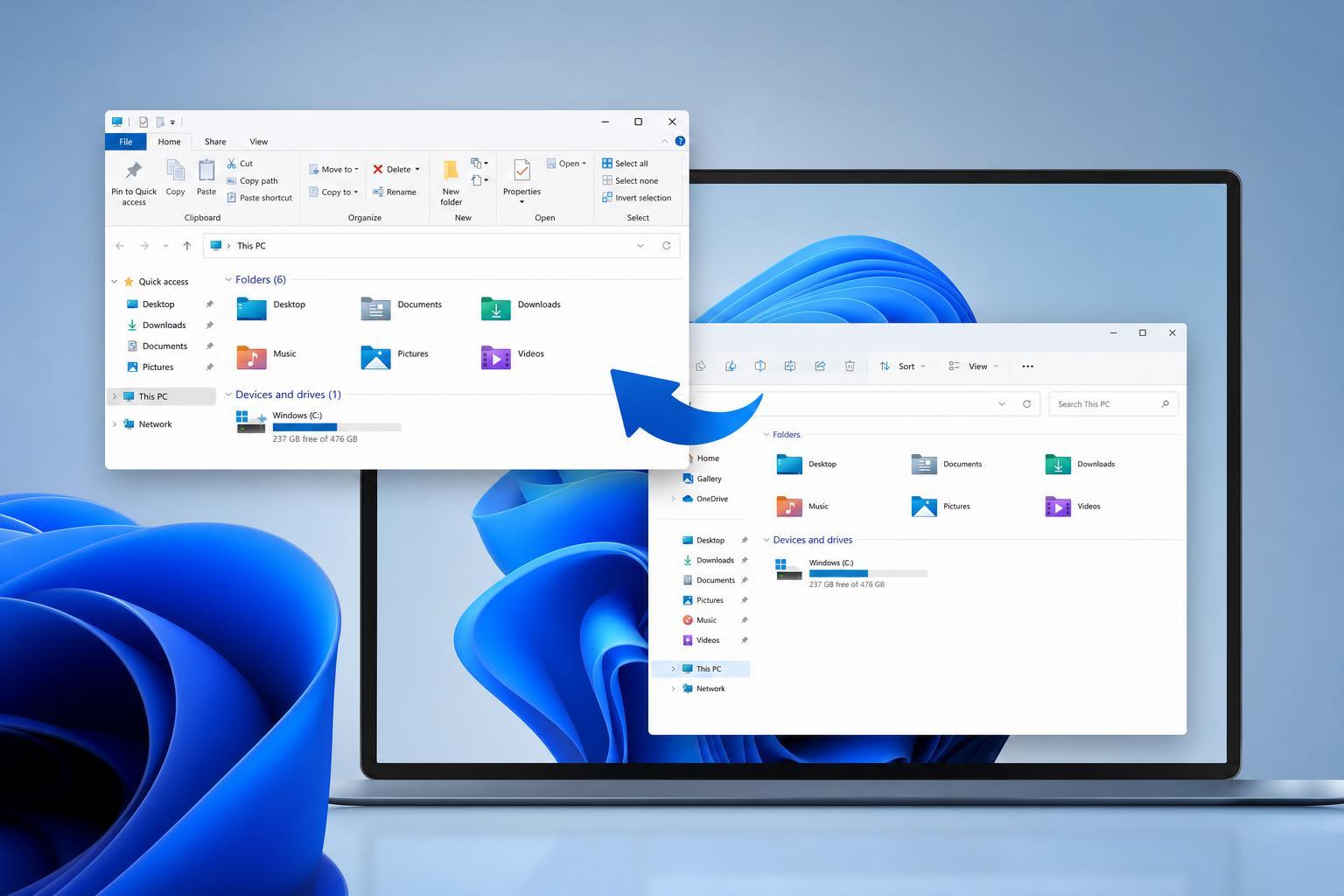
What Changed in Windows 11 File Explorer
In Windows 11, Microsoft redesigned File Explorer to use a cleaner toolbar with fewer buttons visible at once. The older ribbon placed more commands across tabs such as Home, Share, and View. Some users prefer the old layout because it exposes more actions without extra clicks.
The Safest Way to Get Ribbon-Like Controls Back
If your goal is simply to reach the same common commands the ribbon offered, start with the built-in options first. Windows 11 still provides most of the same functions, just in different places.
- Use the right-click context menu for file actions like copy, rename, delete, and properties.
- Open the View menu in File Explorer to change layout, sorting, and show or hide items.
- Use the toolbar buttons at the top for common tasks such as new folder and sort options.
- Press Alt to reveal some classic keyboard-access menus in certain Windows builds.
Method 1: Use a Registry-Based Compatibility Tweak
Some users restore the classic ribbon by applying a registry tweak or using a third-party utility that changes File Explorer behavior. This approach can work, but it is not officially supported by Microsoft and may break after Windows updates.
- Create a restore point so you can undo the change if needed.
- Download a well-known utility that specifically advertises restoring the classic File Explorer interface or ribbon.
- Run the tool as an administrator and follow its on-screen instructions.
- Restart File Explorer or sign out and back in if the change does not appear immediately.
- Check File Explorer to confirm the ribbon or classic layout has returned.
Method 2: Bring Back Specific Classic Functions Without the Full Ribbon
If you do not want to modify the interface heavily, you can restore or access individual ribbon-era behaviors instead of the entire toolbar.
- Use Shift + right-click to expose additional file options in many cases.
- Enable file name extensions and hidden items from the View menu when needed.
- Use the address bar to copy file paths quickly.
- Pin frequently used folders to Quick Access for faster navigation.
- Add common folders to the left navigation pane if you use them often.
If the Classic Ribbon Stops Working After an Update
Windows updates can undo system tweaks that change File Explorer behavior. If the classic ribbon disappears again, the most likely cause is that an update reset the modified files or settings.
- Check whether Windows recently installed an update.
- Rerun the same utility or reapply the same tweak you used before.
- Make sure the tweak is still compatible with your current Windows 11 version.
- If the tool no longer works, remove it and use the built-in File Explorer options instead.
Should You Restore the Classic Ribbon?
Restoring the old ribbon makes sense if you are used to the Windows 10 workflow and prefer having more commands visible at once. It is less useful if you only need a few common actions, since Windows 11 already exposes most of them in the modern interface.
- Choose the classic ribbon if you work with File Explorer all day and prefer the older workflow.
- Stick with the default Windows 11 interface if you want better long-term compatibility.
- Use built-in menus only if you just need a few frequent file operations.
A Practical Alternative: Learn the Fastest Windows 11 Shortcuts
If you decide not to restore the ribbon, learning a few Windows 11 File Explorer shortcuts can give you much of the same speed without changing the system interface.
- Ctrl + Shift + N for a new folder
- Alt + Enter for file or folder properties
- Shift + Delete to permanently delete a file
- Ctrl + L or Alt + D to focus the address bar
- F2 to rename a selected item
These shortcuts are especially helpful if you mainly miss the ribbon because it made common tasks easy to reach.





