
If the Cast button has disappeared from Chrome, you may not be able to quickly send a tab, desktop, or video to a Chromecast or other casting device. The good news is that in many cases the feature is still available — it just needs to be shown again or made available in the right place.
This guide walks through the most common reasons the Cast option goes missing and the practical ways to get it back on Chrome’s toolbar.
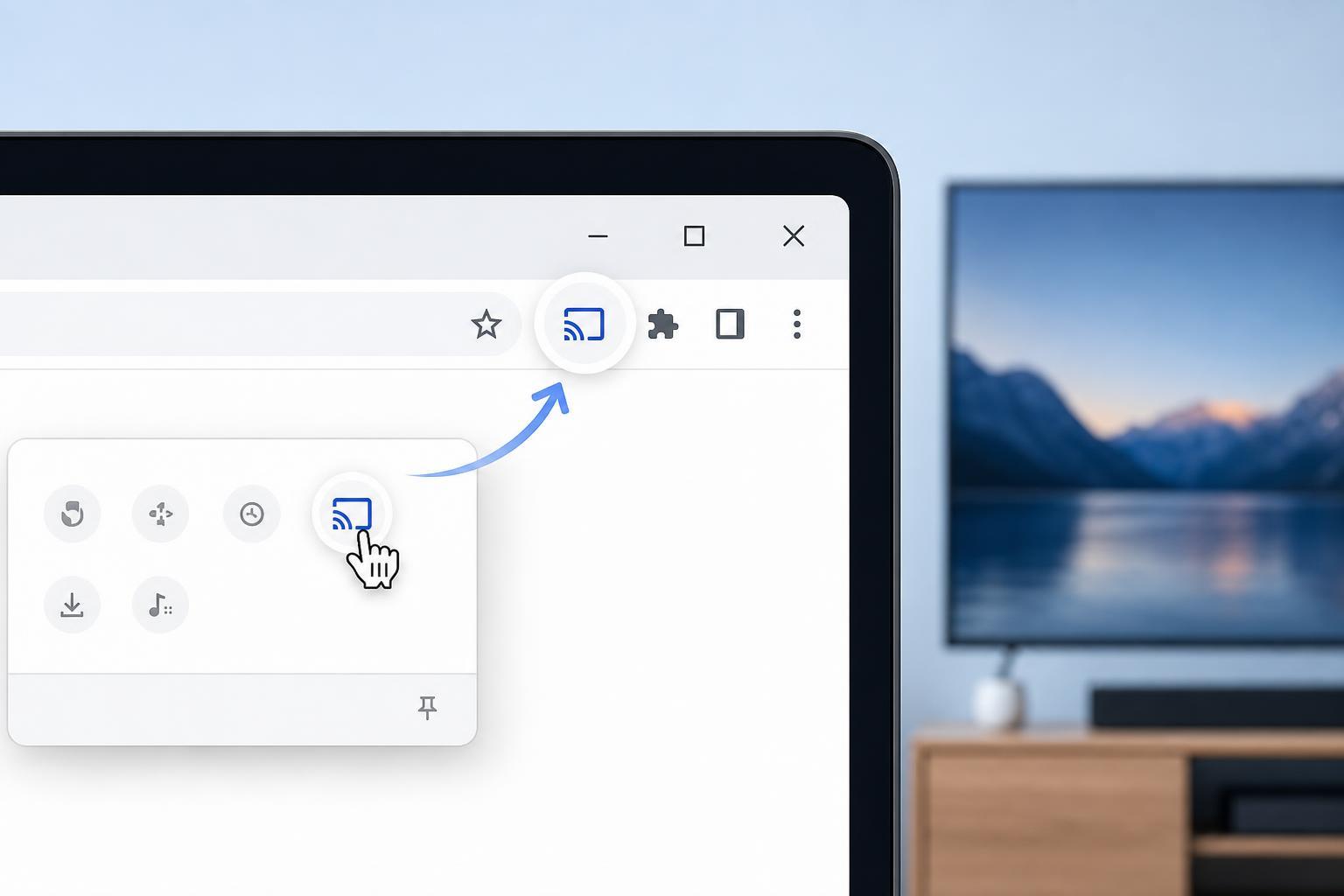
Why the Cast Button Disappears
In Chrome, the Cast command is often hidden rather than removed. It may no longer be pinned to the toolbar, it may be inside the browser menu, or Chrome may not currently detect any cast-compatible devices on your network.
- The Cast button was removed from the toolbar by accident
- Chrome is not on the same network as the casting device
- The casting device is offline or not reachable
- An extension, policy, or profile setting is affecting Chrome’s toolbar
- Chrome has an outdated or temporary browser issue
Check the Chrome Menu First
Before changing anything else, open Chrome’s main menu and look for Cast there. In many cases, the option is still available even when the toolbar button is not.
- Open Chrome on your computer.
- Click the three-dot menu in the top-right corner.
- Look for Cast in the menu.
- If you see it, open it and verify whether Chrome detects your casting device.
If Cast appears in the menu, that usually means the feature is still available and only needs to be brought back to the toolbar.
Add Cast Back to the Toolbar
If Cast is available in the menu, you can usually restore it by pinning it from the menu or by using Chrome’s toolbar customization options.
- Open the Chrome menu and select Cast if it is listed.
- When the Cast panel opens, check whether Chrome finds a device.
- If a Cast icon appears in Chrome’s toolbar area, right-click it and look for a pin option if available.
- If Chrome’s toolbar customization menu appears, make sure Cast is set to show on the toolbar or in the browser controls.
Make Sure Chrome Can Detect a Casting Device
If Chrome cannot find any casting devices, the Cast option may not appear where you expect it. Chrome usually needs a compatible device on the same network before it becomes useful.
- Confirm that your Chromecast, smart TV, or streaming device is powered on
- Make sure your computer and casting device are connected to the same Wi-Fi network
- Check that the device is not in a setup or update screen
- If you use multiple networks at home, confirm both devices are on the same one
Check for a Chrome Toolbar or Extension Conflict
Some browser extensions can hide, move, or interfere with toolbar buttons. This is less common than a network issue, but it is worth checking if the Cast option was present before and suddenly disappeared.
- Open Chrome and click the Extensions button, if visible.
- Temporarily disable recently added extensions related to media, casting, or browser customization.
- Reload Chrome and check whether Cast returns to the menu or toolbar.
- If needed, test Chrome in a clean profile or Incognito window to see whether an extension is the cause.
Update Chrome
An outdated Chrome build can cause features to behave unpredictably, including toolbar controls and device discovery. Updating the browser is a simple way to rule out a bug in your current version.
- Open Chrome’s menu.
- Go to Help, then About Google Chrome.
- Let Chrome check for updates.
- Restart Chrome if an update is installed.
Check Whether Chrome Policies Are Controlling the Toolbar
On some work-managed or school-managed systems, browser policies can hide features or limit toolbar customization. If you are on a managed device, the Cast option may not be fully under your control.
- Look for a work or school account managing the browser
- Check whether toolbar icons are locked or missing policy-controlled options
- Ask your administrator whether Chrome policies restrict casting or toolbar buttons
Try a Different Chrome Profile
If the Cast button is missing only in one Chrome profile, the issue may be tied to that profile’s settings, sync state, or extension set.
- Open a second Chrome profile if you have one.
- Check whether Cast appears there.
- If it does, compare extensions and settings between the two profiles.
- If needed, create a fresh profile to test whether the problem is profile-specific.
When the Cast Option Still Won’t Show Up
If Cast is missing from both the menu and the toolbar, the issue is usually broader than a simple toolbar setting. At that point, the most useful checks are network discovery, Chrome updates, extensions, and device compatibility.
- Verify that your casting device supports the type of casting you want to use
- Confirm that Chrome is allowed to discover devices on your network
- Test with another website or tab to see whether casting works at all
- Check whether the issue happens in one profile, one user account, or every Chrome window
What to Do Next
In most cases, the missing Cast option is restored by checking the Chrome menu, confirming a compatible device is online, and making sure the browser is not being affected by an extension or policy. If you can see Cast in the menu, you are usually very close to getting it back on the toolbar.
If you cannot find Cast anywhere in Chrome, focus on device discovery and browser management settings first. That usually reveals whether the problem is with Chrome itself, the network, or the device you are trying to cast to.





