
Windows Defender, now part of Windows Security, may quarantine or remove a file if it thinks the file is unsafe. In some cases, the file is a false positive or something you trust and need back. This guide shows how to find those files, restore them when it is safe to do so, and avoid restoring something genuinely harmful.
Check Windows Security Protection History
The first place to look is Protection history. This is where Windows Security records items that were quarantined, blocked, or removed. If the file is still available there, restoring it is usually straightforward.
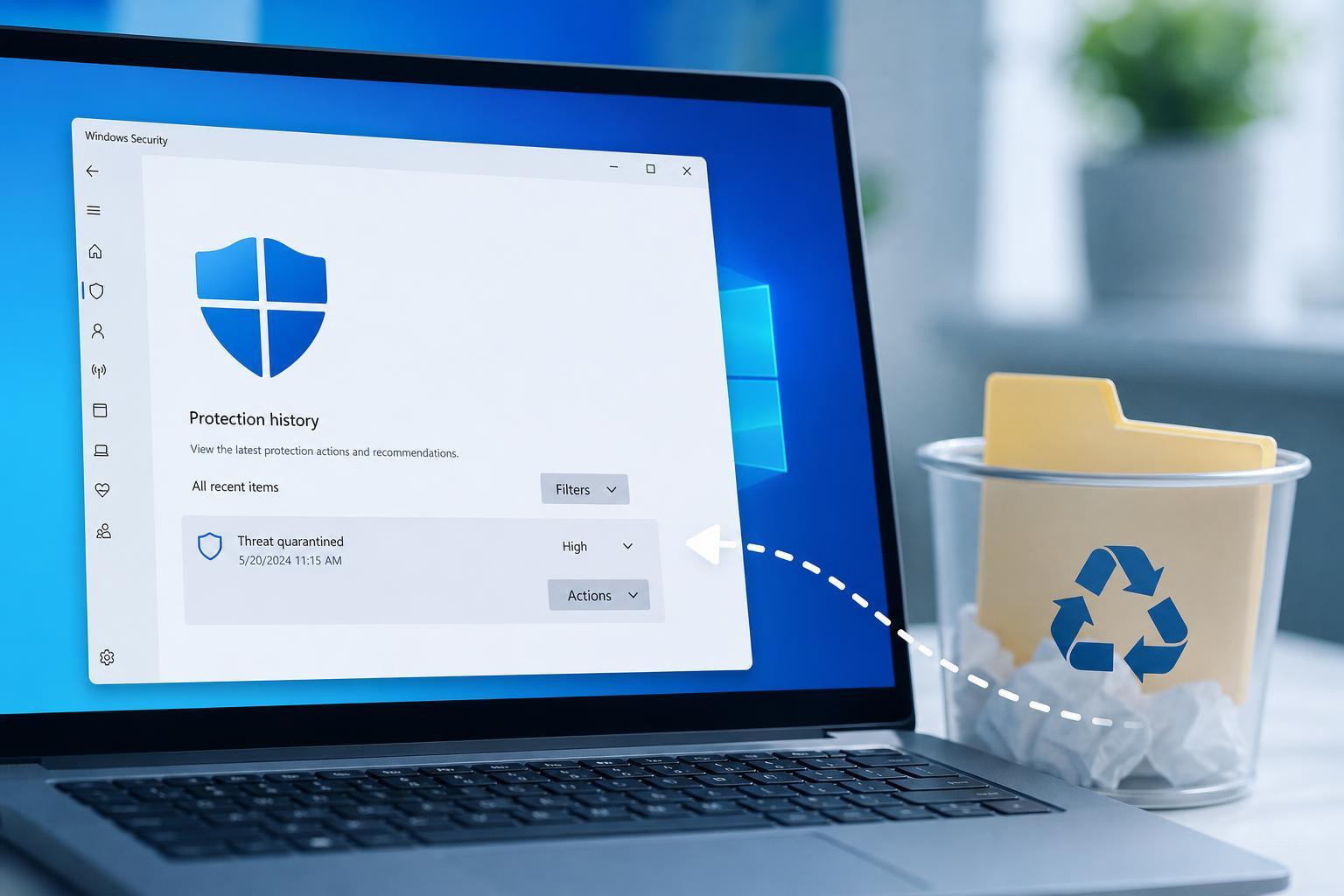
- Open Start and search for Windows Security, then open the app.
- Select Virus & threat protection.
- Under Current threats, choose Protection history.
- Look for the item that matches the file name or the time it was detected.
- Select the item to view details and available actions.
If the file was only quarantined, you should usually see a Restore or Allow on device option. If you choose to restore it, Windows will put it back where it came from or allow it to run again, depending on the threat entry.
Restore the File from Quarantine
When Windows Defender quarantines a file, it moves it to a protected location instead of deleting it permanently. That means the file can often be restored directly from Protection history.
- Open the Protection history entry for the file.
- Review the details to confirm it is the file you want.
- Select Restore if it is available.
- If prompted, confirm your choice and approve any security warning.
If the File Was Deleted, Check Other Recovery Options
If Windows Security already deleted the file, restore may not be available. In that case, your best option is to recover the file from a backup, cloud sync service, or file recovery tool before it is overwritten.
- Recycle Bin, if the file was moved there instead of fully deleted
- File History or another backup you use regularly
- OneDrive or another cloud storage service with version history
- A local backup made with Windows Backup or third-party software
Restore the File from Backup or Cloud Storage
If you use File History, OneDrive, or another backup system, search for the file name or the folder it was stored in. Restore the most recent clean copy you trust.
- Open the backup or cloud storage app you use.
- Search for the missing file or the folder where it was stored.
- Check older versions if the file was changed before it was removed.
- Restore it to a safe location first, such as the Desktop or Documents, so you can verify it before replacing the original.
If Windows Security Removed a File You Trust
Sometimes Defender flags a legitimate program, installer, mod, script, or game file as suspicious. If you are confident the file is safe, you may be able to allow it without restoring the same detection again and again.
- Open Windows Security.
- Go to Virus & threat protection and then Protection history.
- Select the detection entry.
- Choose Allow on device or Restore, if available.
- If the file keeps being blocked, add the file or its folder as an exclusion only after you are certain it is safe.
When the Restore Button Is Missing
If you do not see a restore option, the file may have been fully removed, or the entry may be an older detection that is no longer recoverable. That usually means you need to rely on backups or file recovery rather than Windows Security itself.
- The file was deleted instead of quarantined
- The detection record was cleared by cleanup
- Your organization’s security policy blocked restoration
- The file was removed from temporary quarantine storage
How to Prevent This from Happening Again
If a file is important and repeatedly gets flagged, it helps to confirm whether the detection is valid and to keep a backup before you make any changes. For safe files that are consistently misidentified, you can reduce future interruptions by keeping them in a known location and updating Defender definitions.
- Keep regular backups of important folders
- Download software only from trusted sources
- Update Windows Security signatures regularly
- Check whether the file is a false positive before allowing it
- Store installers and game mods in separate folders so they are easier to review
What to Do If You Still Cannot Recover It
If the file is gone from Protection history and you have no backup, recovery may still be possible with file recovery software, but results are not guaranteed. Stop writing new data to the affected drive as much as possible, because new files can overwrite the deleted one.
Which Fix Should You Try First?
Start with Protection history, because that is the fastest way to restore a quarantined file. If the file is not there or no restore option exists, move on to backups, cloud version history, or recovery tools. The right choice depends on whether Defender quarantined the file, deleted it, or already cleared the record.





