
If your iPhone Home Screen has become cluttered, scattered, or hard to navigate, iOS includes a built-in option to reset the Home Screen layout back to its default arrangement. This can quickly restore Apple’s standard app placement and make it easier to find the apps that came with your iPhone.
This reset is useful if you moved apps around too much, changed folders, or want to return to a cleaner starting point without erasing your photos, messages, or personal data.
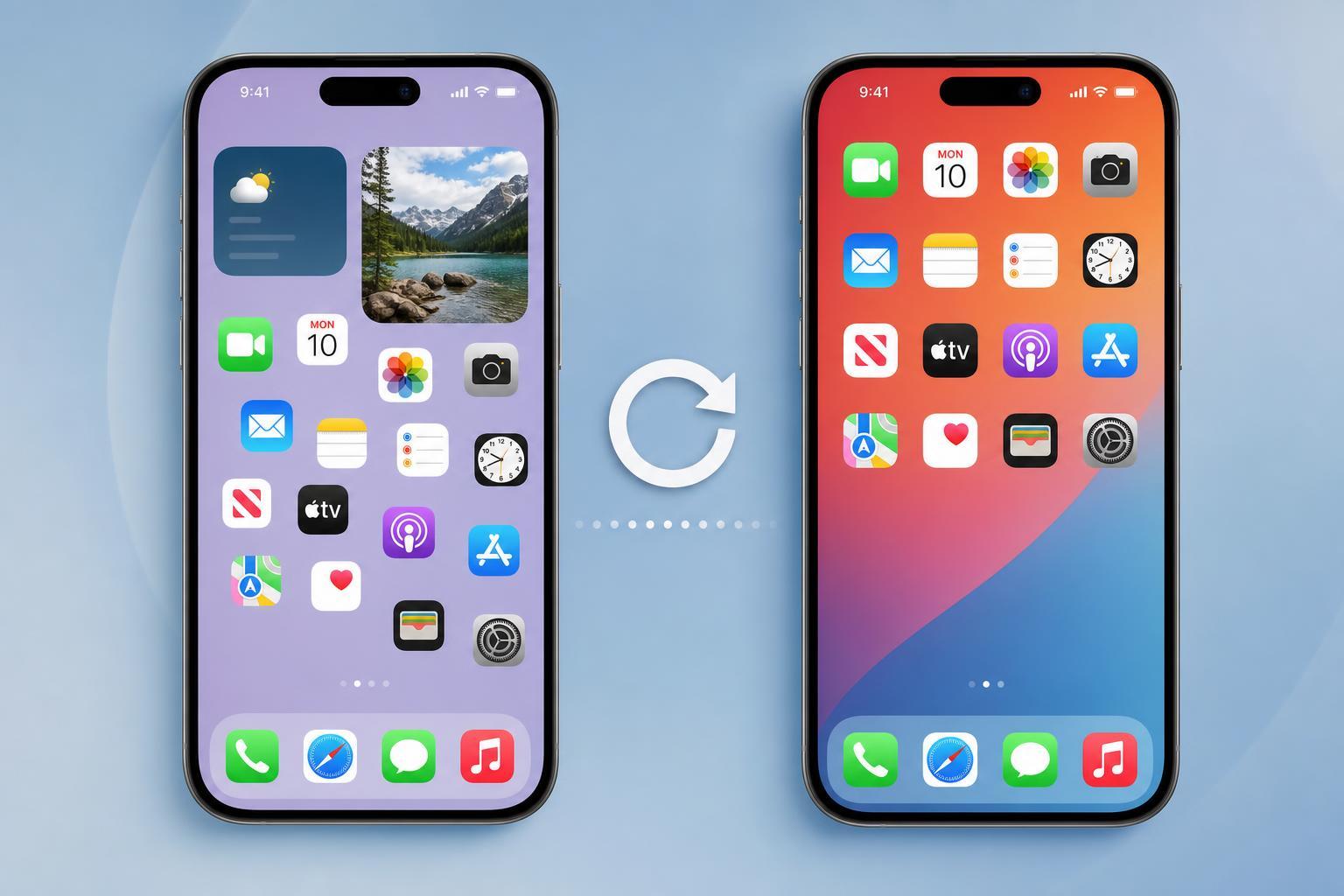
What the Home Screen reset does
Resetting the Home Screen layout puts Apple’s default apps back in their original positions as closely as iOS allows and removes any custom folder organization you created. Apps you downloaded from the App Store stay on your iPhone, but they are moved out of folders and returned to later pages of the Home Screen in alphabetical order.
How to reset the iPhone Home Screen layout
- Open the Settings app on your iPhone.
- Tap General.
- Scroll down and tap Transfer or Reset iPhone.
- Tap Reset.
- Select Reset Home Screen Layout.
- Confirm the reset when prompted.
After you confirm, your Home Screen will return to the default arrangement. Built-in Apple apps will be restored to their standard positions, and downloaded apps will be moved back to the main app pages.
What to expect after the reset
- Custom folders are removed.
- App icons return to the default Home Screen order.
- Downloaded apps remain installed.
- The App Library is not erased.
- Your widgets and wallpaper are not deleted, but widget placement may need to be adjusted again.
When this option is especially useful
It is also helpful if you are handing an iPhone to someone else and want the interface to look familiar again before setting up a more personal layout later.
Before you reset
If the reset option is not where you expected
On newer versions of iOS, Apple has moved some reset-related options into the Transfer or Reset iPhone menu. If you do not see Reset Home Screen Layout immediately, check inside the Reset submenu rather than looking for it on the main General screen.
If you still cannot find it, use the Settings search field and search for "reset home screen layout" to jump directly to the correct setting.





