
If your iPhone was splashed, dropped in water, or exposed to heavy rain, you may notice muffled speakers or charging issues afterward. The good news is that you can often help push water out of the speaker and port openings without opening the phone or using risky tricks.
This guide explains the safest ways to eject water from an iPhone, what not to do, and how to tell when the phone needs more drying time or professional help.
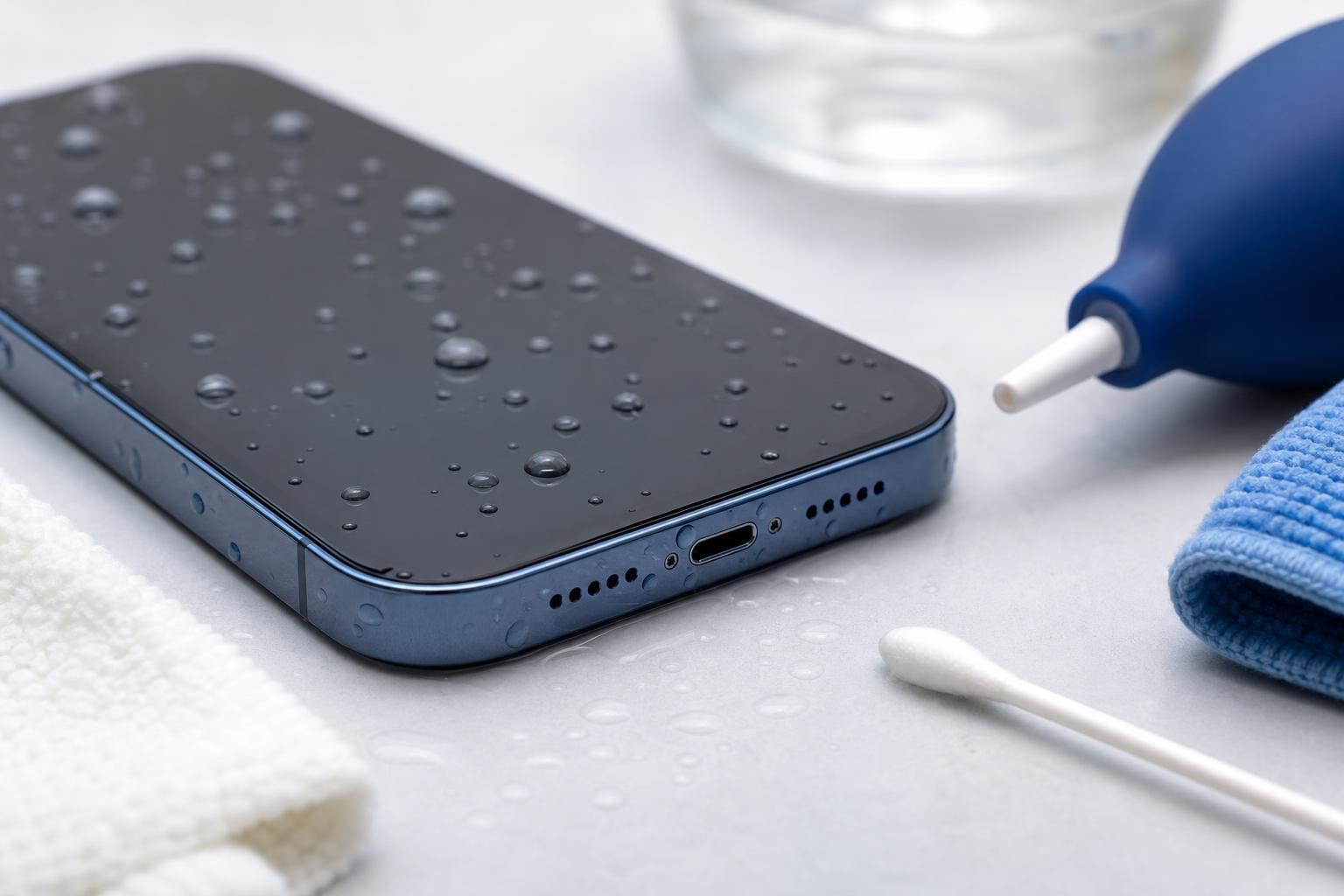
First: What to Do Right Away
- Unplug the iPhone from any cable or accessory immediately.
- If the phone is powered on, keep using it only if it is working normally and you do not see signs of liquid damage that require immediate shutdown.
- Remove any case, screen protector edges that trap moisture, and accessories such as a wallet or pop socket.
- Gently wipe the outside of the phone with a soft, lint-free cloth.
- Hold the iPhone with the speaker or port opening facing downward so gravity can help water drain out.
Use the Built-In Water Ejection Feature if Available
Some iPhone models and apps can play a low-frequency sound that helps move water out of the speaker grille. Apple does not provide a universal built-in water-eject button in iOS, but many people use a trusted shortcut or sound-based method designed for this purpose.
- Use a reputable water-ejection shortcut only if you trust the source and understand what it does.
- Play a short low-frequency tone through the affected speaker, then let the phone drain afterward.
- Repeat only a few times and stop if the sound becomes distorted or the phone sounds normal again.
How to Dry the Port and Speaker Safely
- Leave the iPhone in a dry, well-ventilated room.
- Keep the charging port facing downward when possible.
- Let the phone sit without charging for several hours if it was recently exposed to water.
- If the alert says liquid is detected in the Lightning or USB-C port, do not force a cable in until the warning clears.
- Check the sound and charging behavior again after enough drying time has passed.
What Not to Put in Rice or Other Drying Materials
Rice is a common suggestion, but it is not the best choice for an iPhone. Small particles and dust can get into the ports, and rice does not actively remove water from inside the device very well.
- Avoid rice if you can.
- Do not insert cotton swabs, paper towels, pins, or other objects into the port or speaker openings.
- Do not charge the iPhone if moisture may still be present in the port.
How to Tell Whether Water Is Still Inside
A phone that still has water trapped in the speaker or port often sounds different before it fully dries.
- Muffled or crackling speaker sound
- Charging warning messages
- Intermittent charging
- Mic or call audio sounding faint or distorted
- Moisture visible in the port or under the screen edges
When to Stop and Get Help
If the iPhone has been submerged for a long time, will not turn on, shows persistent liquid-detection warnings, or continues to have audio and charging issues after drying, it may need inspection by Apple or a repair shop.
- The phone was underwater for an extended period
- The display shows signs of internal condensation
- The battery behaves unusually after the incident
- The speaker stays distorted after a full drying period
- Charging fails even after the port is dry
Best Practices for the Next Time It Happens
- Use a waterproof case if you regularly use your phone near water.
- Keep the device out of steamy bathrooms and wet pockets when possible.
- Check that charging cables and ports are dry before plugging in.
- Make sure your iPhone case does not trap water around the speaker or port openings.
What This Fix Can and Cannot Do
Water ejection methods can help clear droplets from the speaker or port opening, but they are not a cure for internal liquid damage. If the phone starts working normally again, that is a good sign, but it is still worth watching for delayed problems over the next day or two.





