
If message alerts are distracting you while driving, Apple CarPlay gives you a few ways to reduce or stop them. The right fix depends on whether you want to silence message notifications entirely, stop Siri from reading them aloud, or only disable them in the car.
What Apple CarPlay Can and Cannot Silence
CarPlay mostly mirrors notification behavior from your iPhone, but it also adds its own driving-focused features. That means message notifications may appear on the CarPlay screen, be announced by Siri, or both. In some cases, you may need to adjust more than one setting to fully stop them.
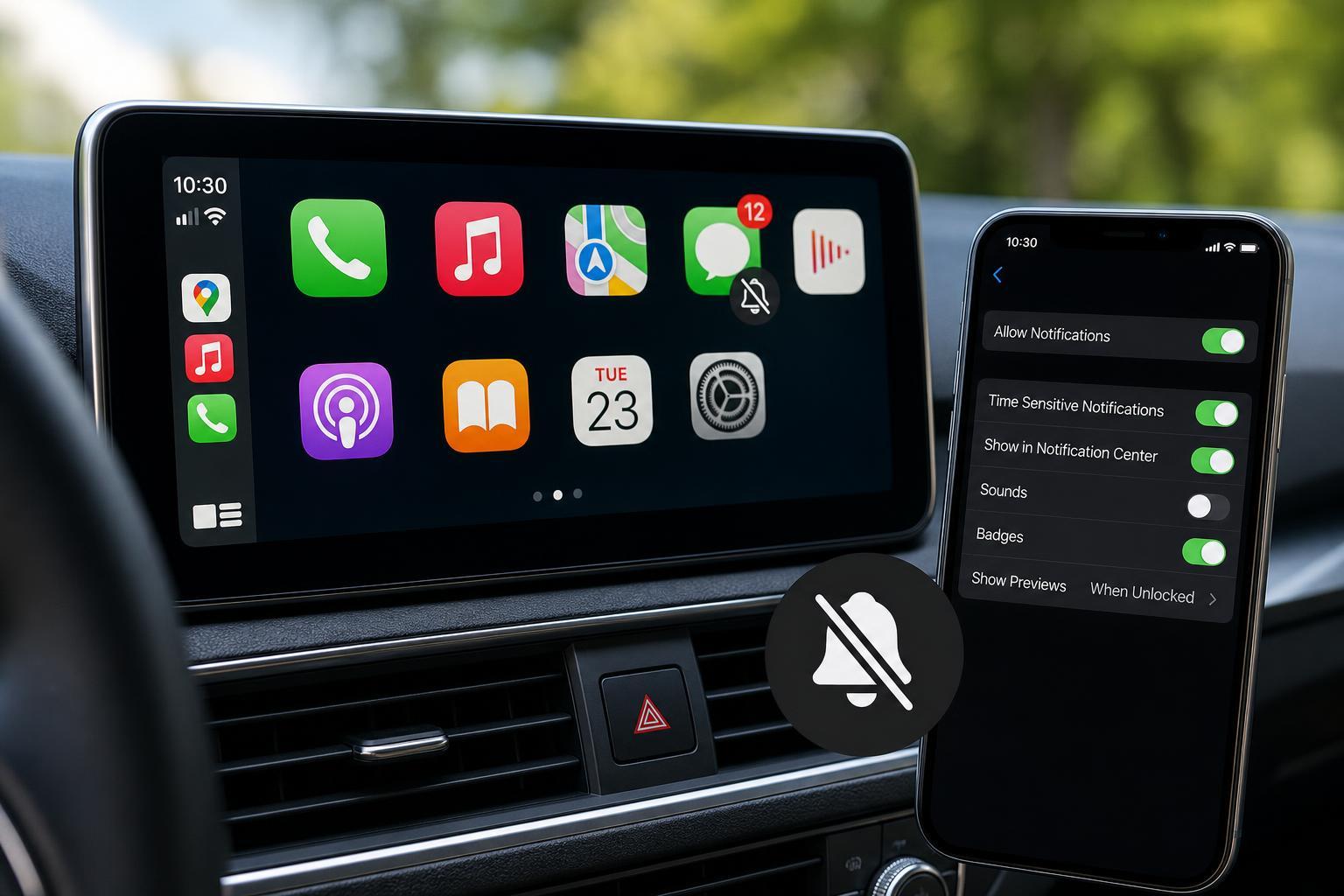
Turn Off Message Announcements with Siri
If the main issue is Siri reading incoming messages while you drive, disable announcement settings first. This is the most direct way to stop audio interruptions without changing how messages work on your phone.
- Open Settings on your iPhone.
- Tap Notifications.
- Tap Announce Notifications.
- Turn off Announce Notifications completely, or select Messages and turn off announcements just for that app.
Stop Message Alerts from Showing in CarPlay
To reduce the banners and alerts that appear on the CarPlay display, check the Messages notification settings on your iPhone.
- Open Settings.
- Tap Notifications.
- Tap Messages.
- Adjust the notification options so alerts are less intrusive, or turn off Allow Notifications if you want to stop them completely.
- If available, review the notification style and lock screen settings so Messages do not appear the way you do not want in the car.
Use Focus Mode While Driving
If you want a broader quiet mode for the road, Driving Focus is often the best choice. It can silence calls and messages while still allowing important interruptions if you customize it that way.
- Open Settings on your iPhone.
- Tap Focus.
- Choose Driving.
- Set the focus behavior you want, including who can notify you and whether notifications are silenced automatically when connected to CarPlay or when driving is detected.
- If needed, review allowed people and apps so only important alerts get through.
Check CarPlay Notification Settings in the Car’s Display
Some vehicles and head units provide their own CarPlay-related notification options. These settings are not available in every car, but it is worth checking if message alerts still appear after adjusting iPhone settings.
- Look for a notifications, sound, or CarPlay settings menu in your vehicle infotainment system.
- Check whether message alerts can be muted or summarized.
- Review any driver distraction or announcement options that may still be enabled in the car.
If You Only Want to Stop Read-Aloud Messages
Some people want to keep visual alerts but stop Siri from announcing them. In that case, focus on Announce Notifications rather than turning off Messages notifications entirely. That preserves the on-screen alert while removing the spoken interruption.
What to Try If Message Notifications Still Appear
If notifications keep showing in CarPlay after changing the iPhone settings, check these common causes:
- Announce Notifications is still enabled for Messages or for CarPlay-connected use.
- Driving Focus is not configured to silence notifications while driving.
- The vehicle has its own notification settings enabled.
- You adjusted notification settings for one app, but the Messages app itself still allows alerts on the lock screen or in banners.
- Your iPhone or car software needs to be updated before all notification options appear correctly.
A Practical Setup for Most Drivers
- Turn off Announce Notifications if spoken alerts are the main problem.
- Use Driving Focus if you want broader silence while connected to CarPlay.
- Leave Messages notifications enabled only if you still want them on the iPhone outside the car.
- Check the car’s infotainment settings if alerts still appear after the iPhone changes.
For most drivers, the best balance is to silence message announcements and use Driving Focus while driving. That keeps CarPlay calmer without making you miss every message notification everywhere else.





