
If Chrome is signed in to the wrong Google account, sharing a computer with someone else, or syncing data you no longer want tied to that browser profile, you can remove the account in a few different ways. The exact steps depend on whether you want to sign out of Chrome, stop sync, or fully remove the browser profile from the device.
First, Decide What You Actually Want to Remove
Before you start, it helps to know the difference between the main options. If you only want to stop Chrome from syncing bookmarks, passwords, history, and tabs, you can sign out or turn off sync. If you want to remove all traces of that Chrome profile from the computer, you should delete the browser profile instead.
- Sign out of Chrome: disconnects the Google account from that browser session.
- Turn off sync: keeps Chrome signed in, but stops syncing data between devices.
- Remove the Chrome profile: deletes the local browser profile from that device.
- Remove the Google account from the device: on phones and tablets, this may also affect other Google apps on the device.
How to Remove a Google Account From Chrome on a Computer
On Windows, Mac, or Linux, Chrome uses profiles. A profile can be signed in to one or more Google services, and it can store bookmarks, extensions, history, passwords, and settings separately from other profiles.
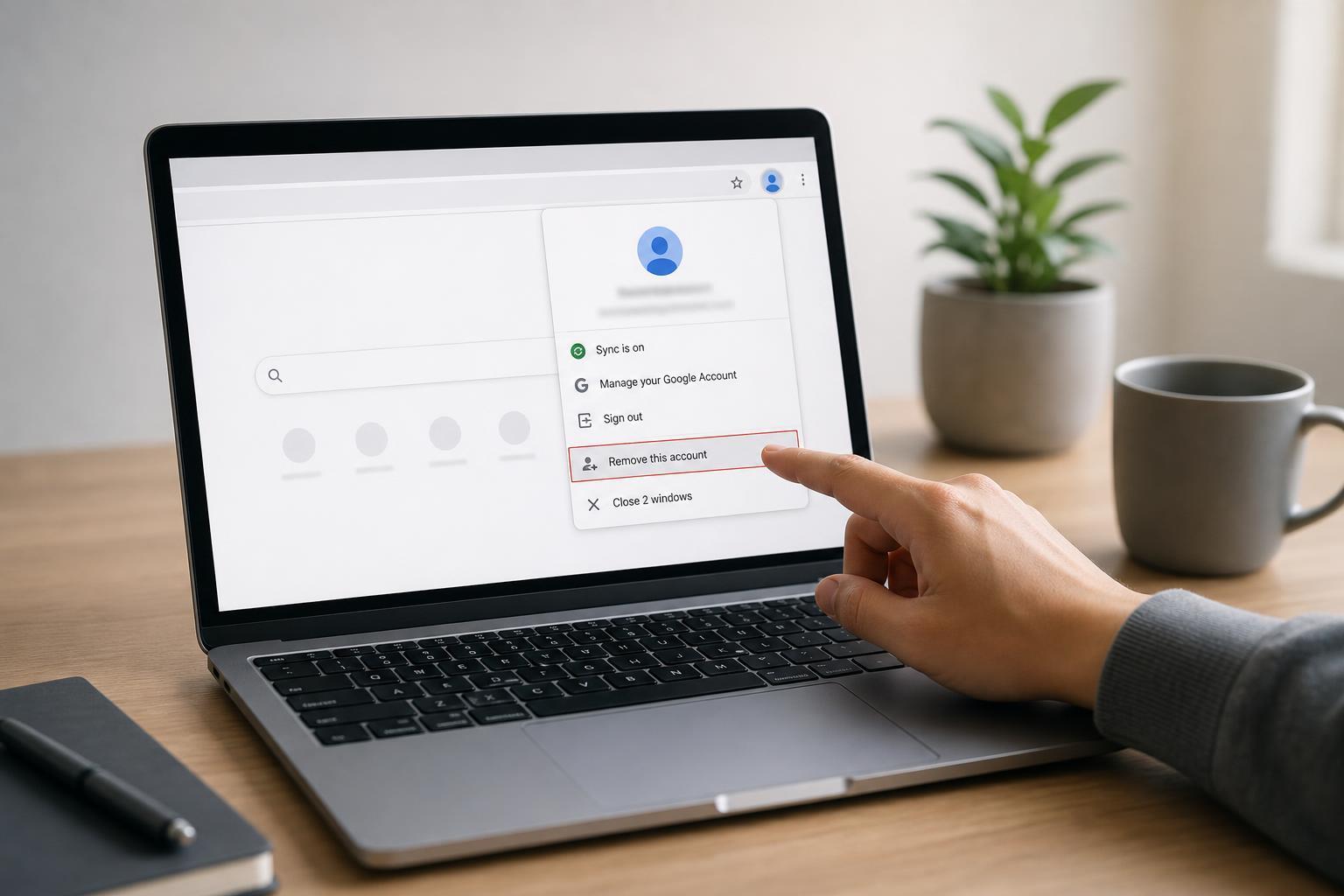
- Open Chrome and click your profile icon in the top-right corner.
- If you only want to stop syncing, click Sync is on or the account name, then choose Turn off sync.
- If you want to sign out of the account in Chrome, choose Sign out or Turn off sync and sign out, depending on what Chrome shows.
- If you want to remove the local Chrome profile entirely, click the profile icon again and select the gear icon or Manage profiles.
- Find the profile tied to the Google account you want to remove and choose Delete.
- Confirm the deletion when Chrome asks.
How to Remove a Google Account From Chrome on Android
On Android, Chrome usually follows the Google account added to the phone or tablet. In many cases, removing the account from Chrome means removing it from the device’s account settings, not just from the browser app.
- Open the Settings app on your Android device.
- Tap Passwords & accounts, Accounts, Users & accounts, or a similar account menu.
- Select the Google account you want to remove.
- Tap Remove account.
- Confirm the removal if prompted.
How to Remove a Google Account From Chrome on iPhone or iPad
Chrome on iPhone and iPad does not work the same way as Chrome on desktop. Your Google account is usually signed in inside the app itself, and you can remove it without changing the Apple device’s system accounts.
- Open Chrome on your iPhone or iPad.
- Tap the three dots menu.
- Open Settings.
- Tap your Google account name or email address.
- Choose Sign out and turn off sync, or remove the account from Chrome if that option appears.
- Confirm your choice.
If You Want to Keep Chrome but Use a Different Account
If your goal is to switch accounts rather than remove Chrome completely, create a separate browser profile on desktop or sign back in with the new account after signing out. This keeps bookmarks, extensions, and saved logins more organized and avoids mixing personal and work browsing data.
- Open the profile menu in Chrome.
- Choose Add or Manage profiles.
- Create a new profile or sign in with the account you want to use.
- Set the new profile as needed and leave the old one deleted or signed out.
What Happens to Your Data After Removal?
Removing an account from Chrome does not always erase everything associated with it. If sync was on, Chrome may have already uploaded bookmarks, passwords, extensions, and history to your Google account. Those items can still exist in the cloud and may return if you sign in again.
- Local browser data on that device may be deleted if you remove the profile.
- Synced data can remain in your Google account.
- Downloads stored in folders on the device are usually not deleted automatically.
- Extensions may be removed from that Chrome profile, but not from your Google account everywhere else.
If the Account Keeps Reappearing
If Chrome keeps signing back in, the account may still be added at the device level, especially on Android, or Chrome may be restoring the profile from sync. In that case, remove the account from the device account settings, delete the Chrome profile, and then check whether sync is still enabled on another device.
Before You Remove It
- Check whether important bookmarks, passwords, or notes are saved only in that profile.
- Export bookmarks if you may need them later.
- Make sure you know the sign-in details for the account you want to keep.
- If this is a work or school account, confirm whether the device is managed by your organization.
Once you know whether you need to sign out, stop sync, or delete a profile, removing a Google account from Chrome is straightforward. The safest approach is to remove only the level of access you actually need, especially if the account contains bookmarks or passwords you still want to keep.





