
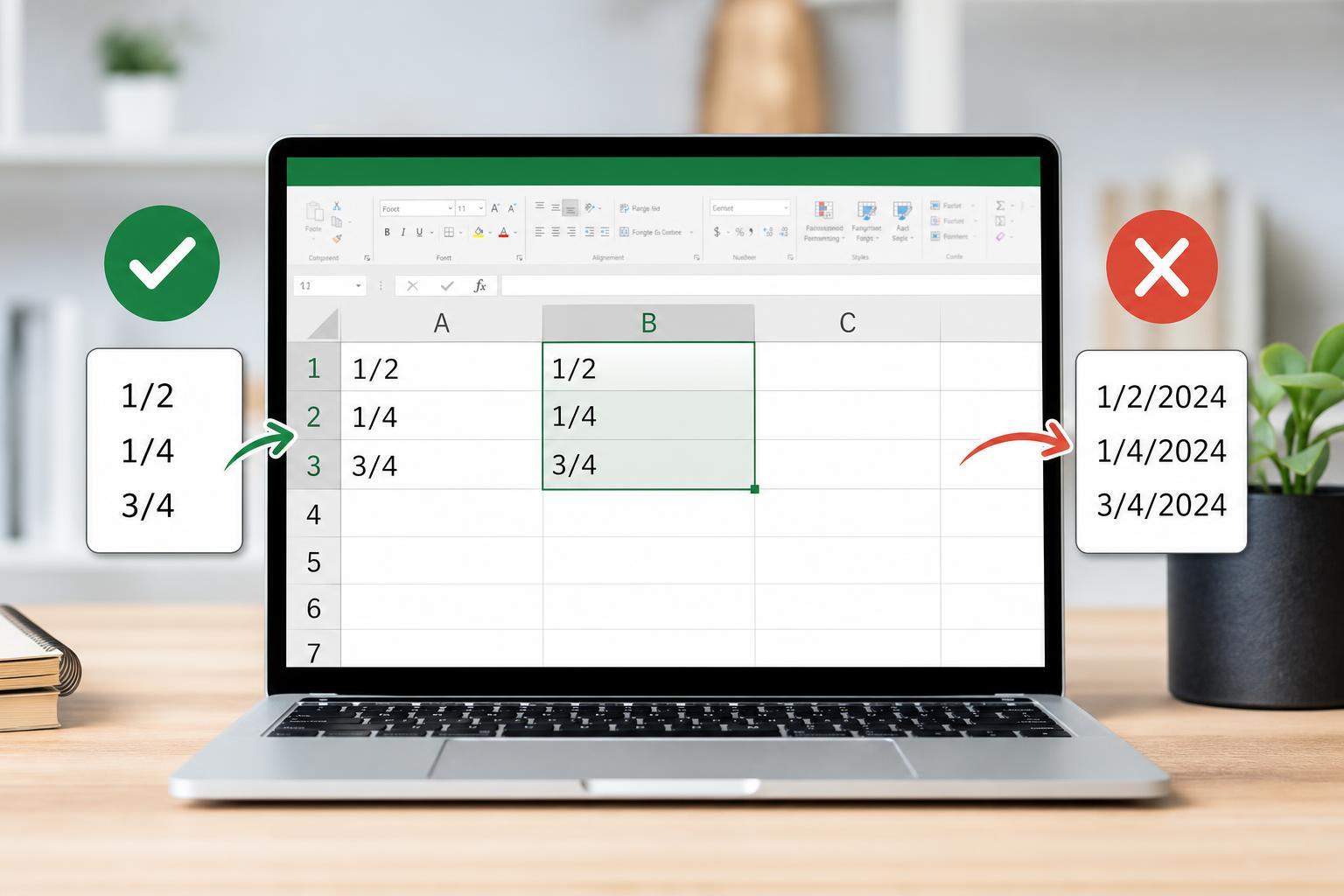
Excel often assumes that entries such as 1/2, 3/4, or 5/6 are dates instead of fractions. That can be frustrating when you are entering measurements, recipes, scores, or other numeric data that should stay as fractions. The good news is that you can stop Excel from making that change by controlling how the cells are formatted and how the data is entered.
Why Excel Turns Fractions into Dates
Excel tries to interpret what you type based on common patterns. If you enter something that looks like a date, such as 1/2, Excel may automatically convert it to January 2 or 2-Jan, depending on your regional settings and cell formatting.
Format the Cells as Fractions Before Typing
The easiest fix is to format the cells as fractions before entering the data. When Excel knows you want a fraction, it will display and store the value correctly instead of guessing that it is a date.
- Select the cells where you want to enter fractions.
- Right-click and choose Format Cells, or press Ctrl+1.
- Open the Number tab.
- Choose Fraction.
- Pick the fraction style you want, such as up to one digit, two digits, or as many digits as necessary.
- Click OK, then enter your values again.
Enter Fractions Using a Leading Zero or Apostrophe
If Excel still insists on treating your input as a date, you can force it to keep the entry as text by typing an apostrophe first. For example, type '1/2. Excel will display 1/2 without converting it to a date.
This method is useful when you only need the fraction to appear exactly as typed. However, the value is stored as text, so Excel will not use it in calculations unless you convert it later.
Use an Equal Sign for Simple Fraction Calculations
You can also type a fraction as a formula-like entry by starting with an equal sign, such as =1/2. Excel will calculate the result as 0.5 rather than converting it into a date.
This works well when you want the numeric value of the fraction. It is especially useful if the number will be used in formulas or charts.
Check Your Region and Slash-Date Settings
In some regions, Excel is more likely to interpret slash-separated values as dates because the local date format uses slashes. If Excel keeps converting fractions even when you expect it not to, your system or Excel regional settings may be influencing how the program reads the entry.
- Try formatting the cells as Fraction before typing.
- Enter the value with a leading apostrophe if you only need the displayed text.
- Use =1/2 if you want the numeric result 0.5.
- Check whether the worksheet or workbook already has date formatting applied to the cells.
Fix Fractions That Were Already Converted to Dates
If Excel has already changed your fraction into a date, you usually need to re-enter it after correcting the cell format. Changing the number format after the fact may only change how the date is displayed, not what the cell actually contains.
- Select the affected cells.
- Change the format to Fraction or General.
- Delete the incorrect date value.
- Type the fraction again.
- If needed, use a leading apostrophe or an equal sign to force the result you want.
When You Paste Fractions into Excel
Pasting data from another program can also cause Excel to reinterpret fractions as dates. If you are importing a list of values, Excel may apply its own formatting rules as soon as the data lands in the worksheet.
- Paste into cells that are already formatted as fractions.
- Use Paste Special if you need to control how the content is inserted.
- Import the data as text first if you plan to clean it up later.
- Review the pasted cells immediately to catch any unwanted date conversion.
The Best Method to Use
If you need the fraction to remain a usable number, formatting the cells as Fraction before typing is usually the best option. If you only need the fraction to appear exactly as typed, use an apostrophe. If you want Excel to calculate the value, type it as a formula such as =1/2.
Choosing the right method depends on whether you want display only, text storage, or a real numeric fraction that Excel can work with.





