
If Discord keeps making your game, music, or browser audio quieter whenever someone starts talking, the cause is usually Windows’ communication setting rather than Discord itself. In most cases, you can stop it in a few clicks without affecting your microphone or chat quality.
This guide shows the most likely fixes on Windows, starting with the setting that usually causes the problem and then moving to Discord options and a few related checks if the issue keeps coming back.
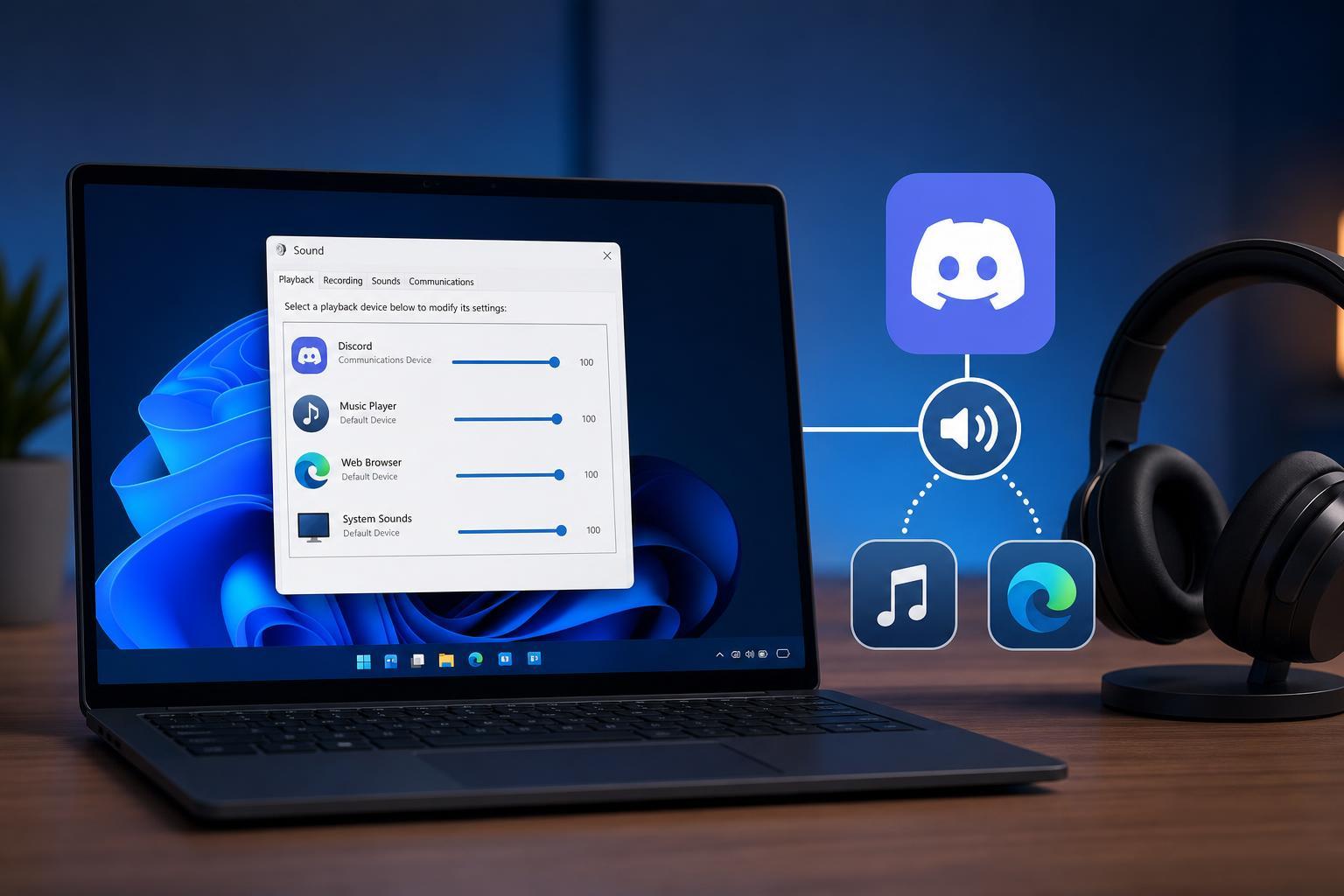
Why Discord Lowers Other App Volume
Windows has a built-in feature that can reduce the volume of other sounds when it thinks you are using a communication app like Discord, Teams, or Skype. If that feature is enabled, Discord can trigger a system-wide volume drop even though Discord itself is not directly changing your app volume.
Turn Off Windows Communication Volume Reductions
- Right-click the speaker icon in the Windows taskbar and choose Sound settings.
- Scroll down and open More sound settings. This opens the classic Sound control panel.
- Go to the Communications tab.
- Select Do nothing.
- Click Apply, then OK.
This is the most important fix. It tells Windows not to lower the volume of other apps when it detects communication activity.
Check Discord’s Own Audio Settings
Discord can also change how voice and app audio behave through its own settings, especially if you use input/output features that interact with Windows audio devices.
- Open Discord and click the gear icon to open User Settings.
- Select Voice & Video.
- Check that your input and output devices are set correctly.
- If you use Krisp, noise suppression, or similar voice processing tools, test with them temporarily disabled.
- If you use any push-to-talk or voice activity setting changes, confirm the volume issue still happens after switching back to default behavior.
Discord itself does not normally lower other apps’ volume the way Windows communications mode does, but device changes or audio processing features can make it seem related.
Make Sure Windows Is Using the Correct Playback Device
If Windows is sending some apps to a different output device than Discord, it can sound like the volume is being reduced when the issue is actually a device switch or per-app routing problem.
- Open Settings and go to System > Sound.
- Check the output device selected for your main speakers or headset.
- Open Volume mixer and look for per-app volume levels.
- Confirm that Discord, your game, browser, or music app are all using the expected output device.
- If needed, set the app volume back to a normal level in the mixer.
Reset Discord’s Audio Device If the Problem Follows a Headset Change
If the issue started after you unplugged a headset, switched Bluetooth devices, or changed speakers, Discord may still be tied to the old device.
- In Discord, open User Settings > Voice & Video.
- Manually reselect the correct input and output devices instead of leaving them on Default.
- Close Discord completely and reopen it.
- Test voice chat again while playing audio from another app.
This can help when Discord seems to trigger volume drops only after a device swap or when Windows has assigned a different default output than Discord expects.
Look for Other Audio Software That Can Duck Volume
Some headset suites, sound enhancers, and virtual audio tools can also lower other audio during calls or voice activity. If Windows communications settings are already disabled and the problem continues, check for software from your headset or motherboard manufacturer.
- Headset control apps
- Realtek or motherboard audio utilities
- Noise suppression or voice enhancement software
- Virtual audio cable or mixing tools
- Streaming or recording software with audio ducking options
If any of these tools have a communication, sidetone, or ducking feature, disable it and test again.
How to Test Whether the Fix Worked
- Open a game, video, or music app and set it to a normal listening level.
- Join a Discord call or voice channel.
- Speak or activate voice chat the same way the problem usually appears.
- Watch whether the other app stays at the same volume.
- If it still dips, recheck Windows Communications and the app’s mixer level before moving on to driver or software checks.
When You May Need More Advanced Troubleshooting
If none of the settings above help, the issue may be caused by an audio driver problem, a device-specific enhancement, or a corrupted audio configuration in Windows. At that point, focus on the exact moment the volume changes and whether it happens only with one headset, one app, or one audio output.
- The volume drops only with one specific headset
- The issue happens after a Windows update or driver update
- Only one app is affected, such as a browser or game launcher
- The volume changes even when Discord is open but you are not in a call
- The same behavior happens in other voice apps, not just Discord





