
Web browsers ask for your current location when a website wants to tailor search results, maps, weather, delivery estimates, or nearby services. If you do not want those prompts, you can turn off location access in the browser itself and, if needed, in your operating system too.
This guide shows how to stop browsers from asking, how to block location permission for individual sites, and what to check if the prompts keep coming back.
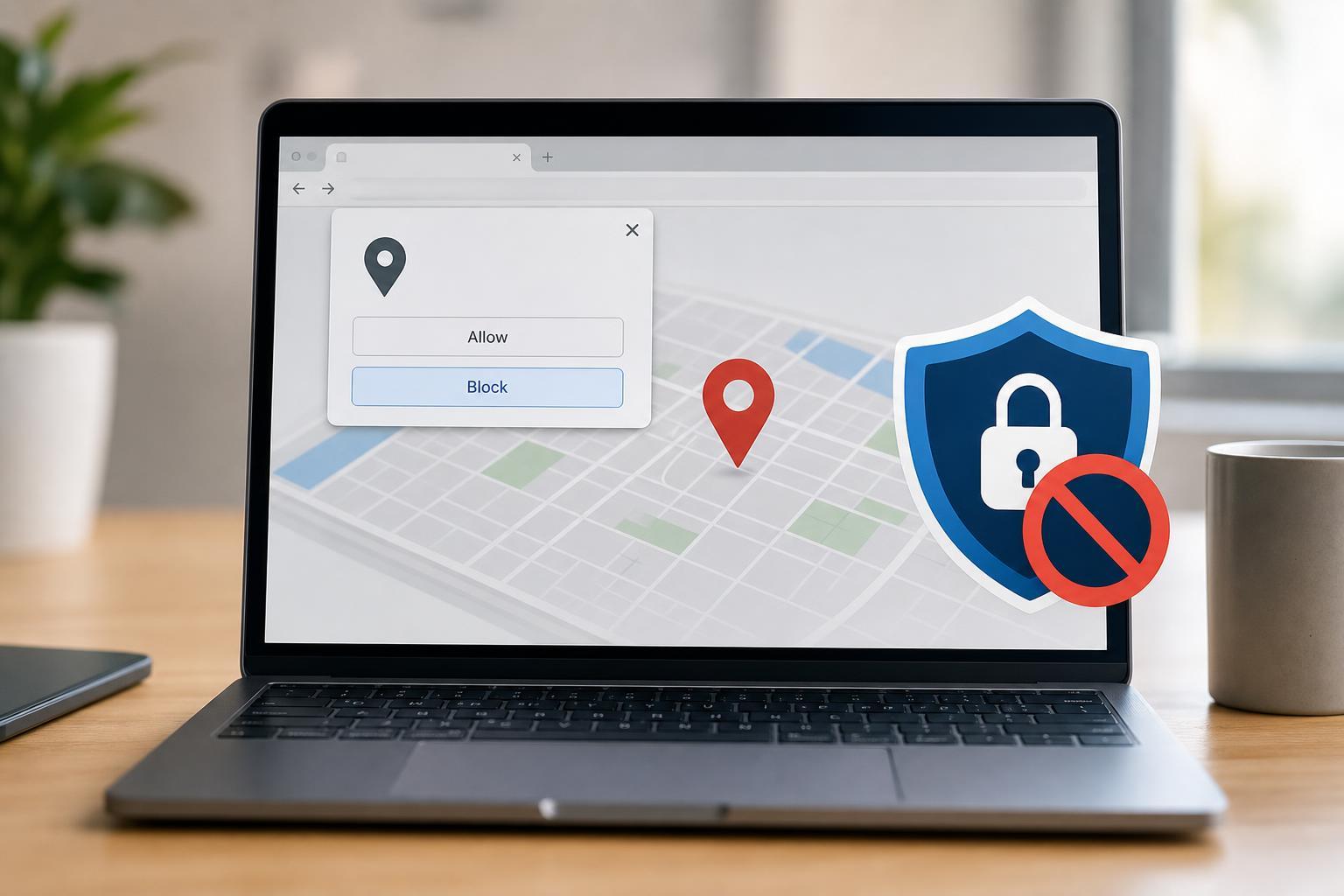
What Causes Location Prompts in a Browser?
Most browsers use a permission system. When a site tries to read your location, the browser asks whether to allow or block it. If you previously allowed a site, the browser may remember that choice and continue using it without asking again. If permissions were cleared, reset, or changed, you may start seeing prompts again.
Block Location Requests in Chrome, Edge, and Other Chromium Browsers
Google Chrome, Microsoft Edge, Brave, Opera, and other Chromium-based browsers all use similar permission settings. You can block location requests globally or site by site.
- Open the browser settings menu.
- Go to Privacy and security, then Site settings.
- Open Location.
- Select Don't allow sites to see your location or choose the option that blocks location requests.
- If you want to control specific sites, review the allowed and blocked lists below the main setting.
Stop Location Prompts in Firefox
Firefox handles location permissions separately from Chromium browsers, but the idea is the same: deny access by default or remove saved permissions for individual sites.
- Open Firefox settings.
- Go to Privacy & Security.
- Scroll to Permissions.
- Find Location and click Settings.
- Remove any sites you no longer want to allow, or change the default behavior so sites cannot request location access without your approval.
Turn Off Location Access in Windows
If websites still appear to get your location, Windows location services may be enabled at the system level. Browsers can use that system permission when it is available.
- Open Windows Settings.
- Go to Privacy & security.
- Select Location.
- Turn off Location services to block apps and browsers from using system location data.
- If you prefer, keep location services on and instead remove browser-specific permissions in the browser settings.
Manage Permission for Specific Websites
Sometimes you do not want to block location everywhere. For example, you may want to allow maps or food delivery sites but block everything else. In that case, manage site permissions directly.
- Open the website in your browser.
- Click the padlock icon or site information icon in the address bar.
- Open Site settings or Permissions.
- Find Location and set it to Block.
- Refresh the page if needed.
Clear Saved Location Permissions
If a browser keeps remembering old choices, clear the saved permission entries. This is useful when you accidentally clicked Allow in the past or when a site keeps behaving inconsistently after a browser update.
- Remove the site from the Allow list in your browser's site permissions.
- Check the Block list if you want to make sure the site is explicitly denied.
- Clear cookies and site data if the browser still behaves as if location access was previously granted.
- If you use multiple browser profiles, review permissions in each profile separately.
If the Prompts Still Appear
If you have already blocked location in the browser and in Windows but still see prompts, the site may be asking for other kinds of location-like data such as your IP-based approximate location, time zone, or region. That is not the same as precise device location, and browsers cannot always stop a site from estimating your area from your network address.
- Confirm the site permission is set to Block in the browser.
- Check whether another browser profile is syncing old permissions back to your device.
- Review Windows location settings if you use a Windows PC.
- Make sure the site is not allowed through a browser extension or privacy tool that manages permissions separately.
Which Settings Should You Change First?
For most people, the quickest fix is to block location access in the browser first. That stops the permission pop-up on most websites without affecting other apps. If the browser still seems to be using location data, then turn off Windows location services or check system-level permissions as well.





