
Microsoft Teams gives meeting organizers and presenters several ways to control who can speak during a call. If a meeting is noisy, off-topic, or simply needs tighter control, muting and unmuting participants can help keep things organized.
The exact options you see depend on your role in the meeting, the meeting type, and whether the person is in the meeting as a participant or is sharing content. This guide explains the common ways to mute and unmute people in Teams and what to do when the controls are limited.
Before You Start
In Teams meetings, not everyone has the same permissions. In most cases, meeting organizers and presenters can mute other attendees, while standard participants can usually only mute and unmute themselves.
- You must be a meeting organizer or presenter to mute other people in many meetings.
- Participants can always mute themselves unless the meeting policy blocks it.
- The available controls may look different in Teams on Windows, Mac, web, and mobile.
- If someone is joining by phone, their audio controls may be limited by the call method.
How to Mute Another Participant During a Teams Meeting
- Open the meeting controls at the top of the window or tap the screen if controls are hidden.
- Select the Participants icon to open the participant list.
- Find the person you want to mute.
- Click More options next to their name.
- Choose Mute participant or Mute.
In some versions of Teams, you can also mute a participant by right-clicking their name in the roster and selecting the mute option.
How to Unmute a Participant
- Open the Participants list again.
- Find the muted person.
- Select More options next to their name.
- Choose Unmute participant.
If the person is still muted after you unmute them, their own microphone may be turned off on their device, or they may need to click the microphone button themselves.
How Participants Can Mute or Unmute Themselves
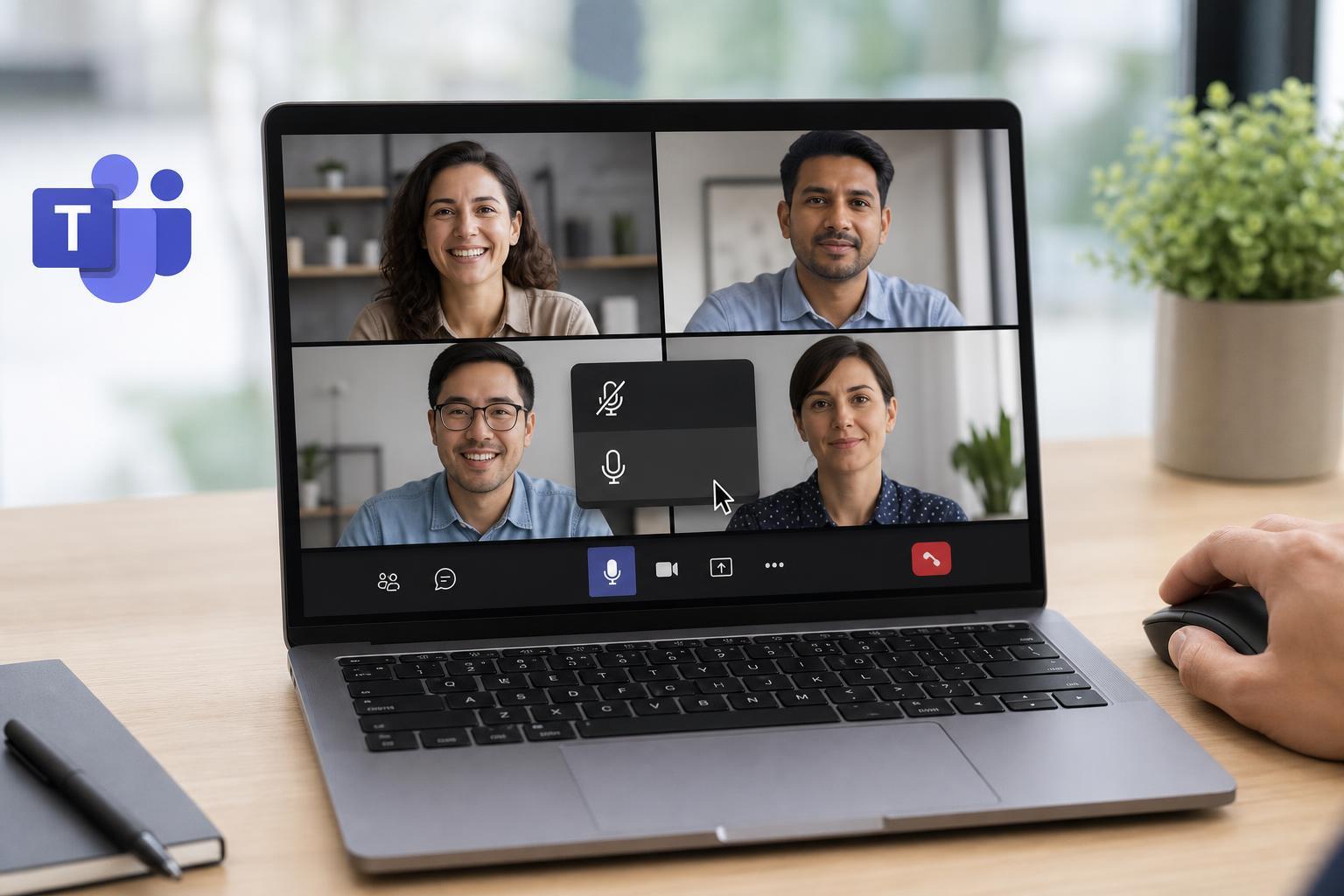
- In the meeting window, click the microphone button on the meeting toolbar.
- When the icon shows a slash through it, your microphone is muted.
- Click it again to unmute yourself when you want to speak.
This is the safest and most common way to control your own audio. It also avoids accidentally interrupting the meeting when background noise is present.
How to Mute Everyone in a Teams Meeting
- Open the Participants panel.
- Look for an option such as Mute all.
- Confirm the action if Teams asks you to approve it.
This is useful in large meetings, training sessions, or presentations where only a few people should speak. After muting everyone, you can unmute individuals one at a time when it is their turn.
What to Do If You Cannot Mute or Unmute Someone
If the controls are missing or grayed out, the most likely reason is that you do not have the necessary permissions. Some meetings also limit what attendees can do to prevent disruption.
- Check whether you are the organizer or a presenter.
- Make sure you are viewing the meeting as a desktop or web app, since mobile layouts can hide some controls.
- Verify that the person is not connected by a different audio method, such as a phone call.
- Ask the meeting organizer to change participant permissions if needed.
- If Teams seems out of sync, close and reopen the meeting window and check again.
Best Practices for Managing Audio in Teams
- Mute people only when needed so the meeting does not feel overly controlled.
- Announce before muting the room if possible, especially in smaller meetings.
- Unmute one person at a time during Q&A to avoid overlapping speech.
- Use presenter roles for speakers who need to talk regularly.
- Remind attendees to test their microphone before an important meeting.
When Mute Issues Usually Point to a Bigger Problem
If no one can hear a participant even after unmuting them, the issue may be with the person’s microphone permissions, audio device selection, or system-level privacy settings rather than Teams itself.
- The wrong microphone is selected in Teams.
- Windows or macOS microphone permissions are blocked.
- The headset is muted with a hardware switch.
- The participant joined from a phone or another device with its own mute control.
- The meeting policy prevents that user from unmuting themselves.
Quick Reference: The Fastest Way to Handle Audio in Teams
- To mute yourself, click the microphone button on the meeting toolbar.
- To mute another person, open Participants and use More options next to their name.
- To unmute someone, return to the participant list and select Unmute.
- To control a whole meeting, use Mute all when available.





