
Your iPhone can estimate sound levels in decibels, which is useful if you want to check whether your surroundings are loud enough to be a hearing risk. Apple’s built-in noise tools make this quick, and you do not need a separate sound meter app for basic checks.
The feature works best for general guidance, not professional audio testing. It can help you judge whether a concert, workshop, restaurant, or speaker setup is getting too loud for comfortable listening.
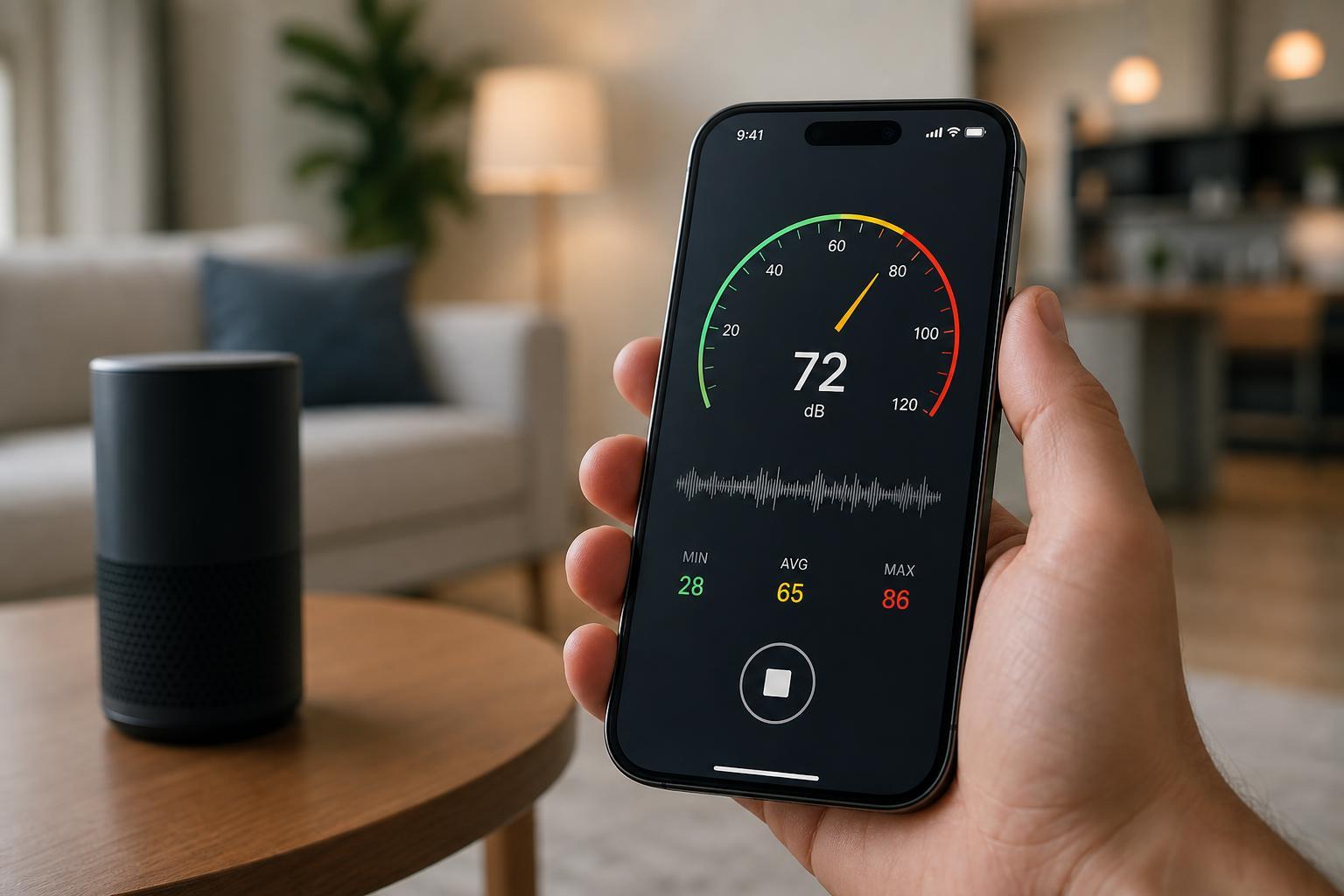
Use the Noise App on iPhone
The easiest way to measure decibels on iPhone is with the Noise app. On supported iPhone models, it can monitor ambient sound and show an estimated decibel level in real time.
- Open the Health app on your iPhone.
- Tap your profile picture or browse to the Hearing section if it appears on the main screen.
- Look for Noise Levels or the Noise app setup option.
- If prompted, enable sound level notifications or access for the microphone.
- Open the Noise app from your Home Screen or App Library and allow microphone access when asked.
- Hold the iPhone near the sound source, then watch the live decibel reading.
Turn On Headphone Audio Notifications
If your goal is to protect your hearing while using headphones, iPhone can also warn you when audio has been too loud for too long. This is separate from measuring room noise, but it is one of the most practical decibel-related features on iPhone.
- Open Settings.
- Tap Sounds & Haptics.
- Choose Headphone Safety.
- Turn on Reduce Loud Sounds if you want the iPhone to limit output volume.
- Check the Headphone Notifications options so you can see exposure alerts.
If You Want the Most Accurate Reading
iPhone readings are helpful, but they are not a replacement for a calibrated sound level meter. Accuracy can vary depending on where the microphone is positioned, whether the phone case blocks sound, and how directional the noise source is.
- Remove thick cases or accessories that may cover the microphone area.
- Hold the phone close to the noise source without touching it.
- Avoid using the reading as a precise legal or workplace measurement.
- Compare readings in more than one spot if the noise comes from a large room or machine.
What the Decibel Numbers Mean
Decibel levels are easier to understand when you know what the numbers roughly represent. Lower numbers are quieter, and higher numbers increase hearing risk much faster than many people expect.
- Around 30 dB: quiet library-like environments
- Around 60 dB: normal conversation
- Around 70 to 80 dB: busy traffic or loud household tools
- Around 85 dB and above: prolonged exposure can become risky for hearing
- Above 100 dB: very loud environments where short exposure may still be harmful
When the iPhone Noise Reading Is Most Useful
If you are comparing two places, the iPhone reading can help you decide which one is quieter or whether it is time to use hearing protection. It is also useful for spotting unusually loud appliances or speakers at home.
Troubleshooting Missing or Inaccurate Readings
If the Noise app does not appear or the reading seems wrong, a few simple issues are usually responsible.
- Microphone access is disabled for the app
- Your iPhone model or iOS version does not support the feature
- The phone case or dirt is blocking the microphone
- The sound source is too far away for a useful reading
- Background noise in the room is affecting the estimate
- Check microphone permission in Settings > Privacy & Security > Microphone.
- Remove any case or accessory that may cover the microphone openings.
- Update iOS if your phone supports the feature but the app is missing or behaving oddly.
- Test the reading in a different location with a steadier sound source.





