
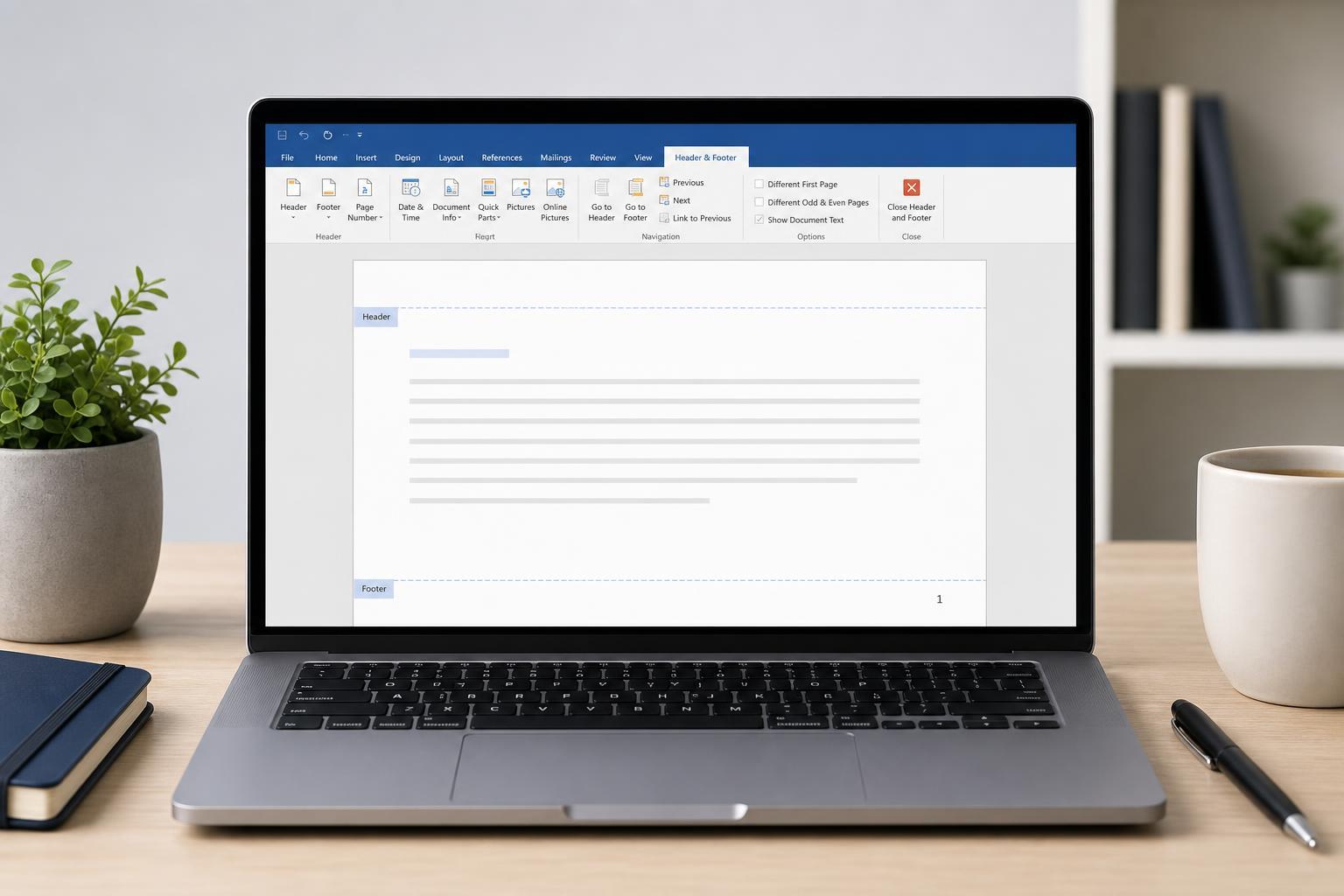
Headers and footers are the repeated areas at the top and bottom of a Word document. They are useful for page numbers, document titles, dates, chapter names, and other information that should appear consistently across pages. In Microsoft Word, you can create simple headers and footers or build more advanced layouts with different sections and page styles.
This guide shows you how to manage headers and footers in Microsoft Word, including how to add them, change them, remove them, and handle special cases such as different first pages and separate sections.
What Headers and Footers Are Used For
Headers appear in the top margin of a page, while footers appear in the bottom margin. They are commonly used to make documents easier to read and organize, especially in reports, manuals, essays, and business documents.
- Page numbers
- Document titles or file names
- Author names
- Chapter or section titles
- Dates or version numbers
- Company branding or contact details
How to Add a Header or Footer in Word
- Open your document in Microsoft Word.
- Go to the Insert tab.
- Select Header or Footer.
- Choose a built-in style or click Edit Header / Edit Footer to start from scratch.
- Type the content you want to appear on each page.
When you click into the header or footer area, Word opens the Header & Footer tab so you can add elements like page numbers, dates, and different formatting options.
How to Edit an Existing Header or Footer
- Double-click near the top of the page to open the header, or near the bottom to open the footer.
- Make your changes directly in the header or footer area.
- Use the Header & Footer tab to insert page numbers, dates, pictures, or text fields if needed.
- Click Close Header and Footer when you are finished, or double-click in the main document body.
You can edit text, change alignment, adjust fonts, or add elements such as a logo. Changes usually apply to every page in that section unless you use different section settings.
How to Remove a Header or Footer
- Open the header or footer area by double-clicking it.
- Go to the Header & Footer tab.
- Select Header or Footer.
- Choose Remove Header or Remove Footer.
This removes the header or footer content from the current section. If your document has multiple sections, you may need to remove them one section at a time.
Use Different Headers and Footers on the First Page
Many documents, such as title pages or formal reports, should not show a header or footer on the first page. Word has a built-in option for this.
- Open the header or footer area.
- On the Header & Footer tab, check Different First Page.
- Edit the first-page header or footer separately if needed.
- Move to another page and add a different header or footer for the rest of the document.
Create Different Headers and Footers for Odd and Even Pages
If you are preparing a booklet, report, or printed document with facing pages, you may want one layout for left pages and another for right pages.
- Open the header or footer area.
- Check Different Odd & Even Pages.
- Edit the odd-page and even-page header or footer layouts separately.
- Add text, page numbers, or other elements to each layout as needed.
Use Sections to Give Parts of a Document Different Headers or Footers
Sections let you use different headers and footers within the same document. This is useful if one part of the document needs a different title, page numbering style, or no header at all.
- Place the cursor where you want a new section to begin.
- Go to Layout or Page Layout, then choose Breaks.
- Insert a section break such as Next Page.
- Open the header or footer in the new section.
- Turn off Link to Previous if you want this section to be independent.
Once Link to Previous is turned off, changes in the current section will no longer affect the section before it. This is the key step for creating unique headers and footers in different parts of one document.
Add Page Numbers to Headers or Footers
Page numbers are one of the most common header and footer elements. Word lets you place them at the top or bottom of the page and choose a style that matches your document.
- Open the header or footer area, or use the Insert tab.
- Choose Page Number.
- Select the position and alignment you want.
- Pick a formatting style.
- If necessary, open Page Number Format to change the number style or starting value.
Common Header and Footer Problems
- Header or footer appears on pages where you do not want it
- Changes in one section affect another section
- Page numbers restart unexpectedly
- The first page still shows a header or footer
- Odd and even pages look the same when they should differ
- A header or footer appears too close to the edge of the page
How to Fix Section and Linking Issues
If your header or footer is behaving unexpectedly, the most likely cause is section linking. Open the affected header or footer and check whether Link to Previous is turned on. If it is, disable it before making separate changes.
Also check whether Different First Page or Different Odd & Even Pages is enabled. These options can make the document behave differently from what you see on the main pages, especially in multi-section documents.
Formatting Tips for Cleaner Headers and Footers
- Keep the text short so the header or footer does not crowd the page
- Use a smaller font than the main document body when appropriate
- Align page numbers consistently across the document
- Leave enough margin space so text does not clash with the page edge
- Use styles that match the document’s purpose rather than overdecorating the layout
A simple, well-placed header or footer usually looks more professional than a heavily formatted one. If the document is for print, make sure the content remains readable in the final page size and margin setup.
How to Check Your Work Before Printing
- Scroll through several pages to confirm the header and footer appear where expected.
- Check section breaks if the document uses different layouts.
- Use Print Preview to verify spacing and page alignment.
- Confirm that page numbers continue or restart correctly.
Print Preview is especially useful because header and footer placement can look slightly different on screen than they do on paper or in a PDF.
When to Use Built-In Header and Footer Templates
Word includes ready-made header and footer templates that are worth using when you want a quick, polished result. They are especially helpful for standard reports, school papers, and business documents where a clean layout matters more than custom design.
What to Remember
- Use Insert > Header or Footer to add these elements.
- Double-click the header or footer area to edit it quickly.
- Use Different First Page for title pages.
- Use section breaks and Link to Previous for separate layouts.
- Add page numbers from the Insert tab or within the header/footer area.
- Check Print Preview before finalizing a document.





