
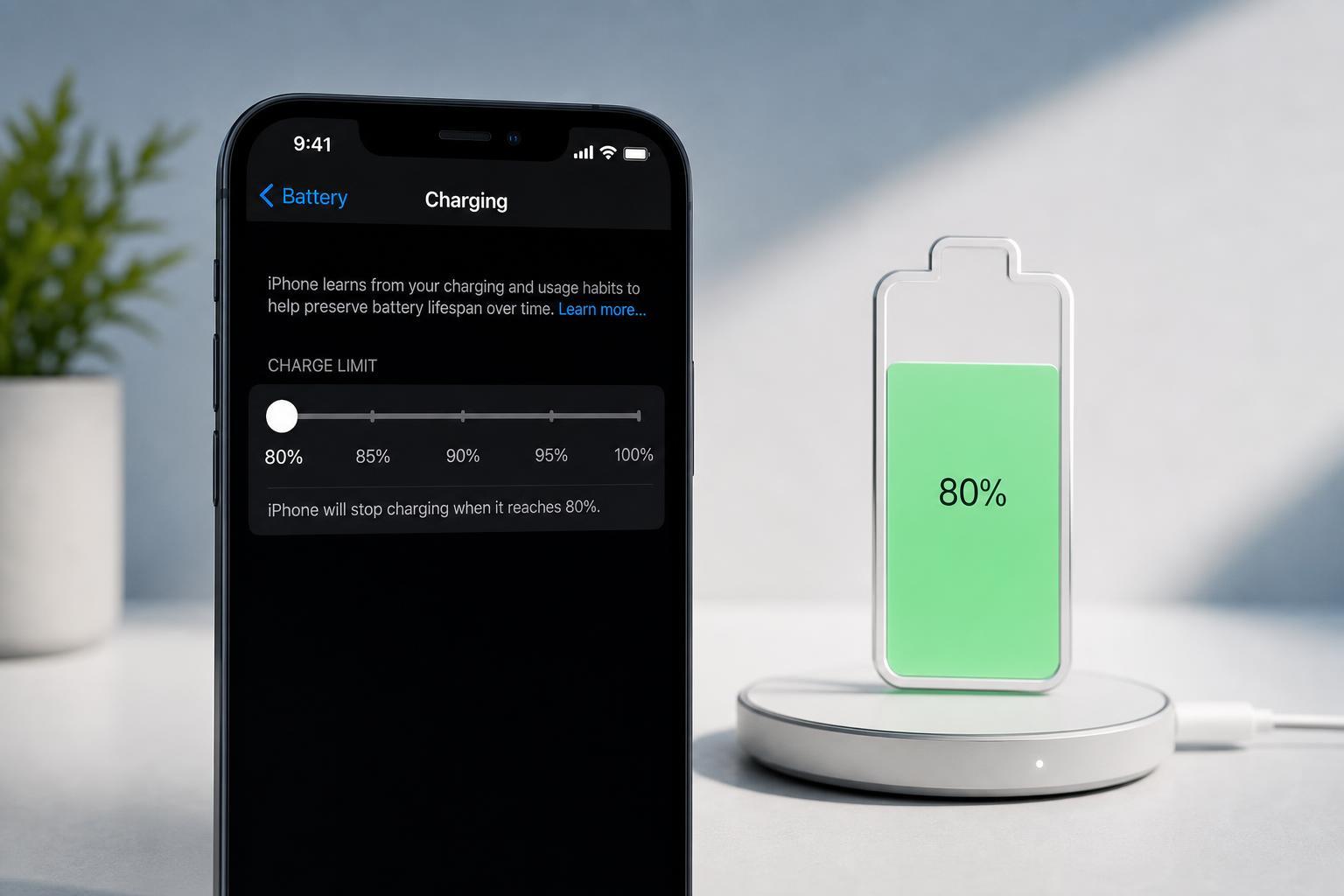
If you want to reduce battery wear on your iPhone, limiting charging to 80% can help. Apple now includes charging controls on some iPhone models, but the exact option you see depends on your device and iOS version.
This guide explains how to find the 80% charging limit, which iPhones support it, and what alternatives you can use if your model does not offer the feature.
Which iPhones Can Limit Charging to 80%?
Apple’s charging limit options are not available on every iPhone. On supported models, the setting appears in Battery Health and Charging or in the battery charging options inside Settings. If you do not see an 80% limit option, your iPhone may not support it, or your iOS version may be too old.
Set Your iPhone to Stop Charging at 80%
- Open the Settings app on your iPhone.
- Tap Battery.
- Select Battery Health & Charging, or the similar battery charging menu on your iPhone.
- Look for a Charging Optimization or Charge Limit option.
- Choose 80% if it is available.
- Exit Settings and let the iPhone charge normally.
If You Don’t See an 80% Option
If the 80% limit is missing, there are a few likely reasons. Your iPhone may not support the feature, Apple may only offer Optimized Battery Charging on your model, or the device may need a newer iOS version.
- Update to the latest version of iOS available for your iPhone.
- Check again in Settings > Battery after updating.
- Look for Optimized Battery Charging if an exact 80% limit is not available.
- Verify that your iPhone model is one of the supported models for charge limiting.
How This Differs from Optimized Battery Charging
Optimized Battery Charging is not the same as a fixed 80% cap. That feature learns your charging habits and may delay charging past 80% until it thinks you are likely to use the phone soon. An 80% limit is stricter because it prevents the battery from charging higher than that point while the setting is active.
When You May Want to Turn the Limit Off
An 80% limit is useful for battery preservation, but it is not always ideal. If you expect a long day away from a charger, traveling, gaming, or using navigation heavily, you may want to charge past 80% for extra runtime.
Tips for Better iPhone Battery Health
- Avoid leaving the phone in hot places while charging.
- Use a quality charger and cable.
- Do not worry about charging in short sessions when convenient.
- Keep iOS updated so battery features work correctly.
- Use the 80% limit only when it fits your daily routine.
What to Do If the Setting Is Missing
If your iPhone does not show any charge limit option, there may not be a manual way to cap charging at 80% on that device. In that case, the best approach is to use Optimized Battery Charging if available and avoid unnecessary heat during charging.
If you want, I can also create a version of this article for a specific iPhone model, such as iPhone 15, iPhone 14, or iPhone 13.





