
Hyperlinks make Google Docs more useful by letting you connect text to websites, headings, email addresses, and files. Whether you are building a report, sharing references, or creating a document outline, knowing how to add and manage links can save time and make your document easier to use.
This guide walks through the different ways to hyperlink in Google Docs, how to edit or remove links, and a few practical tips that help keep your document clean and easy to navigate.
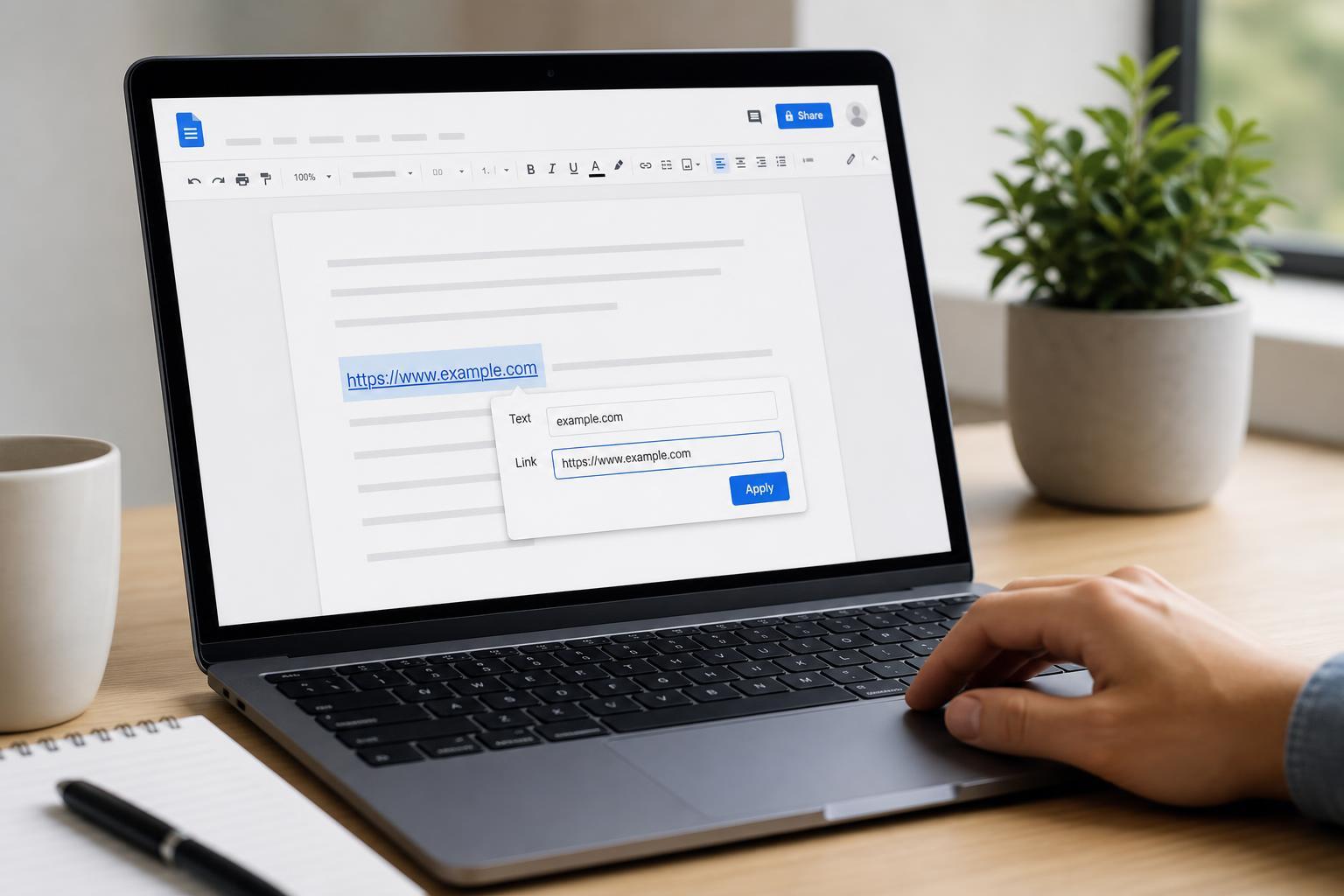
How to Insert a Hyperlink in Google Docs
The most common way to add a hyperlink is to select text and attach a URL to it. This works for website links, Google Drive files, email addresses, and internal links to headings within the same document.
- Highlight the text you want to turn into a link.
- Click the Insert link button in the toolbar, or press Ctrl+K on Windows or Command+K on Mac.
- Paste or type the URL in the field that appears.
- Press Enter, or click Apply if the option is shown.
Linking to a Web Page
For normal website links, paste the full address including https:// when possible. This helps Google Docs recognize the link correctly and reduces the chance of formatting issues.
- Use a full URL such as https://example.com rather than example.com when you can.
- Check for typos before saving the link.
- Make sure the destination page is public if other people need to open it.
How to Link a Heading or Section in the Same Document
Google Docs can link to headings within the same file, which is useful for tables of contents, long reports, and guides with many sections. First, apply a heading style to the section you want to link to.
- Select the text that should become the destination heading.
- Open the Styles menu and choose a heading level, such as Heading 1 or Heading 2.
- Select the text you want to turn into a link elsewhere in the document.
- Press Ctrl+K or Command+K.
- Choose the heading from the list of suggested headings, or paste the document link if needed.
How to Link an Email Address
You can create a clickable email link that opens the reader’s default mail app. This is useful for contact pages, signatures, and shared documents that need a quick way to reach someone.
- Highlight the text you want to use for the email link.
- Press Ctrl+K or Command+K.
- Type mailto: followed by the email address, such as mailto:name@example.com.
- Apply the link.
How to Link to a Google Drive File or Folder
You can also add links to files and folders stored in Google Drive. This is useful when a document refers to supporting materials, shared assets, or related project files.
- Copy the sharing link from Google Drive.
- Highlight the text in Google Docs.
- Press Ctrl+K or Command+K.
- Paste the Drive link and apply it.
How to Edit or Remove a Hyperlink
If a link changes or you no longer want it in the document, Google Docs makes it easy to update or remove it.
- Click the linked text.
- Choose the pencil or link option in the small pop-up menu.
- Replace the URL to edit the link, or choose Remove link to delete it.
- Click outside the menu to save the change.
How to Copy a Link Without Changing the Text
Sometimes you want readable text such as a title or sentence to remain visible instead of showing a long URL. In that case, hyperlink the text rather than pasting the raw web address into the document.
- Better for polished documents and reports
- Helps avoid clutter from long URLs
- Makes links easier to read and scan
Common Hyperlink Problems in Google Docs
If a link does not behave the way you expect, the issue is often simple. The destination may be misspelled, the sharing settings may be wrong, or the text may not have been linked correctly in the first place.
- The link opens the wrong page: check the URL carefully for extra characters or missing parts.
- The link is not clickable: make sure the text actually has a hyperlink applied.
- A Drive file will not open: confirm the file’s sharing permissions.
- A heading does not appear as a link target: make sure it uses a real heading style, not just larger text.
A Few Practical Formatting Tips
A well-linked document is easier to read when the links are consistent and restrained. Too many links in one paragraph can make the text hard to scan, while too few can make the document less useful.
- Keep link text short and meaningful
- Check that links still work before sharing the document
- Use headings for sections you plan to link to later
- Avoid pasting raw URLs unless you want them visible
What This Means for Everyday Google Docs Use
Once you know how to hyperlink in Google Docs, you can make documents more organized, easier to share, and simpler to navigate. The basic process is the same whether you are linking to a website, a section in the same document, an email address, or a file in Google Drive.
If you regularly work with long documents, learning to use hyperlinks properly is one of the easiest ways to make them more professional and more useful for readers.





