
QR codes are a simple way to connect a Word document, PowerPoint slide, or Excel sheet to a website, contact card, file, or other online content. If you use Microsoft Office, the QR4Office add-in makes it easy to generate QR codes without leaving your document.
This guide shows how to install QR4Office, create a QR code, customize it, and place it correctly in your Office file so it scans reliably.
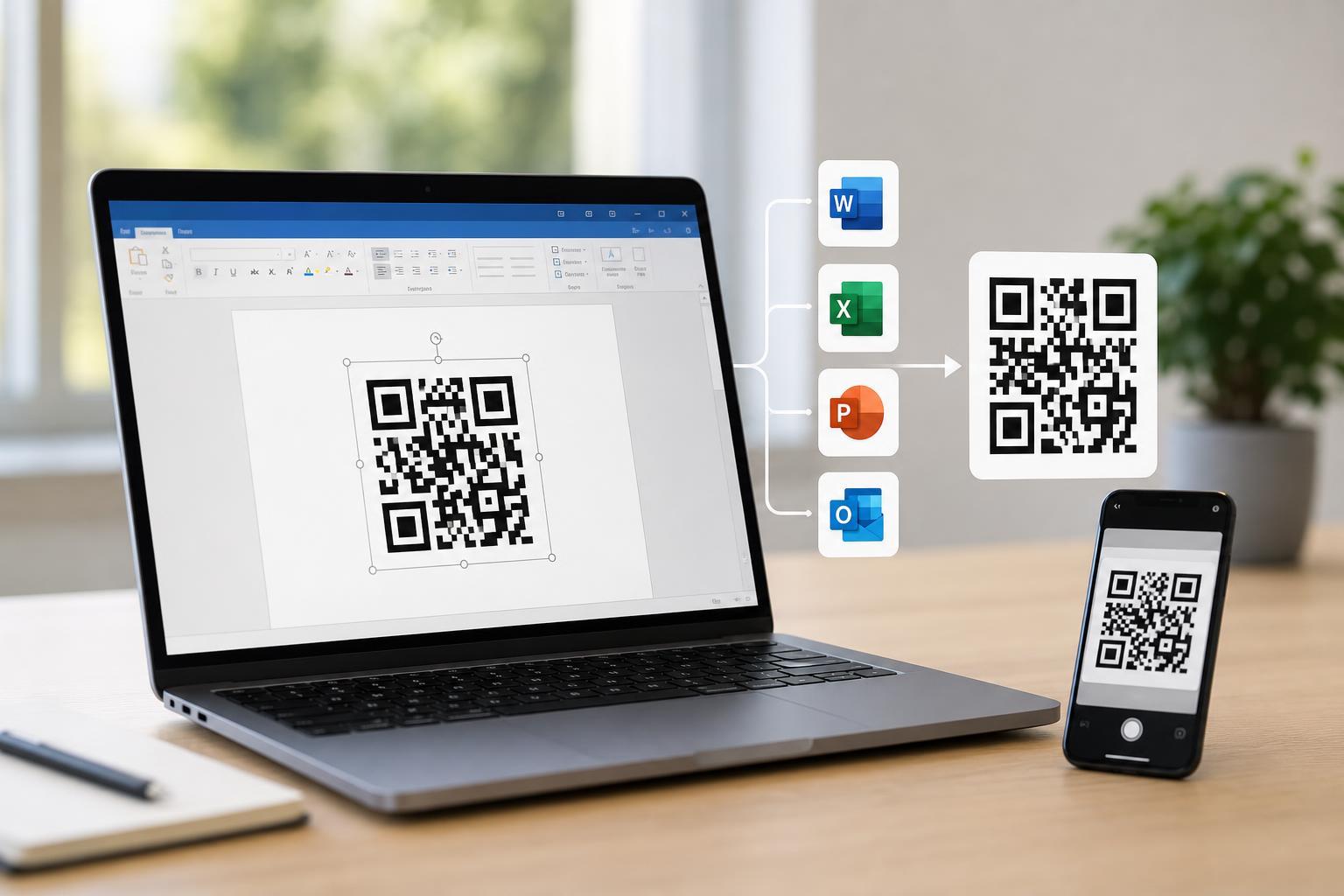
What QR4Office Does
QR4Office is a Microsoft Office add-in that generates QR codes from text or links. Instead of using a separate website or app, you can create the code directly inside Word, PowerPoint, or other supported Office apps.
It is especially useful when you want to add a QR code to a flyer, handout, presentation slide, or document that people may view on paper or another screen.
Install QR4Office in Microsoft Office
- Open Word, PowerPoint, or another supported Microsoft Office app.
- Go to the Insert tab.
- Select Get Add-ins or Office Add-ins.
- Search for QR4Office.
- Choose Add or Install, then follow the prompts to complete the setup.
After installation, QR4Office usually appears in the Office add-ins panel or under your add-ins list, depending on the version of Office you are using.
Generate a QR Code
- Open the QR4Office add-in from the Insert or Add-ins area.
- Choose the type of content you want the QR code to represent, such as a URL or plain text.
- Paste or type the destination content into the input field.
- Use the preview to confirm that the code is being generated correctly.
- Click Insert or a similar button to place the QR code into your document.
If you are linking to a website, make sure the full address is correct. For text-based codes, keep the message short so the QR code stays easy to scan.
Customize the QR Code
QR4Office usually lets you adjust basic settings such as foreground and background color. In some versions, you may also be able to change the code size or error-correction options.
- Keep strong contrast between the QR code and the background.
- Avoid light gray, pastel, or low-contrast color combinations.
- Use a plain background behind the code when possible.
- Make the code large enough for a phone camera to read easily.
Where to Use QR Codes in Office Documents
QR codes work well in places where readers may want quick access to a link without typing it manually.
- Event flyers and posters
- Product sheets and brochures
- Business cards
- Training handouts
- PowerPoint slides for downloads, links, or survey pages
- Word documents with support resources or reference links
How to Make Sure the QR Code Scans Properly
- Test the code with at least one phone before sharing the document.
- Make sure the destination link opens correctly in a browser.
- Print a sample copy if the code will be used on paper.
- Check that the code is large enough after exporting to PDF or printing.
- Leave enough blank space around the code so scanners can detect it.
The quiet area around a QR code is important. If text, borders, or graphics are too close to the edges, some scanners may struggle to recognize the code.
Common Problems and Fixes
- The code will not scan: increase the size and simplify the content.
- The link opens the wrong page: double-check the URL before inserting the code.
- The code looks blurry in print: export or print at a higher quality and avoid resizing too much.
- The add-in does not appear: confirm that Office add-ins are allowed in your version of Microsoft Office.
- The QR code looks distorted after copying: insert it directly rather than pasting a low-quality image version.
If the QR code is meant for a printed document, always test the printed version. A QR code that looks fine on screen can fail once it is scaled down or compressed in a PDF.
A Better Workflow for Reusable QR Codes
If you expect to use the same QR code in several files, create it once and save a clean copy. That way you can reuse the same code in different Office documents without generating it again each time.
For teams, it is also worth keeping the destination link short and stable. Shorter URLs generally produce simpler QR codes, and stable links reduce the need to replace codes later.
Which Office Users Will Benefit Most
If you only need a QR code once in a while, QR4Office is a convenient add-in. If you create them often, it can become part of your normal Office workflow without needing extra software.





