
A Steam purchase can get stuck in Pending for several reasons, from payment verification delays to browser issues or account-related problems. In many cases, the error clears on its own, but if it does not, there are a few reliable fixes you can try.
This guide walks through six practical ways to fix Steam’s Pending Purchase (Transaction) error, starting with the simplest checks and moving to the more likely causes when the problem persists.
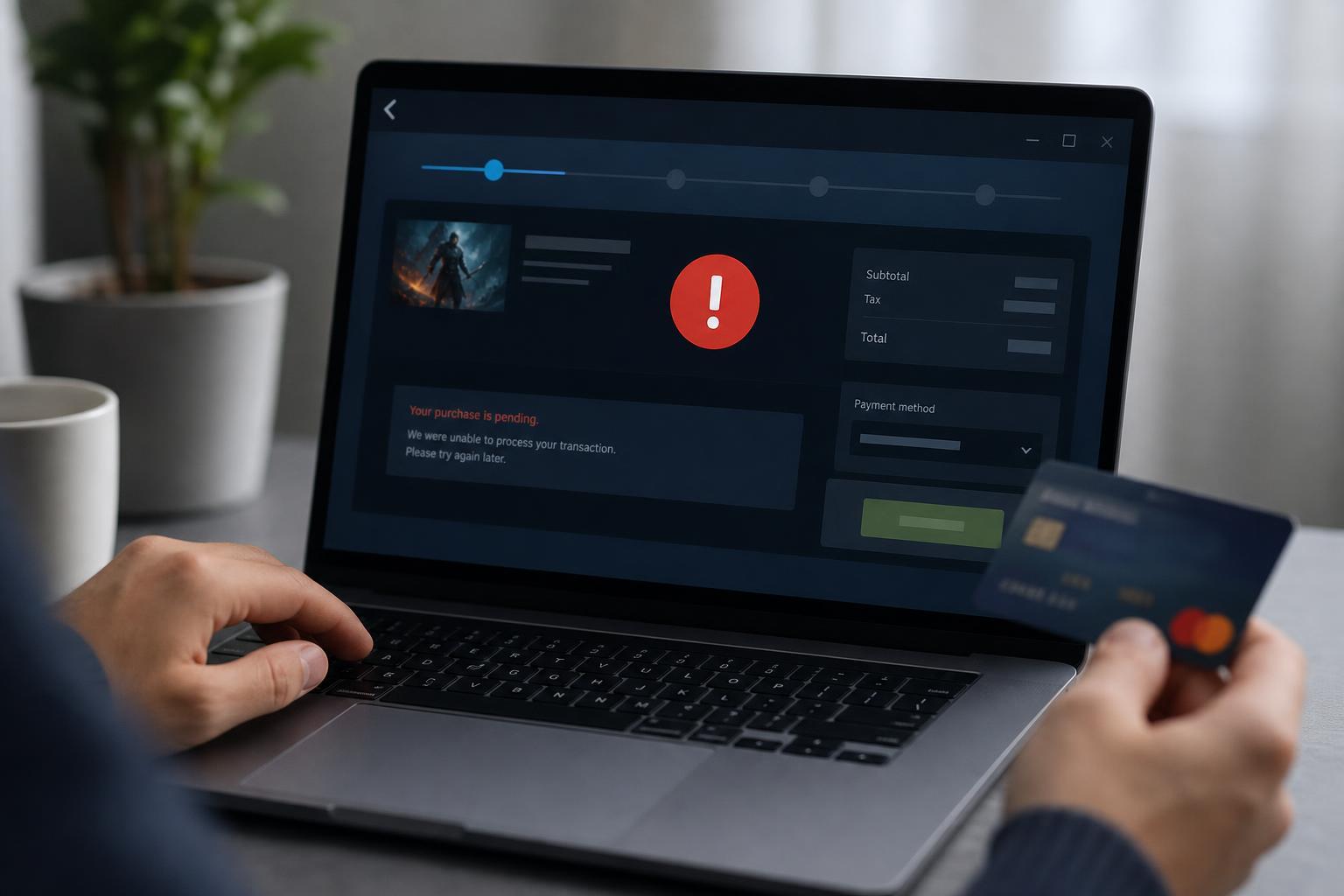
What the Pending Purchase Error Usually Means
When Steam shows a purchase as pending, it means the transaction has not fully completed yet. Steam may still be waiting for confirmation from your payment method, your bank, or its own transaction system.
If the status stays pending for too long, though, the issue usually comes down to one of the following: payment authorization problems, a temporary Steam checkout issue, account restrictions, or a problem with the browser or Steam client you used to buy the item.
1. Check Whether the Purchase Is Still Processing
Before trying anything else, confirm whether the transaction is simply taking time to complete. Some payment methods need extra verification, and banks may delay authorization for a short period.
- Open Steam and go to your account or purchase history.
- Look for the transaction status and see whether it says Pending, Failed, or Complete.
- Check your email for messages from Steam or your payment provider.
- Review your bank or card app for a pending authorization or security approval request.
2. Retry the Purchase Using a Different Browser or the Steam Client
If the purchase failed inside Steam’s website or overlay, the problem may be tied to the browser session, cached data, or a temporary checkout bug. Trying the purchase again in a different environment can help.
- Sign out of Steam completely.
- Try the purchase in the Steam desktop client if you used the website, or use the website if you used the client.
- If you are using a browser, clear cookies for Steam or open a private/incognito window.
- Attempt the purchase again only after confirming the previous transaction did not complete.
3. Verify Your Payment Method and Billing Details
A surprisingly common cause is mismatched billing information or a payment method that is no longer valid. Steam may reject or pause the transaction if the card details do not match what your bank has on file.
- Confirm the card number, expiration date, and security code are correct.
- Make sure the billing address matches the address used by your bank or card issuer.
- Check that the card has enough available funds or credit.
- If you used PayPal or another wallet, log in and verify that the account is active and approved for purchases.
If possible, test a different payment method. Steam purchases sometimes go through immediately with another card or wallet, which helps confirm whether the original payment method is the real problem.
4. Clear Steam Cache or Remove Problem Browser Data
Steam and your browser both store temporary data that can interfere with checkout. Corrupted cache files or stale session data can make Steam think a purchase is still in progress when it is not.
- If you are using a browser, clear Steam-related cookies and cached site data.
- If you are using the Steam client, sign out and sign back in after fully closing Steam.
- Open Steam again and try the transaction once more.
- If the issue continues, test the purchase from a different device or network to rule out local cache problems.
5. Check for Account or Store Restrictions
Some purchase problems are not caused by the payment itself. Steam may limit transactions on accounts that are newly created, recently changed, or under review for security reasons.
- Your account has a recent password change or security event
- Steam Guard or email verification is incomplete
- You are using a VPN or suspicious network location
- The account has previous payment disputes or chargebacks
- The store region does not match your current payment method
If any of these apply, disable the VPN, verify your account details, and try again from a normal connection. If the account has a restriction, you may need to wait for the security hold to clear.
6. Contact Steam Support or Your Bank if the Transaction Stays Pending
If the transaction has been pending for an unusually long time and none of the earlier fixes helped, the issue may be stuck on Steam’s side or blocked by your bank. At that point, support is the fastest way forward.
- Open Steam Support and find the purchase or transaction issue section.
- Provide the date, amount, payment method, and any error messages you saw.
- Check with your bank or payment provider to see whether the charge was declined, reversed, or held for review.
- If Steam shows the purchase as complete but the item is missing, include a screenshot or transaction ID in your support request.
How to Prevent the Error on Future Steam Purchases
Once the transaction issue is resolved, a few habits can reduce the chance of it happening again.
- Keep your billing details up to date
- Use a payment method that works reliably with online purchases
- Avoid using VPNs during checkout
- Make sure Steam Guard and email verification are active
- Wait for one purchase attempt to resolve before retrying the same item
If you frequently buy games on Steam, it also helps to keep one primary payment method ready and avoid switching between multiple cards during the same session.
Which Fix Should You Try First?
Start with the simplest checks: confirm whether the transaction is still processing, then verify your payment method and billing details. If that does not solve it, try a different browser or the Steam client, clear temporary data, and check for account restrictions. If the purchase remains stuck, Steam Support or your bank can tell you where the transaction is being held.





