
OneDrive is supposed to keep your files synced across devices, but sometimes it does the opposite and creates duplicate files or entire duplicate folders on Windows. This usually happens because of sync conflicts, naming mismatches, or problems with how OneDrive is handling local and cloud copies.
The good news is that this problem is usually fixable without losing your files. The steps below focus on the most common causes first, then move on to deeper checks if the duplicates keep coming back.
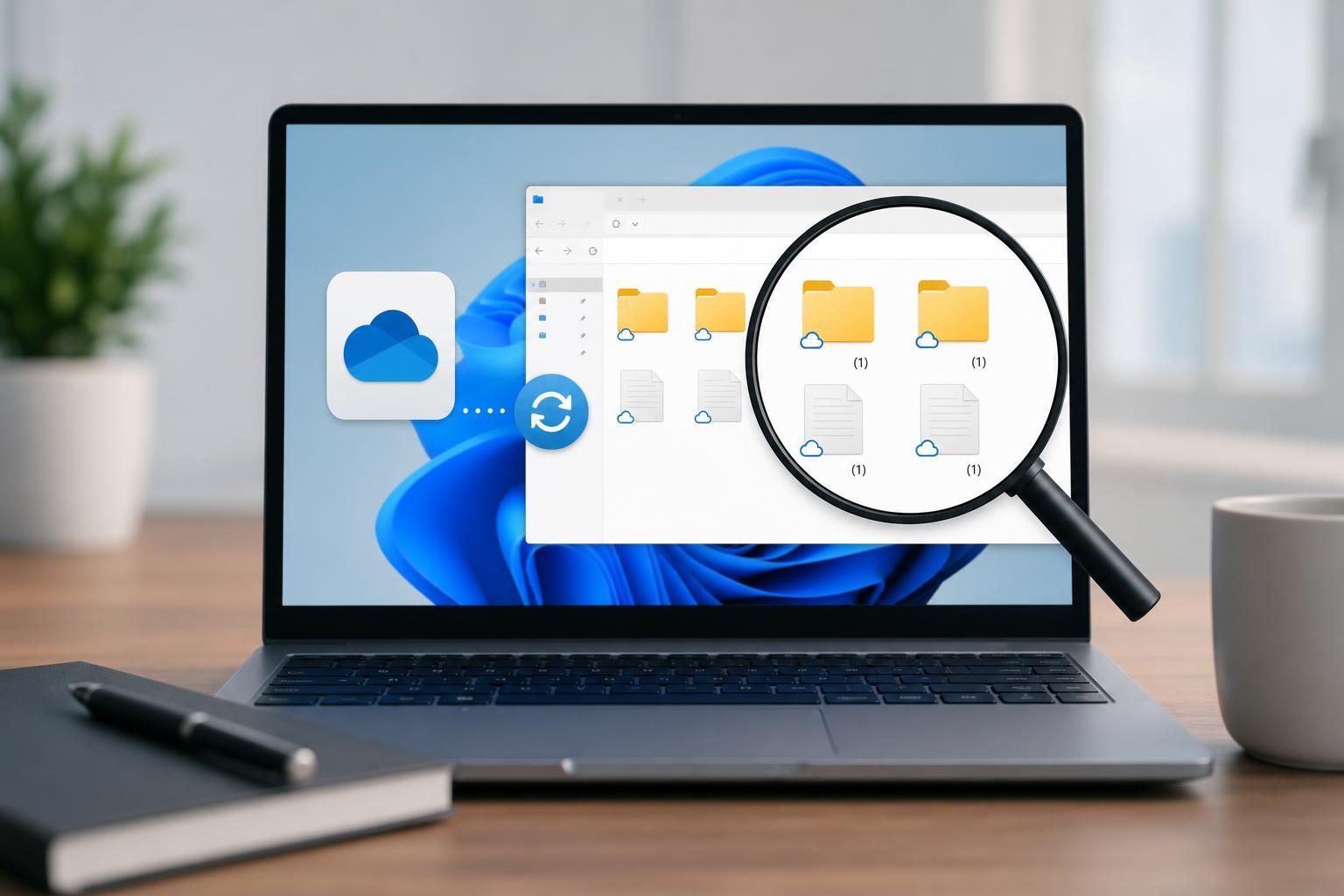
1. Check for Sync Conflicts and Recently Edited Files
The most common reason for duplicate files is that OneDrive could not decide which version of a file should win. This often happens when the same document is edited on two devices before the first change finishes syncing, or when a file is open while OneDrive is trying to update it.
- Look for files with names like "filename (1).docx" or "filename-PCNAME.docx".
- Check whether the duplicate happened after editing the file on another PC, laptop, or phone.
- Close the app that was using the file before trying to clean up the duplicates.
- If both copies contain changes, compare them before deleting anything.
2. Make Sure the Same Folder Is Not Being Synced in More Than One Place
Duplicate folders sometimes appear when a folder is backed up or synced twice. This can happen if a folder was moved into OneDrive manually and is also included in OneDrive Backup, or if another sync tool is also watching the same location.
- Open the OneDrive cloud icon in the taskbar and check for sync activity or error messages.
- Open OneDrive settings and review the Backup section to see whether Desktop, Documents, or Pictures are being protected.
- Check whether the folder is also being synced by another service such as Dropbox, Google Drive, or a second OneDrive account.
- If the same folder exists in two synced locations, stop syncing one copy to avoid ongoing duplication.
3. Rename Problem Files and Folders to Remove Conflicting Characters
OneDrive can struggle when files or folders use names that look identical but are not exactly the same, especially if they include unusual punctuation, very long names, or characters that are not handled consistently across devices.
- Shorten very long file or folder names.
- Remove special characters such as #, %, &, or trailing spaces if possible.
- Avoid creating nearly identical names in the same folder.
- Rename one of the duplicates to something clearly different, then let OneDrive sync the change.
4. Pause OneDrive, Clean Up the Duplicates, Then Resume Sync
If OneDrive is actively syncing while you are trying to organize duplicate files, it may keep re-creating them. Pausing sync gives you time to sort out the folder structure without OneDrive making new copies in the background.
- Click the OneDrive cloud icon in the taskbar.
- Select Help & Settings, then choose Pause syncing.
- Wait for the sync activity to stop.
- Open the affected folder and identify which files or folders you want to keep.
- Move the extras out of the synced folder or delete them after confirming they are not needed.
- Resume syncing from the OneDrive menu and let it finish one full sync cycle.
5. Reset or Reconnect OneDrive If the Duplication Keeps Returning
If duplicates keep reappearing after cleanup, OneDrive itself may be stuck with a bad sync state. Reconnecting the account or resetting the app can clear corrupt sync data and force OneDrive to rebuild its index.
- Open OneDrive settings and sign out of the account if the problem is limited to one sync profile.
- Sign back in and let OneDrive rebuild the folder list.
- If the issue still continues, close OneDrive and perform a OneDrive reset using the built-in reset command for your version of Windows.
- After reset, check the folder list carefully and allow time for a complete resync before making more changes.
How to Prevent OneDrive from Creating Duplicates Again
Once you fix the immediate issue, a few habits can reduce the chance of duplicates returning.
- Let OneDrive finish syncing before editing the same file on another device.
- Keep important folders in one sync location only.
- Avoid very long or oddly formatted file names.
- Check OneDrive status after moving large batches of files.
- Use version history when working with documents instead of creating manual copies for edits.
When the Problem Is More Than a Simple Sync Error
If duplicates continue even after a reset, the issue may involve a damaged local Windows profile, a third-party sync tool, or repeated file changes from another device on the same account. In that case, test OneDrive with a small new folder and a few simple files first. If that folder syncs normally, the problem is likely limited to a specific path, naming pattern, or backup setup rather than OneDrive as a whole.





