
If the scroll bar has disappeared in Google Chrome, the problem is usually not a broken browser. In many cases, Chrome is using overlay scroll bars, your operating system is hiding them automatically, or a display/accessibility setting is making them harder to see.
This guide walks through the most likely causes and the practical fixes, starting with the simplest checks first.
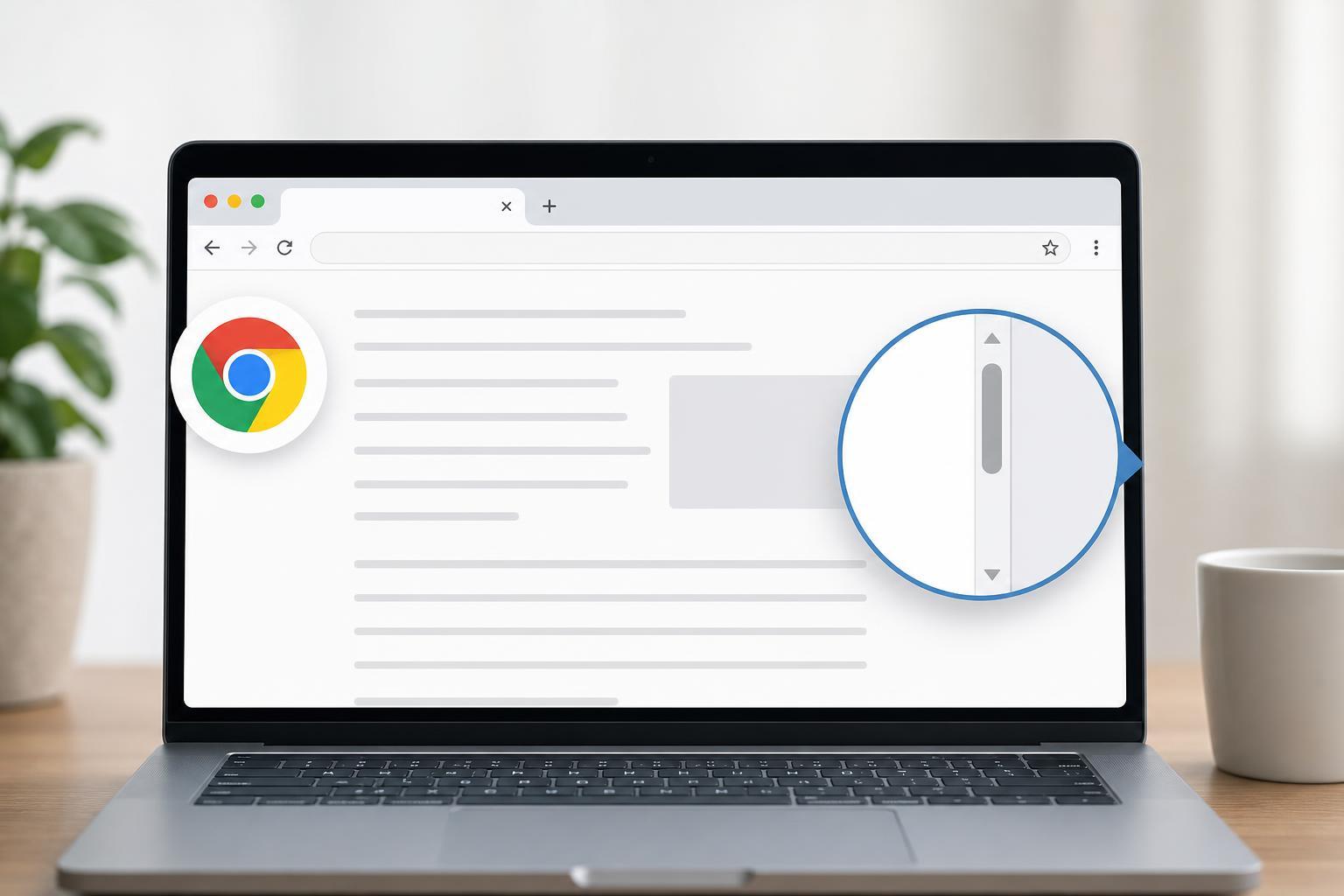
Check Whether the Scroll Bar Is Actually Hidden
On many systems, scroll bars only appear when you move the mouse, touchpad, or trackpad near the edge of the page. In other cases, they may stay very thin until you interact with the window. Before changing settings, move your pointer to the far right edge of the webpage and try scrolling with the mouse wheel, trackpad, or touch gesture.
Turn Off Automatic Scroll Bar Hiding on Windows
If you are using Windows 10 or Windows 11, the system can hide scroll bars until they are needed. Turning that behavior off often restores the familiar always-visible bar in Chrome and other apps.
- Open Windows Settings.
- Go to Accessibility.
- Select Visual effects.
- Find Automatically hide scroll bars.
- Turn the setting off.
Check Chrome’s Theme and Appearance
A dark theme, custom theme, or high-contrast page can make the scroll bar blend into the background and look missing when it is actually there. Try switching Chrome back to the default theme to see whether the bar becomes easier to notice.
- In Chrome, open the three-dot menu.
- Go to Settings.
- Select Appearance.
- Under Theme, choose Reset to default or select the standard Chrome theme.
- Reload the page and check the right edge of the window.
Disable Extensions That Change Page Styling
Some extensions, especially custom themes, reader modes, accessibility tools, and page layout tools, can change how scroll bars look or hide them completely on certain sites. If the problem started recently, an extension is a strong suspect.
- Open Chrome and type chrome://extensions in the address bar.
- Turn off all extensions.
- Reload the page and check whether the scroll bar returns.
- If it does, re-enable your extensions one by one to find the one causing the issue.
Test in Incognito Mode
Incognito mode disables most extensions by default, which makes it a useful way to tell whether the missing scroll bar is caused by add-ons rather than Chrome itself.
- Open the Chrome menu.
- Choose New Incognito window.
- Visit the same page where the scroll bar is missing.
- If the bar appears, an extension or custom setting is likely the cause.
Update Chrome
An outdated browser can sometimes display pages incorrectly or conflict with modern website styling. Updating Chrome is a quick check and is worth doing if the problem affects multiple sites.
- Open Chrome’s three-dot menu.
- Go to Help, then About Google Chrome.
- Wait for Chrome to check for updates.
- Restart Chrome if an update is installed.
Try a Different Zoom Level
Unusual zoom levels can make scroll bars appear clipped, tiny, or difficult to spot on certain pages. Resetting zoom is especially helpful if the issue happens only on one site or after changing display settings.
- Open the Chrome menu.
- Check the Zoom level in the menu.
- Set it back to 100%.
- Reload the page and test the scroll bar again.
Check System Display Scaling and Accessibility Settings
High display scaling, unusual font sizes, or accessibility settings can make the browser window feel cramped or change how scroll bars are drawn. This is more likely if the scroll bar seems partially cut off rather than completely absent.
- Try setting display scaling back to a more standard value temporarily.
- Check whether magnification or accessibility tools are affecting Chrome.
- If you use a touchpad or touchscreen, confirm that the page is not being panned in a way that makes the scrollbar stay hidden.
If the Problem Happens Only on Certain Websites
Some websites intentionally use custom scroll behavior and hide the default browser scrollbar. That is normal and not a Chrome bug. In those cases, the page may still scroll normally with the mouse wheel, trackpad, or keyboard arrows even though the bar is not visible.
When to Suspect a Chrome Profile Problem
If the scroll bar is missing in Chrome everywhere, even after checking extensions, themes, zoom, and system settings, the browser profile itself may be corrupted or carrying a bad setting.
- Create a new Chrome profile.
- Sign in if needed.
- Test the same websites in the new profile.
- If the scroll bar works there, your original profile likely has a bad setting or extension conflict.
What to Try First
For most people, the fastest fix is to check Windows’ automatic scroll bar hiding setting, then test Chrome without extensions. If the issue is only on one website, it is often just that site’s design rather than a real browser problem.
- Windows scroll bar hiding setting
- Incognito mode to rule out extensions
- Chrome theme and zoom level
- Website-specific custom scroll behavior
- A new Chrome profile if nothing else works





