
If Microsoft Teams notifications appear but the sound is missing, the problem is usually caused by a Teams setting, a Windows sound setting, or the wrong audio device being selected. In some cases, the alert sound is working but is being sent to a headset, monitor, or other output you are not actually using.
This guide walks through the most common causes first, then moves into deeper checks if the notification sound still does not play.
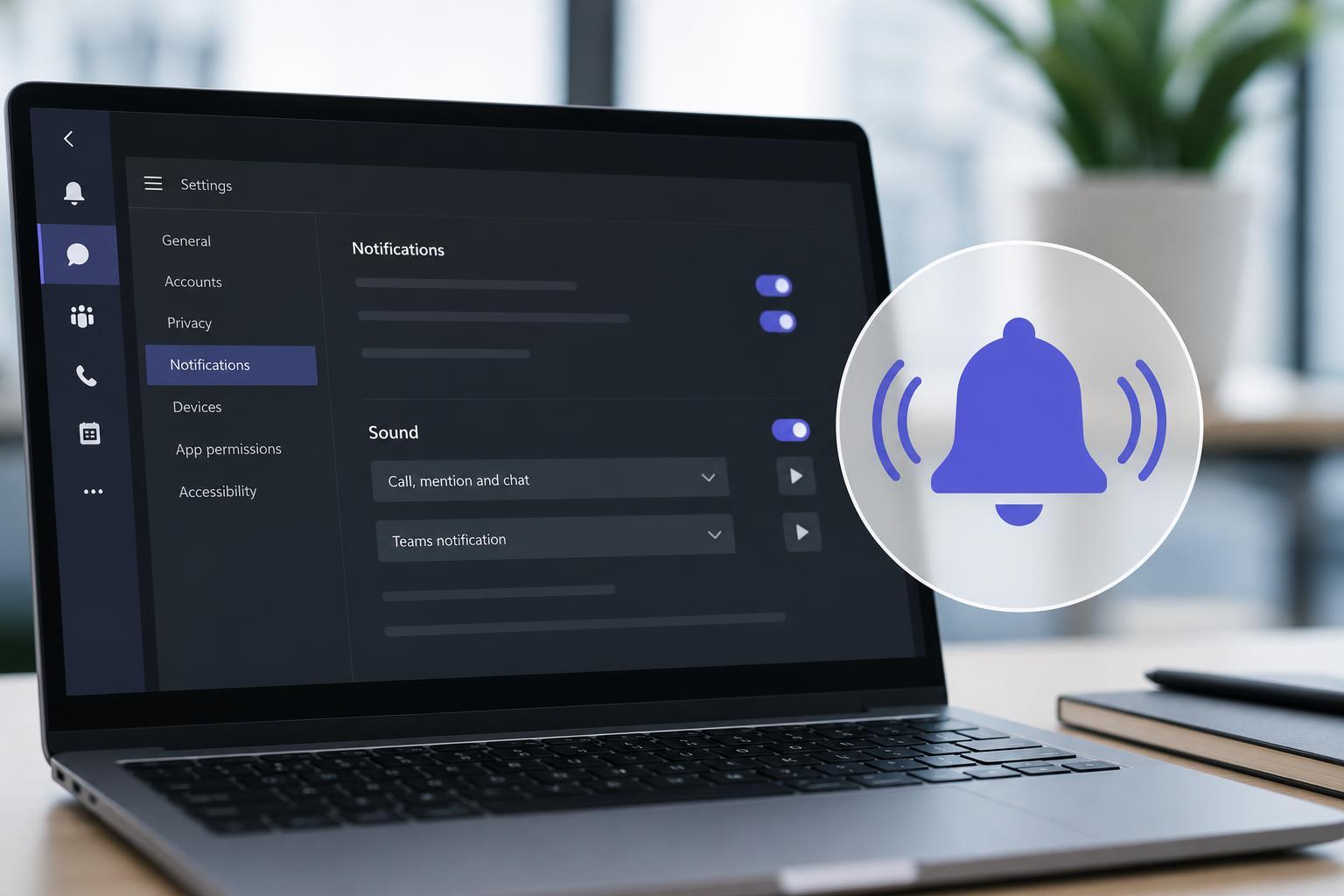
Check Whether Teams Is Supposed to Play a Sound
The first thing to verify is that Teams notifications are actually allowed to make noise. It is possible for banners to appear while sounds stay silent, especially if notification settings were changed recently or if Windows Focus Assist is active.
- Open Microsoft Teams and select your profile picture.
- Go to Settings, then Notifications and activity.
- Look for the notification options related to banners and sound.
- Make sure the settings allow sounds for the types of alerts you want to hear.
Make Sure Teams Is Not Muted in Windows
Windows lets you control sound volume for individual apps. If Teams was accidentally turned down or muted, notification sounds will stop even though everything else may still play normally.
- Right-click the speaker icon in the taskbar and open Volume mixer or Sound settings.
- Find Microsoft Teams in the list of apps.
- Check that its volume is raised and not muted.
- If Teams is missing, make sure a notification sound has recently been triggered or reopen Teams and check again.
Check the Output Device Teams Is Using
Teams may be playing the notification sound through a different output device than the one you are listening on. This often happens after unplugging a headset, connecting Bluetooth earbuds, or switching between speakers and a monitor with built-in audio.
- Open Windows sound settings and confirm the correct output device is selected as the default.
- In Teams, open Settings and check the Devices or Audio settings section.
- Confirm that the speaker/output device shown there matches the device you are actually using.
- If needed, switch to another output device and test again.
Turn Off Focus Assist or Do Not Disturb
Windows Focus Assist and Teams Do Not Disturb modes can suppress alerts or reduce how notifications behave. Even if a banner still appears, some sounds may be blocked or delayed depending on your settings.
- In Windows, open Settings and go to System, then Notifications.
- Check whether Do not disturb or Focus assist is enabled.
- In Teams, open your status and make sure you are not in Do not disturb mode if you want full alerts.
- If you use quiet hours or scheduled focus modes, check whether they are active during the time the sound is missing.
Confirm Windows Notification Sounds Are Enabled
Sometimes the issue is not Teams itself, but Windows notification settings. If notification sounds are disabled globally, Teams alerts may display without audio.
- Open Windows Settings.
- Go to System, then Notifications.
- Make sure notifications are enabled.
- Check whether sound is allowed for notifications.
- If you have custom notification rules, review them for Teams or for the app category it uses.
Test Another Sound to Separate App Problems from Audio Problems
Before focusing only on Teams, confirm that your speakers or headphones can play sound at all. If other audio also fails, the issue is likely broader than Teams notifications.
- Play music or a video from another app.
- Check whether system sounds play normally.
- Try a different set of headphones or speakers if available.
- If Bluetooth audio is involved, make sure the connection is stable and the device has not switched profiles.
Check for a Browser or Web App Limitation
If you use Teams in a browser, notification sounds can behave differently depending on the browser, site permissions, and whether the tab is allowed to play audio. Some browsers also limit sounds when the page is in the background.
- Check the browser site permissions for Teams and allow audio if needed.
- Make sure the browser tab is not muted.
- Try the desktop app if the browser version is unreliable.
- If you already use the desktop app, compare whether the problem happens there too.
Repair or Reset the Teams App
If the notification sound still does not work after checking settings, Teams may have a corrupted app state. Repairing or resetting the app can restore normal behavior without changing your account.
- Close Teams completely.
- On Windows, open Settings and go to Apps.
- Find Microsoft Teams and open its advanced options if available.
- Use Repair first if the option exists.
- If Repair does not help, use Reset or clear the app data where appropriate.
Update Teams and Windows
Outdated software can cause notification glitches, especially after Windows updates or Teams changes. Installing current updates can fix sound bugs and improve device compatibility.
- Open Teams and check for app updates.
- Run Windows Update and install any pending updates.
- Restart Teams after updates are applied.
- If the issue began after a recent update, check whether an updated version of Teams is available.
If You Still Do Not Hear the Sound
When none of the common fixes work, the remaining causes are usually more specific: a broken audio driver, a device that changes output unexpectedly, or a notification policy managed by your organization.
- Test Teams on another device to see whether the issue follows your account.
- Check whether your work or school tenant has notification restrictions.
- Update or reinstall your audio driver if other system sounds are also unstable.
- Remove and reconnect Bluetooth audio devices that may be switching profiles incorrectly.
What Usually Fixes Teams Notification Sound Problems Fastest
In most cases, the fix is one of three things: Teams is muted in the Windows volume mixer, the wrong output device is selected, or Focus Assist / Do Not Disturb is blocking alerts. Checking those three areas first will solve many cases without deeper troubleshooting.





