
If photos in your iPhone’s Recently Deleted album refuse to disappear, the issue is usually tied to syncing, storage, or a temporary Photos app glitch. In most cases, the photos are not truly stuck forever — they are waiting for iCloud to finish updating, or the deletion did not fully complete because the device was offline or interrupted.
This guide walks through the most reliable fixes first, so you can remove the photos properly and understand why the problem happens in the first place.
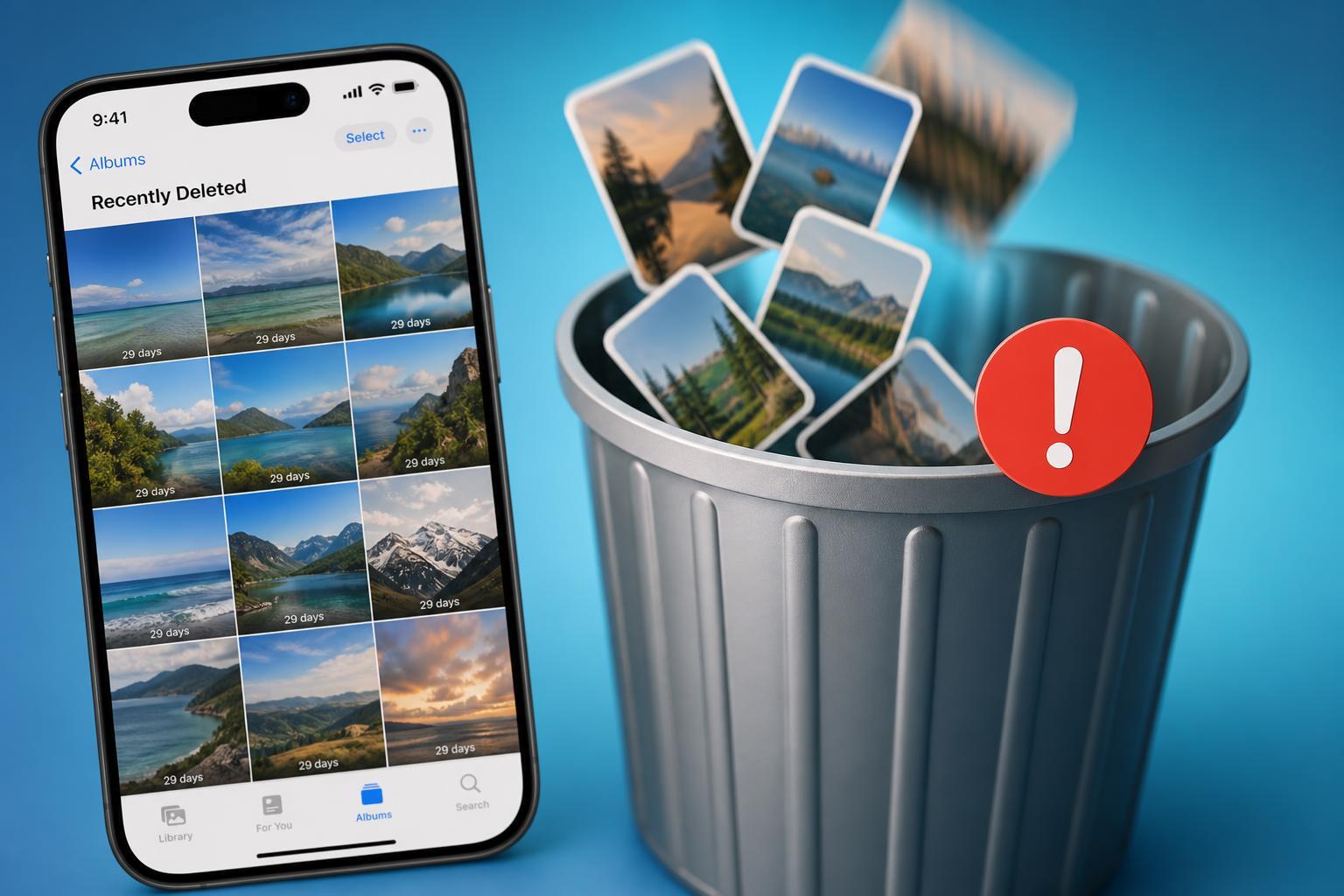
Why Recently Deleted photos may not clear
The Recently Deleted album is designed to keep deleted photos and videos for a short time before removing them permanently. On an iPhone, that process can be affected by iCloud Photos, account syncing, and local storage issues. If the album looks empty but the photos keep reappearing, or if the delete button does nothing, the app may not be able to finish updating the change.
- iCloud Photos is still syncing changes
- The iPhone has a weak or unstable internet connection
- Photos app data is temporarily stuck
- There is not enough free storage for the deletion to complete properly
- You are signed into a different Apple ID on another device that is syncing the same library
Try deleting the photos again while connected to the internet
If your iPhone was offline when you deleted the photos, the removal may not have finished syncing. Open the Recently Deleted album again while connected to a stable Wi-Fi or mobile data connection, then try deleting the items one more time.
- Open the Photos app and go to Albums.
- Scroll down and open Recently Deleted.
- Tap Select and choose the photos or videos you want removed.
- Tap Delete All or Delete, then confirm.
- Leave the iPhone connected to the internet for a few minutes so iCloud can update the change.
Check whether iCloud Photos is syncing correctly
If the same photos keep coming back, the iPhone may be struggling to sync with iCloud Photos. This is especially common if you use the same Apple ID on an iPad, Mac, or another iPhone.
- Open Settings and tap your name at the top.
- Tap iCloud, then Photos.
- Check whether Sync this iPhone or iCloud Photos is enabled.
- If syncing is enabled, make sure the device is online and not paused due to low battery, low power mode, or poor connectivity.
- Open Photos and wait a few moments to see whether the library updates.
Force the Photos app to refresh
Sometimes the deletion actually succeeds, but the Photos app fails to refresh its display. Closing the app and reopening it can help.
- Swipe up from the bottom of the screen and pause to open the app switcher, or double-press the Home button on older iPhones.
- Find Photos and swipe it away to close it.
- Reopen Photos and check the Recently Deleted album again.
- If the photos still appear, wait a minute and check once more while connected to the internet.
Make sure the iPhone has enough storage
Low storage can interfere with normal app behavior, including photo library updates. If your iPhone is nearly full, free up some space and try again.
- Open Settings.
- Tap General, then iPhone Storage.
- Check how much free space is available.
- Delete or offload large apps, old downloads, or unnecessary media if storage is critically low.
- Return to Photos and try deleting the items again.
Sign out of iCloud Photos and back in only if syncing is clearly broken
If the deleted items repeatedly reappear across devices, the sync relationship may be stuck. In that case, signing out of iCloud and back in can sometimes reset the connection, but this is a stronger step and should be used carefully.
If you decide to proceed, check that your photos are backed up, then sign out of iCloud from Settings, restart the sign-in process, and let the library re-sync completely. This may take time if you have a large photo library.
Update iOS
A Photos bug can also prevent Recently Deleted from behaving correctly. Updating iOS is worth trying if the problem started after a system update or began suddenly without a clear cause.
- Open Settings.
- Tap General.
- Tap Software Update.
- Install any available update.
- After the update, check the Recently Deleted album again.
If the photos are still there, try deleting them from another Apple device
If you use iCloud Photos on a Mac, iPad, or another iPhone, try removing the photos from that device as well. Sometimes one device can complete the deletion more reliably than another, especially if its connection to iCloud is healthier.
- Delete the items from Recently Deleted on a Mac or iPad signed into the same Apple ID
- Check whether the deletion syncs back to the iPhone
- Leave both devices online for a short while so the change can propagate
When to contact Apple Support
If the photos remain stuck after checking sync, storage, and iOS updates, the issue may involve your iCloud account or a deeper library problem. At that point, Apple Support can help inspect account-specific sync behavior and advise on safer next steps.
- Photos keep reappearing on every device
- The Recently Deleted album shows items but delete commands fail repeatedly
- The Photos app behaves normally everywhere else, but deletions never finish
- You suspect an iCloud account or library corruption issue
What usually works fastest
For most people, the quickest fix is to reconnect the iPhone to a stable internet connection, open Recently Deleted again, and delete the items while iCloud Photos has time to sync. If that does not work, refreshing the Photos app, freeing storage, and updating iOS are the next most practical steps.





