
If Google Drive lets you create a ZIP file but the download never starts, gets stuck, or fails partway through, the problem is usually tied to the browser, file size, account limits, or a temporary Google Drive issue. The good news is that most download problems can be fixed without changing the files themselves.
This guide walks through the most likely causes and the best fixes for Google Drive not downloading files after zipping, starting with the easiest checks first.
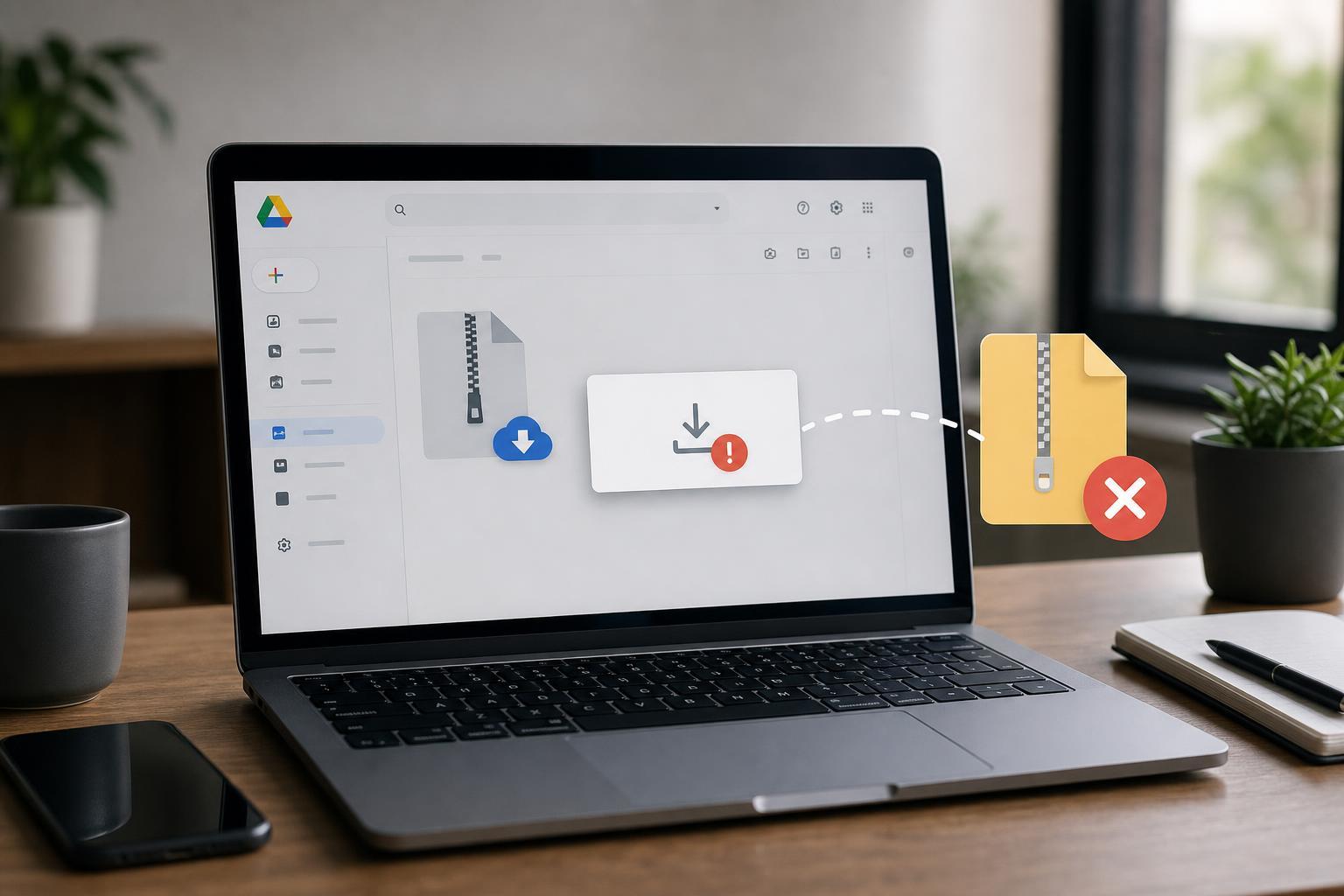
Why Google Drive May Stop the Download After Zipping
When you select multiple files or folders in Google Drive and choose Download, Google creates a compressed ZIP archive in the background. The download can fail at several stages: while the ZIP is being prepared, while the browser is receiving it, or while your computer is saving it locally. That means the issue is not always with the files themselves.
- The ZIP file is too large for the browser session to handle smoothly
- Your browser blocked the download or ran into a temporary glitch
- Google Drive is rate-limiting, timing out, or having a service issue
- A file type in the selection is unsupported or problematic
- A browser extension, security tool, or antivirus program is interfering
- Your internet connection dropped long enough to interrupt the transfer
Check Whether the ZIP Is Actually Being Created
Before changing settings, make sure Google Drive is finishing the ZIP preparation step. For large folders, Drive can take a while to compress the contents before the download begins. If the page appears to do nothing for a long time, the archive may still be processing in the background.
Try the Download in a Different Browser
Browser issues are one of the most common causes of failed Google Drive downloads. If the ZIP process seems to complete but nothing saves to your computer, try a different browser such as Chrome, Edge, Firefox, or another up-to-date browser.
- Open Google Drive in a different browser.
- Sign in to the same Google account.
- Try downloading the same ZIP file again.
- If it works, the original browser was likely the problem.
Disable Extensions That May Block Downloads
Ad blockers, privacy tools, script blockers, and download managers can interfere with Google Drive’s download process. Some extensions block the popup or redirect that Drive uses to hand off the ZIP file to your browser.
- Temporarily disable browser extensions related to ads, privacy, downloads, or security.
- Refresh Google Drive and try the download again.
- If it works, re-enable extensions one at a time to identify the one causing the issue.
Clear the Browser Cache or Use a Private Window
A corrupted cache or stored site data can make Google Drive behave unpredictably, including failing to start or finish downloads. A private or incognito window is a fast way to test whether saved browser data is part of the problem.
- Open a private or incognito window.
- Sign in to Google Drive again.
- Try downloading the ZIP file.
- If it works there, clear the browser cache and site data for drive.google.com.
Make Sure the Download Was Not Blocked by the Browser
Some browsers block automatic downloads, especially if they think the file is unusual or if multiple files are involved. Look for a download warning near the address bar or in the browser’s download panel.
- Allow the download if the browser asks for confirmation
- Check the downloads list for a paused or failed item
- Make sure downloads are not being sent to a location you cannot access
- Verify that your browser is allowed to download multiple files at once
Try Downloading Fewer Files at Once
If a large batch download fails, split the selection into smaller groups. This is especially helpful when you are downloading many files, very large files, or folders with deep subfolder structures.
- Select a smaller set of files or one folder at a time.
- Download each group separately.
- If one folder works and another fails, the problem may be tied to that specific folder or file set.
Check for a Problematic File or Folder
A single file with a sync issue, odd filename, or unusual file type can sometimes cause the ZIP process to fail. If one folder always breaks while others download normally, test the contents in smaller pieces until you find the troublemaker.
- Files with extremely long names
- Folders with unusual characters in names
- Items that were recently moved, renamed, or removed
- Shared files you no longer have permission to access
- Very large media files that push the download close to browser limits
Sign Out and Back In if Your Session Seems Stuck
Sometimes Google Drive download problems happen because your session token has expired or become unstable. If Drive behaves normally except for downloads, signing out and back in can refresh your access without changing anything else.
- Sign out of Google Drive and Google accounts in the browser.
- Close the browser completely.
- Open the browser again and sign back in.
- Retry the ZIP download.
Check Your Internet Connection and Local Storage
A weak or unstable connection can interrupt the download after the ZIP file is created. Your computer also needs enough free disk space to save the file, especially if the ZIP is large.
- Switch to a more stable network if possible
- Avoid downloading large ZIP files on unreliable Wi-Fi
- Confirm you have enough free space on the target drive
- Check whether other large downloads are also failing
Try a Google Drive Desktop App or Sync Method
If you regularly need to download large Drive folders, the browser is not always the most reliable method. The Google Drive desktop app can sync files to your computer more consistently than repeated ZIP downloads in a browser.
This does not fix every download problem, but it can be a better long-term option if browser-based ZIP downloads keep failing.
If Nothing Works, Test the Same Download on Another Device
Trying the same ZIP download on another computer can help separate a file problem from a local browser or system issue. If it works elsewhere, the original PC or browser setup is probably causing the failure. If it fails everywhere, the problem is more likely with the Drive folder, account permissions, or a Google-side issue.
What to Do When Google Drive Is the Real Problem
If all the usual fixes fail, the issue may be temporary on Google’s side. In that case, wait a while and try again later. You can also check whether the problem happens with different files or different accounts. If only one shared folder fails, ask the owner to verify access and file integrity.
Quick Fix Order to Try First
- Try the download in a different browser.
- Disable extensions that may block downloads.
- Use an incognito or private window.
- Download fewer files at once.
- Check free disk space and connection stability.
- Test the same folder on another device.
If the download still fails after these steps, the most useful clue is whether the problem affects every ZIP download or only one specific folder. That distinction usually points you toward either a local browser issue or a file/account problem.





