
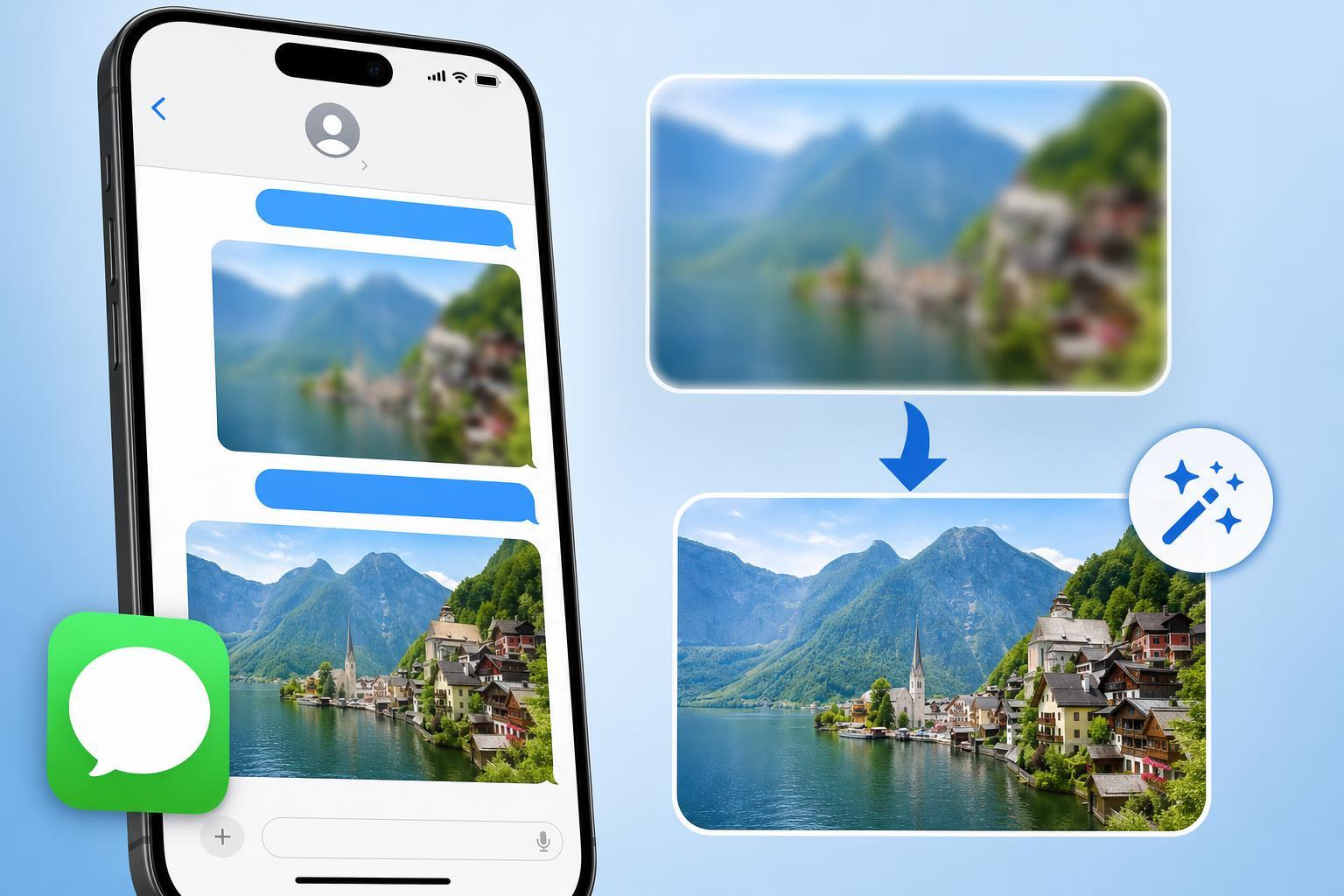
If photos or videos look blurry in iMessage, the problem is usually not the camera itself. In most cases, iPhone, iPad, or Mac devices are resizing, compressing, or temporarily previewing the media in a lower quality form before the full file is downloaded.
The good news is that blurry iMessage media usually has a straightforward cause. This guide explains the most common reasons it happens and the best fixes to try.
Why iMessage Photos and Videos Look Blurry
iMessage is designed to send media quickly and efficiently, not always at full original quality in every situation. If a photo or video seems soft, pixelated, or low resolution, the issue may be caused by compression, poor network conditions, an incomplete download, or a viewing limitation on the receiving device.
1. Make Sure the Media Has Fully Downloaded
A blurry image or fuzzy video thumbnail often means the file is still loading. This is especially common on slow Wi-Fi, weak cellular data, or when your device is trying to conserve bandwidth.
- Open the conversation again and wait a few seconds for the image or video to finish loading.
- Tap the media if it appears as a low-quality preview to force a full download.
- Switch to a stronger Wi-Fi or cellular connection if the file keeps staying blurry.
- If the sender is on a slow connection, ask them to resend the file after they are on a better network.
2. Check Whether iPhone Storage or Messages Settings Are Affecting Quality
Low storage can cause iOS and iPadOS to behave unpredictably with cached media. While this does not usually alter the original message file, it can affect how quickly attachments are handled and displayed.
- Go to Settings.
- Tap General, then iPhone Storage.
- Check whether the device is nearly full.
- If storage is very low, delete unneeded apps, large videos, or old attachments.
- Open the conversation again and test the media after freeing space.
3. Send or Request the Original Photo Instead of a Compressed Version
If the person sending you the media shared it from another app, copied it from social media, or used a lower-quality export, the image may already be compressed before iMessage ever receives it. In that case, there is nothing iMessage can restore.
- Ask the sender to share the original file from Photos, Files, or the camera roll.
- Avoid screenshots if you want the sharpest possible image.
- For videos, ask for the original recording instead of a re-uploaded copy.
- If quality matters, use AirDrop, iCloud Drive, or another original-file transfer method.
4. Turn Off Low Data Mode and Data-Saving Restrictions
Low Data Mode can reduce background downloading and make media load more slowly or at reduced quality until fully opened. This is especially noticeable when viewing image-heavy message threads.
- Open Settings.
- Tap Wi-Fi or Cellular, depending on your connection.
- Select the network or data settings you are using.
- Turn off Low Data Mode if it is enabled.
- Reopen Messages and check the same photo or video again.
5. Update iOS, iPadOS, or macOS
If iMessage media looks blurry only on one device, a software bug may be causing the display issue. Updating the operating system can fix problems with Messages, image rendering, and media downloads.
- Open Settings and go to General.
- Tap Software Update.
- Install any available update.
- On Mac, open System Settings and check for macOS updates.
- After the update, test the same iMessage thread again.
Other Causes Worth Checking
If the five fixes above do not solve the problem, the blur may be coming from the way the media was captured or sent in the first place.
- The original photo was out of focus or taken in low light
- The sender used digital zoom, which can reduce sharpness
- The video was recorded at a low resolution
- The file was re-exported from another app and compressed
- The conversation is showing an older cached preview instead of the original file
If Videos Look Blurry but Photos Do Not
Videos are more likely than photos to appear soft in Messages because they are larger files and more sensitive to compression and slow downloads. If photos look fine but videos do not, focus first on network quality, file size, and whether the sender used the original clip.
When the Problem Is Not iMessage
Sometimes blurry media is not an iMessage problem at all. If the same image looks blurry in the Photos app, in the camera roll, or after saving it from Messages, the original file itself may be low quality.
- The camera image was already soft before sending
- The file was sent from a social media app that reduced quality
- The sender forwarded a compressed version of the image
- The video was converted to a smaller format before transfer
How to Narrow Down the Cause Quickly
- Check whether the image sharpens after a few seconds.
- Compare the message on another Apple device if available.
- Ask the sender whether they shared the original file.
- Try the same message on a stronger network.
- Update the device if the issue keeps happening in multiple threads.
What Usually Fixes Blurry iMessage Media Fastest
In most cases, the fastest fix is to wait for the file to finish downloading, then check whether the sender can resend the original file at full quality. If the problem is happening across multiple conversations, updating your device and checking storage or network settings are the next best steps.





