
If Bluetooth has disappeared from Device Manager in Windows 10, the problem can be caused by a disabled adapter, a missing driver, a Windows service issue, or a BIOS setting. In some cases, Windows is simply not detecting the Bluetooth hardware at all.
This guide walks through the most useful checks first, then moves into deeper fixes so you can find out whether the problem is software-related, hardware-related, or both.
Check Whether Windows Is Detecting Bluetooth at All
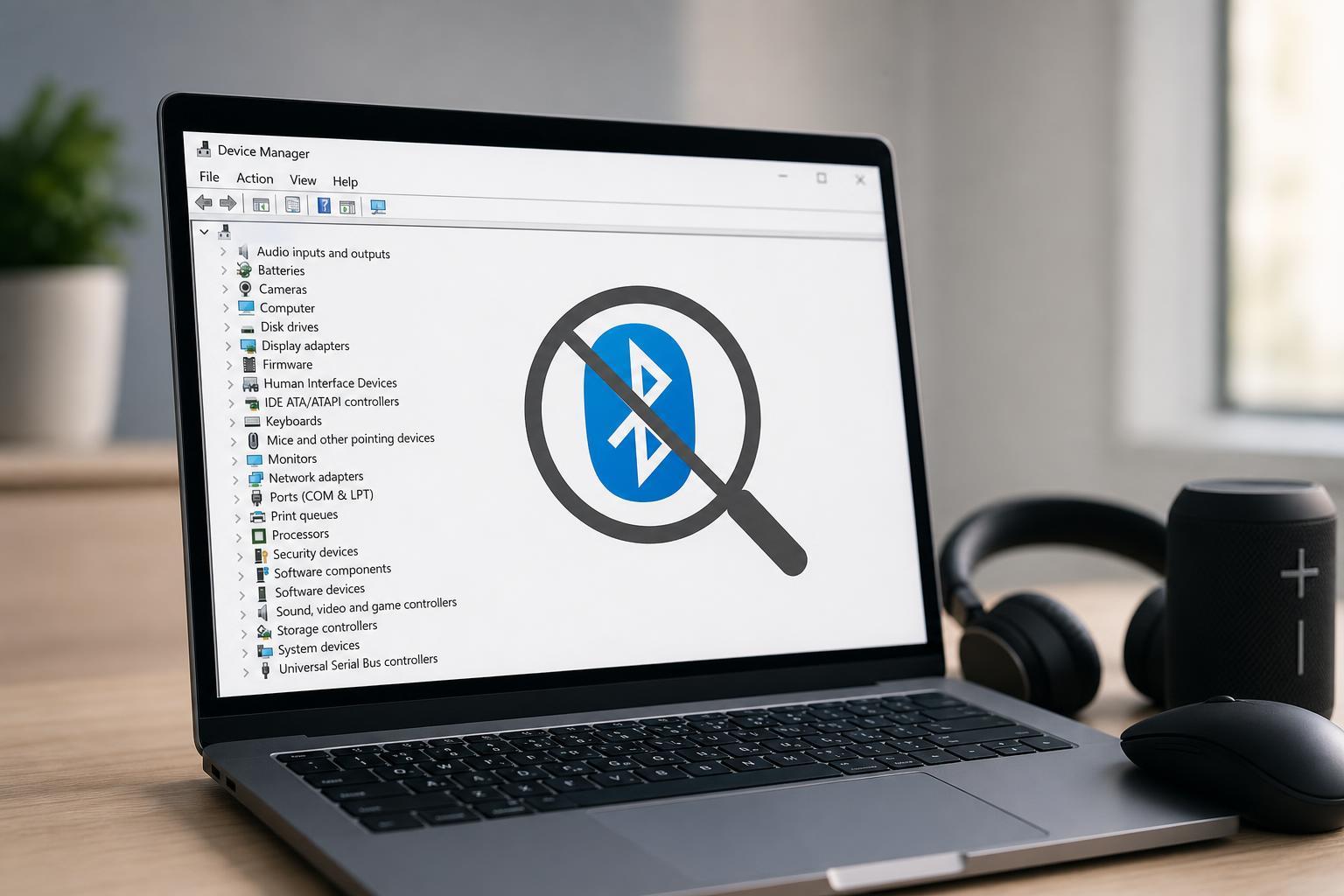
Before changing settings, make sure the Bluetooth adapter is not just hidden or grouped under another category in Device Manager. On some systems, Bluetooth devices appear only after Windows detects the adapter correctly.
- Open Device Manager.
- Click View in the top menu and choose Show hidden devices.
- Look under Bluetooth, Network adapters, and Other devices.
- If you see an unknown device or an adapter with a warning icon, Windows may have a driver problem rather than a missing Bluetooth chip.
- If Bluetooth is listed but disabled, right-click it and choose Enable device.
Turn Bluetooth On in Windows Settings
If Bluetooth was turned off at the system level, Windows may not show the adapter the way you expect. This is less common than a driver issue, but it is worth checking early.
- Open Settings and go to Devices.
- Select Bluetooth & other devices.
- Look for a Bluetooth toggle and turn it on if available.
- If the Bluetooth section is missing entirely, continue with the next steps because Windows may not be detecting the adapter.
Run the Bluetooth Troubleshooter
Windows 10 includes built-in troubleshooters that can fix common service and driver registration problems. This will not solve every case, but it can repair a broken Bluetooth configuration quickly.
- Open Settings and select Update & Security.
- Go to Troubleshoot, then Additional troubleshooters.
- Select Bluetooth and run the troubleshooter.
- Follow any prompts and apply the suggested fixes.
- Check Device Manager again after it finishes.
Restart the Bluetooth Support Service
Bluetooth on Windows relies on a background service. If that service is stopped or stuck, the adapter may fail to appear properly in Device Manager or Bluetooth settings.
- Press Windows + R, type services.msc, and press Enter.
- Find Bluetooth Support Service in the list.
- Double-click it and set Startup type to Automatic.
- If the service is stopped, click Start.
- Apply the changes and check whether Bluetooth returns in Device Manager.
Reinstall the Bluetooth Driver
A corrupted or missing driver is one of the most common reasons Bluetooth disappears from Device Manager. Reinstalling the driver can force Windows to rediscover the adapter correctly.
- Open Device Manager.
- If Bluetooth is visible, right-click the adapter and choose Uninstall device.
- If you see a checkbox to delete the driver software for this device, use it only if you already have another driver ready or Windows Update can reinstall it.
- Restart the PC and let Windows reinstall the hardware.
- If Bluetooth still does not return, download the correct driver from your PC or motherboard manufacturer and install it manually.
Check for Windows Update and Optional Driver Updates
Windows Update can restore missing device support by installing newer drivers or firmware-related fixes. This is especially useful after a Windows 10 update removed or broke an older Bluetooth driver.
- Open Settings and go to Update & Security.
- Click Check for updates and install anything available.
- Open View optional updates if it appears.
- Look under Driver updates for Bluetooth or wireless adapter drivers.
- Install any relevant updates and restart if prompted.
Make Sure Bluetooth Is Enabled in BIOS or UEFI
Some systems let you disable built-in wireless features in BIOS or UEFI. If Bluetooth has been disabled there, Windows may not detect it at all, which can make it vanish from Device Manager.
- Restart the computer and enter BIOS or UEFI setup.
- Look for wireless, integrated devices, onboard devices, or Bluetooth-related settings.
- Make sure Bluetooth or wireless communication is enabled.
- Save changes and exit.
- After Windows starts, check Device Manager again.
Check the Wireless Adapter and Related Hardware
On many laptops, Bluetooth is tied to the Wi-Fi adapter. If that wireless card is disabled, failed, or has a bad driver, Bluetooth may disappear too.
- Look in Device Manager under Network adapters for your wireless card.
- If the Wi-Fi adapter is missing or has an error icon, install the correct wireless driver first.
- If the laptop has a physical wireless switch or keyboard shortcut, make sure wireless radios are enabled.
- If the machine recently took a hardware hit or was repaired, the wireless card may be loose or faulty.
Use the Manufacturer Driver Package if Windows Still Cannot Find Bluetooth
If Windows Update does not restore Bluetooth, the most reliable fix is often installing the full wireless package from the manufacturer. That package may include the Bluetooth driver, Wi-Fi driver, and related components that Windows needs to detect the adapter properly.
- Find your PC or motherboard model.
- Visit the support page for that exact model.
- Download the wireless or Bluetooth driver for Windows 10.
- Install the package and restart the PC.
- Check Device Manager again for a Bluetooth category.
When the Bluetooth Adapter May Be Hardware-Dead
If Bluetooth still does not appear after checking drivers, services, Windows updates, and BIOS settings, the hardware itself may be the problem. This is more likely if Bluetooth disappeared after a power surge, liquid damage, a failed repair, or a wireless card replacement.
- Bluetooth and Wi-Fi both vanished from Device Manager
- The adapter is missing in BIOS or UEFI as well
- The device briefly appears and then disappears again
- Driver reinstallations have no effect
In that situation, test with the manufacturer’s diagnostic tools if available, or have the wireless card inspected or replaced.
What to Try First if You Want the Fastest Fix
If you want the shortest path, start with these steps in order: check hidden devices, run the Bluetooth troubleshooter, restart Bluetooth Support Service, and reinstall the wireless or Bluetooth driver. Those steps fix most software-related cases without changing deeper system settings.





