
If the Weather app on your iPhone keeps showing the wrong temperature, an incorrect location, or forecasts that do not match what is happening outside, the problem is usually caused by location access, stale weather data, or settings that prevent the app from refreshing properly. The good news is that most accuracy issues can be fixed without much effort.
In many cases, the app is not broken. It may simply be using the wrong location, lacking permission to access your current area, or showing weather data that has not updated yet. Working through the checks below can usually get it back on track.
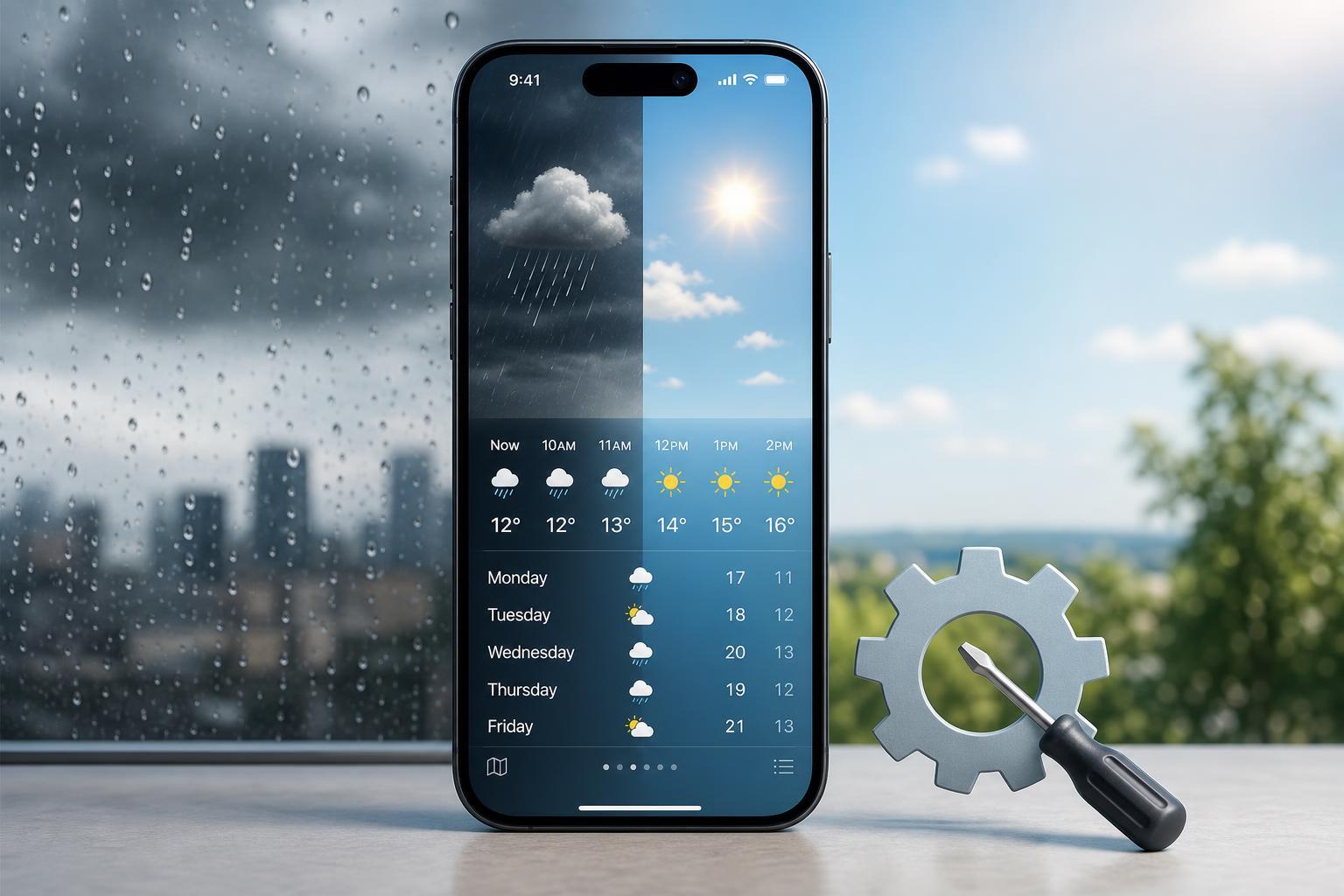
Check Whether the Weather App Has the Right Location
The most common reason for inaccurate weather on iPhone is location access. If the app cannot use your current location, it may fall back to a saved city or a nearby area that is not actually where you are.
- Open Settings on your iPhone.
- Tap Privacy & Security.
- Tap Location Services and make sure it is turned on.
- Scroll down and tap Weather.
- Choose While Using the App or Always, if available.
- Turn on Precise Location if you want the app to pinpoint your area more accurately.
Make Sure the Correct City Is Selected
If you have multiple locations saved in the Weather app, it may be showing a city you added earlier instead of your current one.
- Open the Weather app.
- Tap the list icon in the bottom-right corner.
- Look through the saved locations.
- Remove any city you no longer need by swiping left on it and tapping Delete.
- Make sure your current location is at the top if you want it to be the default weather view.
Refresh the Weather App’s Data
Weather data can sometimes lag behind real conditions, especially if the app has not refreshed recently. Opening the app while connected to a stable internet connection usually forces it to update.
- Open Weather and leave it on screen for a few seconds to let it sync.
- Switch between saved locations to trigger a refresh.
- Check whether Wi-Fi or mobile data is working properly.
- If you are using Low Data Mode, consider turning it off temporarily for testing.
Check Internet Access and Background Refresh
The Weather app needs a working internet connection to update forecasts. If your connection is weak or restricted, the app may continue showing older information.
- Open a website or another app that needs the internet to confirm your connection works.
- Go to Settings > General > Background App Refresh.
- Make sure Background App Refresh is enabled for Weather.
- If you are on cellular data, confirm that Weather is allowed to use mobile data in Settings.
Turn Location Off and Back On for Weather
If location permissions are already correct but the app still shows the wrong area, resetting Weather’s location access can help clear a stuck permission state.
- Go to Settings > Privacy & Security > Location Services > Weather.
- Change the permission to Never.
- Wait a few seconds.
- Change it back to While Using the App or Always.
- Reopen the Weather app and check the forecast again.
Check Date, Time, and Region Settings
Incorrect device time or region settings can sometimes cause odd behavior in weather apps, especially after travel or manual changes to the phone’s settings.
- Go to Settings > General > Date & Time.
- Turn on Set Automatically.
- Then check Settings > General > Language & Region.
- Make sure your region matches where you live or the region you expect to use.
Update iOS and the Weather App Features
If your iPhone is running outdated software, bugs can affect Weather app behavior. An iOS update may improve location handling, data syncing, or forecast display.
- Open Settings.
- Tap General.
- Tap Software Update.
- Install any available update.
- After updating, open Weather and check whether the issue improves.
Remove and Re-Add Saved Locations
If only one specific city looks wrong, the saved location itself may be stuck on outdated data. Deleting and adding it again can sometimes help.
- Open the Weather app.
- Open the locations list.
- Swipe left on the affected city and delete it.
- Search for the city again and add it back.
- Check whether the refreshed location now shows more accurate conditions.
Look for a Broader Weather Service Issue
Sometimes the Weather app is accurate enough, but the weather forecast itself is changing quickly. Temperature, rain timing, and wind conditions can shift hour by hour, especially during storms or unsettled weather.
- Compare the app with a second trusted weather source.
- Check whether nearby towns show similar conditions.
- Look at hourly forecasts rather than just the current temperature.
- See whether the issue is only the forecast or also the current location reading.
If the App Still Shows the Wrong Weather
If none of the steps above help, the issue may be tied to your Apple ID sync, a temporary app glitch, or a location service problem deeper in iOS. At that point, the most useful next steps are to sign out of and back into iCloud only if you already have a reason to suspect account sync trouble, or to contact Apple Support if Weather consistently fails to use the right location.
For most users, though, the fix is much simpler: make sure Weather has location access, verify the correct city, and let the app refresh on a stable internet connection. Those three checks solve the majority of accuracy complaints.





