
Slow Mode is a Discord channel setting that limits how often members can send messages. It is useful for keeping busy channels readable, reducing spam, and slowing conversations down when things get hectic. If you manage a server, you can turn it on or off in just a few steps.
This guide shows how to enable or disable Slow Mode on Discord, what the setting does, and what to check if you do not see the option.
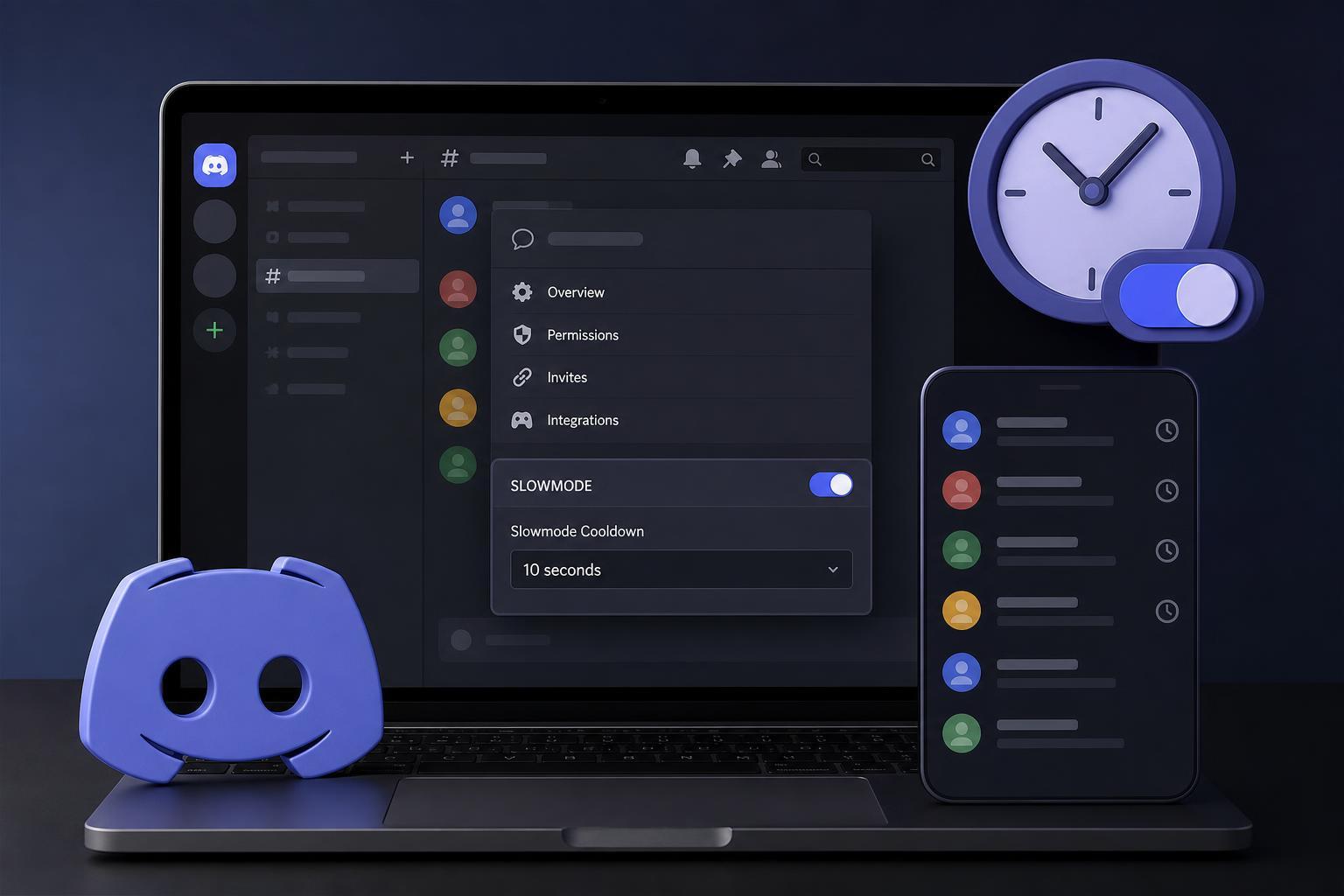
What Slow Mode Does in Discord
When Slow Mode is enabled in a text channel, each user must wait a set amount of time before sending another message in that channel. The delay applies per person, not to the whole channel, so everyone can still participate as long as they wait for their cooldown to expire.
How to Enable Slow Mode on Discord Desktop
- Open Discord and go to the server that contains the channel you want to change.
- Right-click the text channel and select Edit Channel.
- Open the Slowmode section in the channel settings.
- Choose the delay you want, such as 5 seconds, 10 seconds, 30 seconds, or longer.
- Click Save Changes to apply the setting.
How to Disable Slow Mode on Discord Desktop
- Open the channel settings again by right-clicking the text channel and choosing Edit Channel.
- Find the Slowmode setting.
- Set the delay back to 0 seconds or turn the option off, depending on the Discord version you are using.
- Click Save Changes.
Once disabled, members can post messages as often as the channel normally allows, with no per-message cooldown.
How to Change Slow Mode in the Discord Mobile App
- Open Discord on your phone and enter the server.
- Press and hold the text channel, then choose Edit Channel or tap the channel settings icon.
- Look for Slowmode.
- Select the delay you want or set it to 0 seconds to disable it.
- Save the change before leaving the settings screen.
Who Can Turn Slow Mode On or Off
Only users with permission to manage the channel or server can change Slow Mode. In most servers, that means the owner, administrators, or moderators with the right channel permissions. If you cannot find the setting, you may not have enough access.
- Server owner
- Administrators
- Moderators with channel management permission
- Users given custom roles that allow editing channel settings
Common Problems When You Cannot Find Slow Mode
- You do not have permission to edit the channel.
- You are looking at a voice channel or category instead of a text channel.
- Discord’s interface changed slightly and the setting is under a different submenu.
- The channel is managed by a linked integration or category setup that limits direct edits.
If you are sure you should have access, check your role permissions or ask another moderator to confirm the channel settings.
Choosing the Right Slow Mode Delay
The best delay depends on how active the channel is and how people use it. A short delay may be enough for general chat, while a longer delay is more useful in high-traffic announcement discussion or support channels.
- 5 to 10 seconds: light slowdown for active conversation
- 30 seconds to 1 minute: useful for noisy public chats
- Several minutes: better for announcements or highly moderated discussion
When Slow Mode Is Better Than Other Moderation Tools
Slow Mode is a good middle ground when you want to reduce message flooding without silencing the channel. It works well when moderators want to keep discussion open but more controlled.
- Use Slow Mode when messages are coming in too quickly.
- Use channel permissions or read-only settings when you need stronger control.
- Use it temporarily during events, launches, or heated discussions.
What to Check If Slow Mode Still Seems Not to Work
If you enabled Slow Mode but members can still post freely, double-check that you saved the setting in the correct channel. Also make sure the cooldown is long enough to notice. In some cases, people may simply be waiting between messages without realizing the restriction is active.
If the option is enabled but you do not see a visible cooldown message, the Discord client may not always display it prominently. The real test is whether a user can send another message immediately after the last one.





