
Windows 11 does not have a special hidden feature called “God Mode” in the usual sense, but it does let you create a folder that opens a long list of Control Panel and system settings in one place. It is a handy shortcut for power users, troubleshooters, and anyone who wants faster access to Windows tools without digging through multiple menus.
The process is simple, but there are a few things worth knowing first: it is not a settings overhaul, it does not replace the Settings app, and some options in the list may still open classic Control Panel tools instead of modern Windows 11 pages.
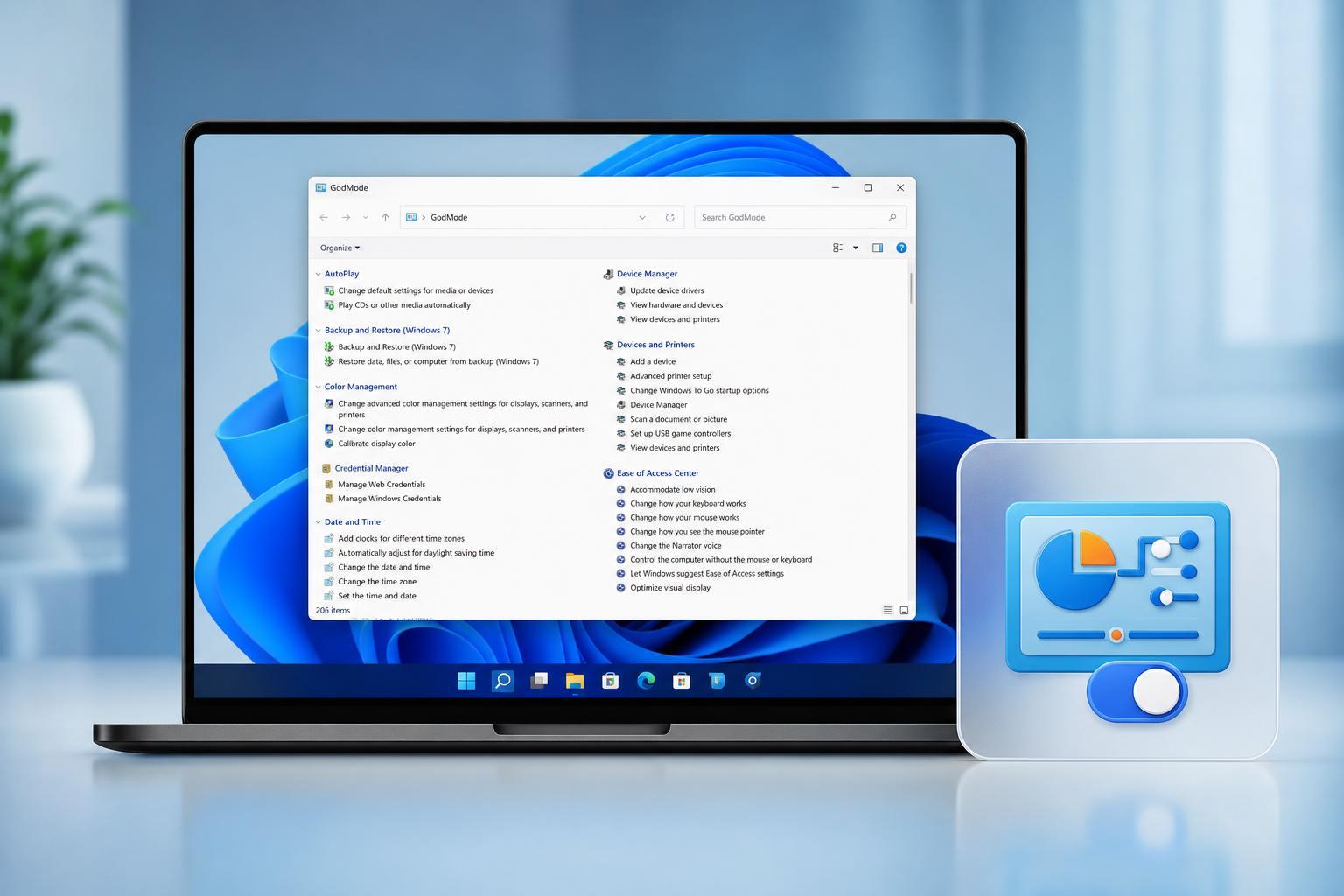
What God Mode Does in Windows 11
“God Mode” is really just a folder with a special name that Windows recognizes. When you open it, you get a single view of many administrative and configuration options, such as display settings, user accounts, devices, power options, backup tools, and more.
How to Enable God Mode in Windows 11
- Right-click an empty area on the desktop and choose New > Folder.
- Rename the folder exactly to this string: GodMode.{ED7BA470-8E54-465E-825C-99712043E01C}
- Press Enter.
- The folder icon should change into a Control Panel-style icon.
- Double-click the folder to open the full list of settings.
What You Can Do With It
- Open classic system tools from one place
- Jump to device, network, and power-related settings faster
- Find administrative options without searching the Start menu
- Use it as a troubleshooting hub when helping someone else on Windows 11
How to Pin or Move the Folder for Easier Access
After creating the folder, you can move it anywhere convenient, such as your desktop, Documents folder, or a utilities folder you keep for troubleshooting.
- Drag the God Mode folder to a convenient location.
- Right-click it and choose Show more options if needed, then select Pin to Start or Pin to Quick access where available.
- Open it whenever you need a fast route to Windows settings.
If It Does Not Work
If the folder does not turn into the God Mode icon, the naming pattern is usually the problem. Check the spelling, punctuation, and bracketed code carefully.
- Make sure the folder is not named GodMode.txt or anything with a file extension
- Confirm there is a period before the curly-brace code
- Avoid extra spaces before or after the name
- Use a normal Windows folder, not a compressed archive or special shell location
Is God Mode Safe to Use?
Yes. It is a built-in Windows shortcut trick, not a modification that changes system security or registry settings. The only real risk is accidentally clicking a system tool you do not intend to change.
When God Mode Is Most Useful
- When you want faster access to old Control Panel options
- When troubleshooting a PC and jumping between several system tools
- When you are supporting another user and need a central settings hub
- When you prefer a searchable folder of Windows administrative shortcuts
A Better Way to Think About God Mode
The name makes it sound more powerful than it really is. In practice, it is best thought of as a convenience folder for Windows 11 settings. It is especially helpful if you already know roughly what you are looking for and want to skip the usual menu-hopping.





