
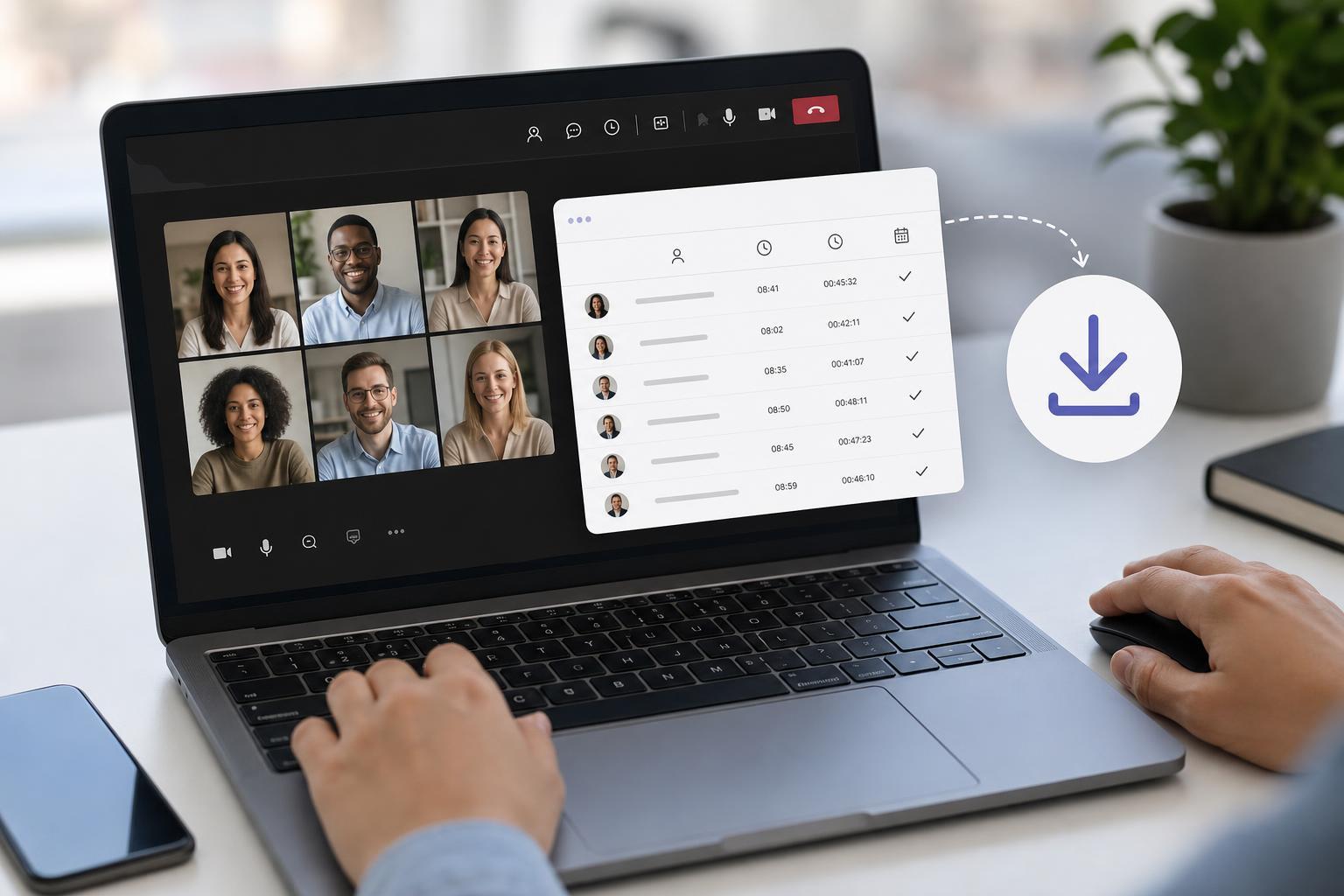
Microsoft Teams can generate an attendance report for meetings, which is useful when you need to confirm who joined, when they arrived, and how long they stayed. The exact steps depend on whether you are the meeting organizer or a presenter with the right permissions.
This guide explains how to download the report during and after a meeting, where the file is saved, and what to check if you do not see the attendance option.
What You Need Before You Start
- You must usually be the meeting organizer, or have host/presenter permissions that allow attendance access.
- Attendance reports are typically available only for meetings, not every type of Teams call.
- Some organizations disable attendance reporting through Microsoft 365 or Teams admin settings.
- The report may not be available immediately if the meeting is still being processed.
Download the Attendance Report During a Teams Meeting
- Join the meeting as the organizer or a permitted presenter.
- Open the meeting controls at the top of the Teams window.
- Select Participants.
- In the Participants pane, look for More options or the three-dot menu.
- Choose Download attendance list if the option is available.
- Save the file when prompted.
If you download the report while the meeting is still in progress, Teams creates a snapshot of attendees up to that point. If more people join later, you may need to download the report again after the meeting ends for a more complete record.
Download the Attendance Report After the Meeting Ends
- Open the Teams calendar and go to the past meeting entry.
- Open the meeting details or chat for that meeting.
- Look for the attendance report link or file in the meeting chat.
- Download the file to your computer or open it in your browser.
- If needed, save a copy in a shared folder for later reference.
In many versions of Teams, the report is posted in the meeting chat after the meeting ends. If you do not see it right away, wait a little while and refresh the chat or meeting details.
Where the Attendance File Appears
- During the meeting: In the Participants pane, if the organizer has access to attendance reporting.
- After the meeting: In the meeting chat or meeting recap area, depending on your Teams version.
- In some organizations: In the organizer's downloads folder or browser download location after export.
What the Report Includes
- Participant names as they appeared in the meeting
- Join and leave times
- Total time in the meeting
- Whether a participant rejoined after disconnecting
If You Cannot Find the Attendance Option
- You are not the meeting organizer and do not have permission to view reports.
- Attendance tracking was disabled by your administrator.
- The meeting type does not support attendance reports.
- You are looking in the wrong place, such as the chat instead of the meeting details or Participants pane.
- The report has not finished generating yet.
- Confirm that you were the organizer or have the correct meeting permissions.
- Check the meeting chat, recap, and Participants pane again.
- Wait a few minutes after the meeting ends and refresh Teams.
- Ask your Microsoft 365 or Teams administrator whether attendance reports are enabled for your account.
- If necessary, use the Teams desktop app, since some features appear there before they do in the web app.
How to Use the Report in Excel
- Open the downloaded CSV file in Excel.
- Check the columns for names, join time, leave time, and duration.
- Sort or filter the list if you need to identify late arrivals or people who left early.
- Save a copy as an Excel workbook if you want to add notes or keep a formatted record.
If names look unfamiliar, some attendees may have joined using a phone number, a guest account, or a display name that differs from their usual work account.
If You Need Attendance for a Recurring Meeting
- Download each meeting's report separately if you need a record for every session.
- Use consistent filenames so reports are easy to track later.
- Store the reports in a shared folder only if your organization allows that.
- Keep in mind that each occurrence of a recurring meeting may have its own attendance file.
When Attendance Reporting Is Not Enough
If you need detailed participation records for a webinar, class, or compliance event, confirm that Teams attendance reports meet your organization’s requirements. Some teams also need registration lists, manual sign-in sheets, or exported webinar reports in addition to the standard attendance file.





