
An iPhone and Mac can stay connected in several different ways, including Bluetooth, Wi-Fi syncing, AirDrop, Messages, Handoff, iCloud, and even phone-call forwarding features. If you want to break that connection, the right fix depends on whether you only want a temporary disconnect or a permanent one.
This guide walks through the most practical ways to disconnect an iPhone from a Mac without changing anything you do not need to touch.
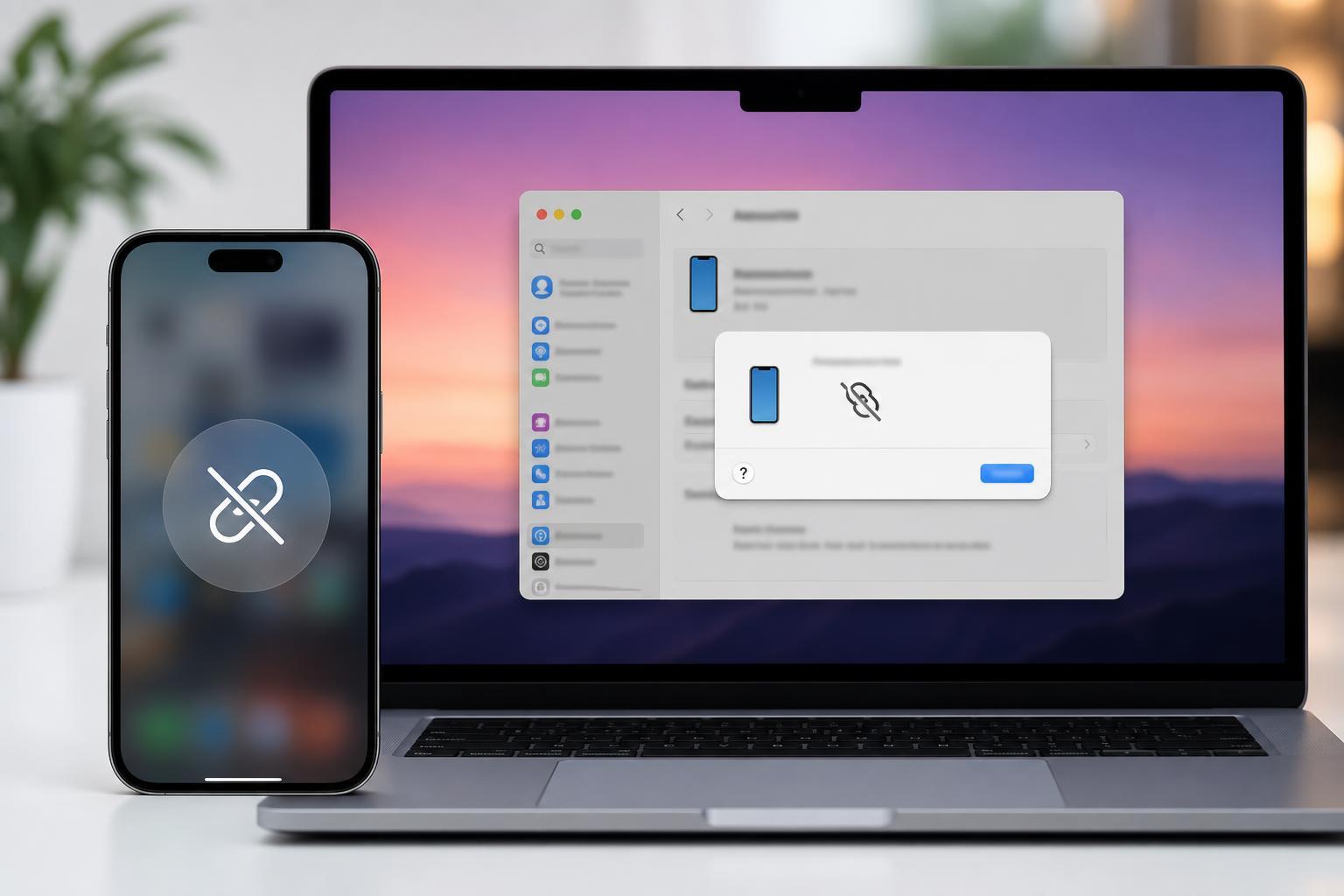
First, decide what kind of connection you want to break
People often say they want to “disconnect” an iPhone from a Mac, but that can mean very different things. You may want to stop the devices from sharing files, messages, calls, or clipboard data, or you may want to remove the iPhone from your Mac entirely.
- Temporary disconnect: pause a feature like Bluetooth, AirDrop, Handoff, or iCloud sync
- Permanent disconnect: sign out, unlink sharing features, or remove the iPhone from Apple ID services
- Physical disconnect: unplug the cable and stop Finder syncing or backups
Temporary ways to disconnect an iPhone from a Mac
If you only need to stop the connection for a while, start with the feature that is causing the link. These changes are usually quick and easy to reverse.
Turn off Bluetooth on one device
Bluetooth can be used for Handoff, AirDrop discovery, Continuity features, and some accessory connections. Turning it off is one of the fastest ways to reduce device interaction.
- On iPhone, open Settings, then tap Bluetooth and switch it off.
- On Mac, open Control Center or System Settings and turn Bluetooth off.
- Turn it back on later when you want the devices to connect again.
Disable Handoff
Handoff lets you continue tasks between your iPhone and Mac, such as web pages, emails, and documents. If you want the devices to stop suggesting or sharing activities, disable it on either device.
- On iPhone, go to Settings > General > AirPlay & Continuity.
- Turn off Handoff.
- On Mac, open System Settings > General > AirDrop & Handoff.
- Turn off Allow Handoff between this Mac and your iCloud devices if it is enabled.
Stop AirDrop connections
AirDrop does not create a permanent pairing, but it can make your iPhone and Mac appear connected when nearby. You can limit this by changing AirDrop discovery settings.
- On iPhone, open Control Center, then press and hold the network card.
- Tap AirDrop and choose Contacts Only or Receiving Off.
- On Mac, open Finder, click AirDrop, and set the option so the Mac is not discoverable to everyone nearby.
Pause iCloud sync for a specific service
If the problem is that your photos, contacts, notes, or other data keep appearing on both devices, the connection is often iCloud rather than a direct device link. You can turn off sync for individual apps without signing out of Apple ID entirely.
- On iPhone, open Settings and tap your name at the top.
- Tap iCloud.
- Turn off syncing for the specific apps you do not want shared with the Mac.
- On Mac, open System Settings > Apple ID > iCloud and disable the matching service there if needed.
Disconnect an iPhone from a Mac permanently
If you want to stop the devices from sharing data or services long term, you usually need to remove Apple ID connections, account access, or device trust relationships rather than just switching off one feature.
Sign out of Apple ID on the Mac or iPhone
Signing out of Apple ID is the strongest way to stop most Apple ecosystem features from working between the two devices. This is useful if you are selling a Mac, giving it away, or using it with a different account.
- On the device you want to disconnect, open System Settings or Settings.
- Tap or click your Apple ID name.
- Choose Sign Out.
- Follow the prompts carefully, especially if you want to keep copies of iCloud data on that device.
Remove the iPhone from trusted devices on your Apple ID
If you no longer want the Mac to recognize the iPhone as part of your account setup, remove it from your Apple ID device list. This is especially useful if you are retiring a device or fixing stale account connections.
- On iPhone, go to Settings and tap your Apple ID name.
- Scroll to the device list and select the Mac.
- Choose Remove from Account if available.
- On Mac, check your Apple ID device list and remove the iPhone if it is listed and you no longer want it associated.
Stop text messages and calls from appearing on the Mac
If your goal is to separate your iPhone from your Mac during normal use, Messages and Calls are often the first things people want to disable.
- On iPhone, go to Settings > Apps > Messages > Text Message Forwarding and turn off the Mac if it appears there.
- On Mac, open the Messages app, then sign out if you no longer want iMessage on that computer.
- For calls, go to iPhone Settings > Apps > Phone > Calls on Other Devices and disable the Mac.
- On Mac, check FaceTime settings and sign out if needed.
Disconnect a physically connected iPhone from a Mac
If your iPhone is plugged into a Mac with a cable, simply unplugging it stops the physical connection. But if the Mac still backs up or syncs the iPhone whenever it is connected again, you may need to change Finder settings too.
- Unplug the iPhone from the cable.
- Open Finder on the Mac and select the iPhone in the sidebar if it still appears.
- Review the sync and backup settings if you do not want the Mac to manage the device in the future.
- If the Mac was set to show the iPhone automatically, close Finder and reconnect only when needed.
If you want a clean break before selling or giving away the Mac
When a Mac is being sold, repaired, or handed to someone else, it is a good idea to remove every Apple connection you can. That reduces the chance of your iPhone continuing to share data with the Mac.
- Sign out of Apple ID on the Mac
- Turn off iMessage and FaceTime on the Mac
- Remove the Mac from your Apple ID device list
- Disable Handoff and Bluetooth if you do not need them
- Check Finder for any remembered iPhone backups or sync settings
How to choose the right fix
Use the smallest change that solves the problem. That usually avoids unexpected side effects like losing sync, losing message access, or breaking other Apple features you still want to use.
- Use Bluetooth or Handoff changes for temporary feature interruptions
- Use AirDrop settings to stop nearby sharing
- Use iCloud sync toggles if only one type of data should stop syncing
- Use Apple ID sign-out if you want the strongest permanent disconnect
- Use Messages, FaceTime, and call settings if communication is the issue
What to do if the iPhone still seems connected
If the Mac still shows your iPhone in suggestions, device lists, or sharing menus after you change settings, check for leftover Apple services that were not disabled yet. The most common misses are Handoff, Messages, FaceTime, and iCloud sync.
A simple rule of thumb
If you only need a pause, disable the feature causing the connection. If you want the devices separated for good, sign out of Apple ID and remove account access wherever needed. That approach keeps the process simple and avoids changing more than necessary.





