
If your Outlook calendar is full of outdated meetings, expired reminders, or old recurring events, you can clean it up by deleting individual items or removing multiple calendar entries at once. The right method depends on whether you want to remove a few old appointments, an entire repeating series, or a large block of past events.
This guide explains the safest ways to delete old calendar items in Outlook and shows how to avoid removing future occurrences you still need.
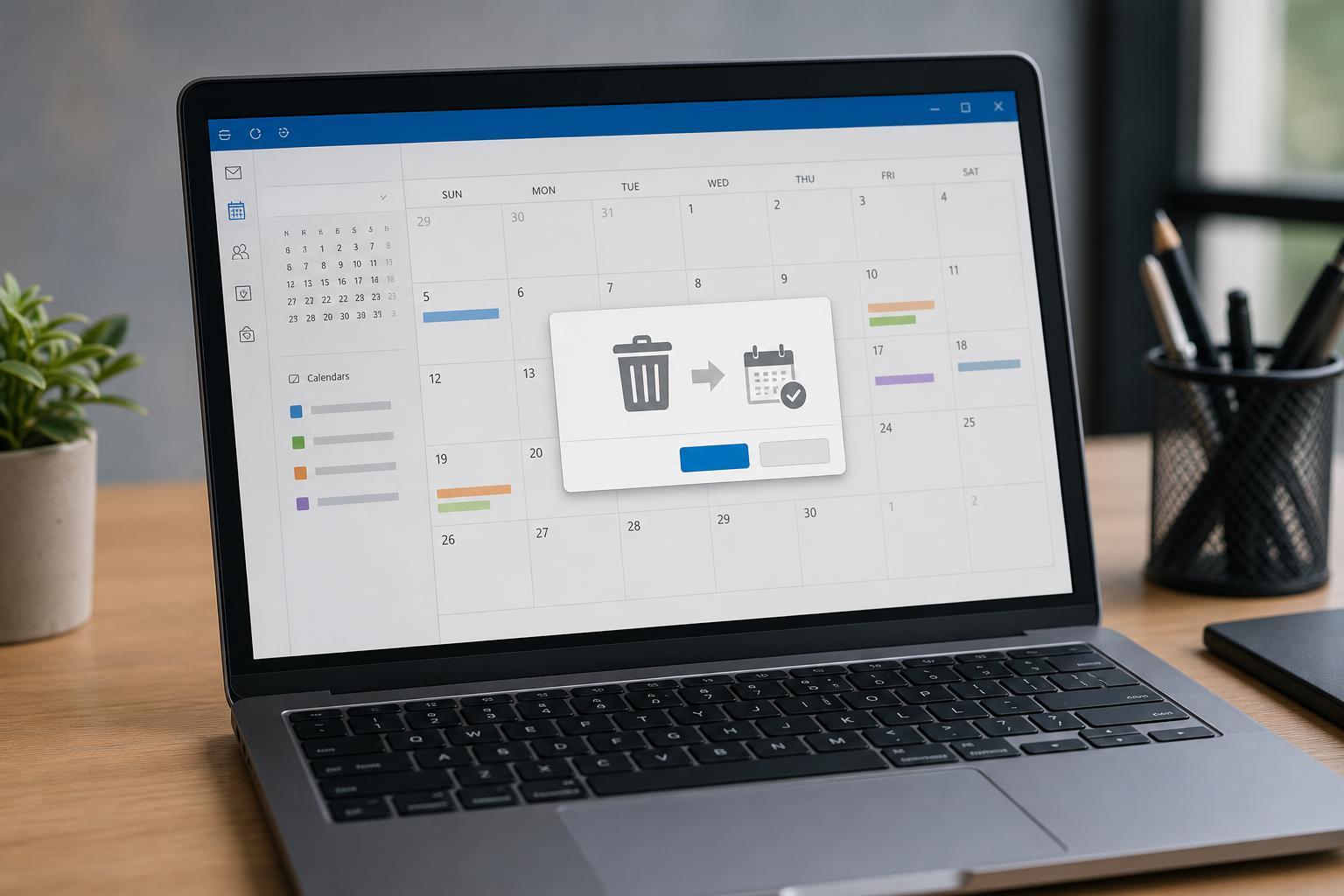
Delete a Single Old Calendar Item
If you only need to remove one outdated meeting or appointment, the simplest method is to delete it directly from your calendar.
- Open Outlook and go to Calendar.
- Find the old appointment or meeting you want to remove.
- Click the item once to select it.
- Press Delete on your keyboard, or right-click the item and choose Delete.
- If Outlook asks whether to delete the entire series, make sure you choose the option that matches what you want to remove.
Delete an Entire Recurring Series
Recurring meetings are the most common place where people accidentally leave behind old calendar clutter. If the event no longer matters at all, delete the whole series instead of removing one occurrence at a time.
- Open the recurring event in Calendar.
- Double-click the meeting or appointment to open its details.
- When Outlook asks whether to open just this occurrence or the entire series, choose the entire series.
- Select Delete or Cancel Meeting, depending on whether you created the event or only received it.
- Confirm the deletion when prompted.
Remove Many Old Calendar Items at Once
If your calendar has a long history of outdated items, deleting them one by one can take a while. Outlook does not always offer the same bulk-delete options in every view, but there are a few practical ways to clear out old entries faster.
- Use a calendar view that shows many past appointments, then select multiple items with Ctrl-click before deleting them.
- Switch to a list-style view if available in your Outlook version, which makes it easier to sort by date and select several old items.
- Use search or filtering to show only meetings before a certain date, then delete the visible items.
- For shared calendars or heavily used calendars, remove old entries in small groups so you can verify you are not deleting anything current.
Permanently Delete Items from Deleted Items or Recoverable Items
Deleting a calendar item normally sends it to Deleted Items first. If you want to remove it completely, you may also need to empty Deleted Items afterward. In some Microsoft 365 or Exchange environments, deleted items can still be recoverable for a period of time depending on your organization’s settings.
- Open the Deleted Items folder in Outlook.
- Check that the calendar items you want to remove are there.
- Right-click the folder or selected items and choose Empty Folder or Delete Permanently if available.
- Confirm the action if Outlook asks.
Use AutoArchive or Mailbox Cleanup for Older Calendar Data
If your goal is to reduce clutter rather than manually manage every old event, Outlook’s archiving or mailbox cleanup tools may help. These tools are more useful for long-term maintenance than for deleting a few specific meetings.
- AutoArchive can move older items out of the main calendar in some Outlook versions.
- Mailbox cleanup tools can help identify large amounts of old data.
- These features are more common in classic desktop Outlook than in Outlook on the web.
- Archive settings may affect other Outlook data, so review them carefully before applying changes.
If the Old Items Keep Reappearing
Sometimes deleted calendar items seem to come back, or old meetings keep showing up even after you remove them. That usually means the item is being synchronized from another device, account, or calendar source.
- Check whether the event comes from a shared calendar or a subscribed calendar.
- Make sure the item was deleted in the original calendar, not just hidden in one view.
- Confirm that Outlook finished syncing after the deletion.
- If you use Outlook on multiple devices, verify that the item is gone on all of them.
- For recurring meetings, confirm that you deleted the correct occurrence or series.
Best Way to Clean Up an Overloaded Calendar
If your calendar has only a few outdated entries, manual deletion is usually the safest option. If it is full of old meetings from years ago, focus on filtering by date and deleting in groups so you can stay organized and avoid accidental data loss.
- Delete single items when the clutter is small and specific.
- Delete full recurring series when the meeting is no longer needed at all.
- Use filters or list views for large amounts of old calendar data.
- Check Deleted Items if you want to remove calendar entries permanently.
- Be extra careful with shared calendars and recurring events.
What to Check Before You Delete
Before removing old calendar items, it helps to confirm whether the event is personal, shared, or recurring. That simple check prevents most accidental deletions and makes it easier to choose the right removal method.
- Is the event a one-time appointment or part of a recurring series?
- Did you create the event, or was it sent by someone else?
- Is the calendar shared with other people?
- Do you still need future occurrences of the meeting?
- Do you want the item removed only from view, or deleted permanently?





