
If your Outlook inbox is full of newsletters, old notifications, or messages you no longer need, deleting them one by one is slow and frustrating. Outlook lets you remove multiple emails at once, but the steps are slightly different depending on whether you are using the mobile app or Outlook on the web.
This guide shows you how to select many messages quickly, delete them safely, and clear out large parts of your inbox without missing anything important.
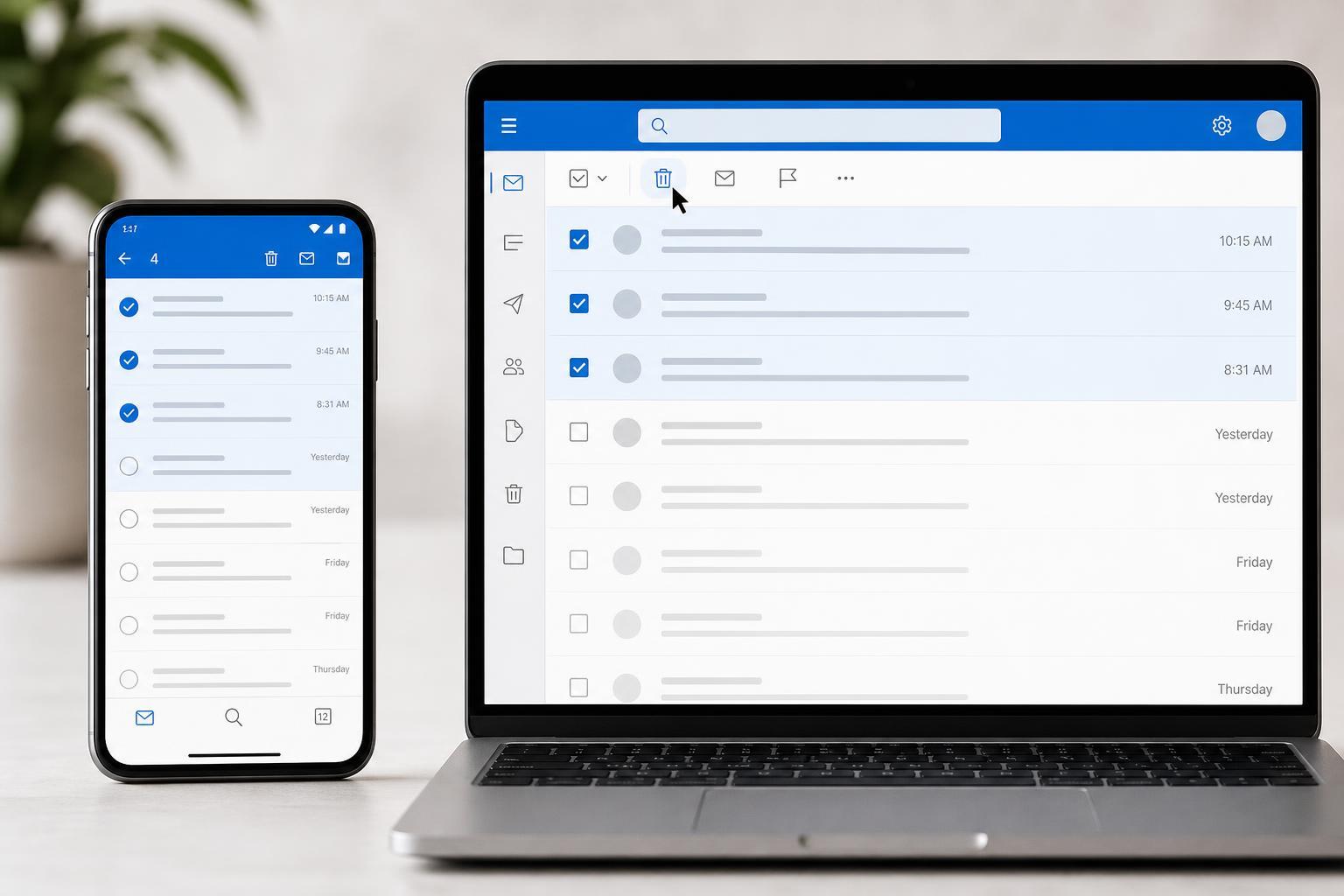
How to Delete Multiple Emails in Outlook on Mobile
The Outlook mobile app for iPhone and Android makes bulk deletion straightforward once you know how to select messages. The exact layout may vary a little by device, but the process is the same.
- Open the Outlook app and go to the folder you want to clean up, such as Inbox, Junk Email, or Sent.
- Tap and hold one email until selection mode appears.
- Tap the other emails you want to delete. Selected messages are usually marked with a check or highlight.
- Tap the Delete icon, usually shown as a trash can.
- If you want to delete everything in that folder, look for a Select All option if it is available, then delete the selected messages.
How to Delete Multiple Emails in Outlook on the Web
Outlook on the web is often the easiest place to delete large groups of messages because selection tools are easier to see and use.
- Sign in to Outlook on the web and open the folder you want to clean up.
- Move your pointer over the messages and use the checkboxes to select the emails you want to delete.
- To select every message visible in the folder, click the checkbox at the top of the message list.
- Click Delete to move the selected emails to the Deleted Items folder.
- If you want to remove more messages, repeat the process in the next set of emails or folder.
How to Delete an Entire Folder's Worth of Messages
If you want to clear a folder quickly, selecting all messages in that folder is usually faster than choosing them individually. This is useful for promotional emails, old sent messages, or a cluttered archive folder.
- In Outlook on the web, use the top checkbox to select all visible messages in the folder.
- In the mobile app, use Select All if it appears after you enter selection mode.
- If the folder is very large, delete messages in sections rather than all at once if Outlook only selects the currently visible items.
What to Do If You Cannot Select Multiple Emails
If bulk selection is not working as expected, the problem is usually related to the app version, folder type, or the way the messages are displayed.
- Make sure you are in a message list view, not inside a single opened email.
- Check whether the folder supports multi-select in the mobile app you are using.
- Update the Outlook app if selection controls are missing or behave strangely.
- Try Outlook on the web if the mobile app is being difficult with bulk actions.
- If you are using a work or school account, your organization may limit some actions in shared or managed mailboxes.
How to Empty Deleted Items After Bulk Deleting
Deleting messages only moves them to Deleted Items. If you want to free up more space or fully clear the messages from view, you may also want to empty that folder.
- Open the Deleted Items folder.
- Check that nothing important is still there.
- Choose the option to empty the folder or delete all messages in it.
- If Outlook asks for confirmation, review it carefully before continuing.
A Faster Way to Manage a Messy Inbox
If you regularly get too many similar emails, bulk deletion works best when you combine it with better inbox habits.
- Unsubscribe from newsletters you never read.
- Use Outlook rules or filters to move repetitive mail into folders automatically.
- Delete promotional mail in batches instead of waiting until the inbox is overwhelming.
- Archive messages you may need later instead of deleting them immediately.
When Deleting Is Better Than Archiving
Deleting is the right choice for temporary mail, spam, and messages you know you will never need again. Archiving is better for conversations or records you may want to search later. If you are unsure, archiving is the safer choice because it keeps the message out of your inbox without removing it.





