
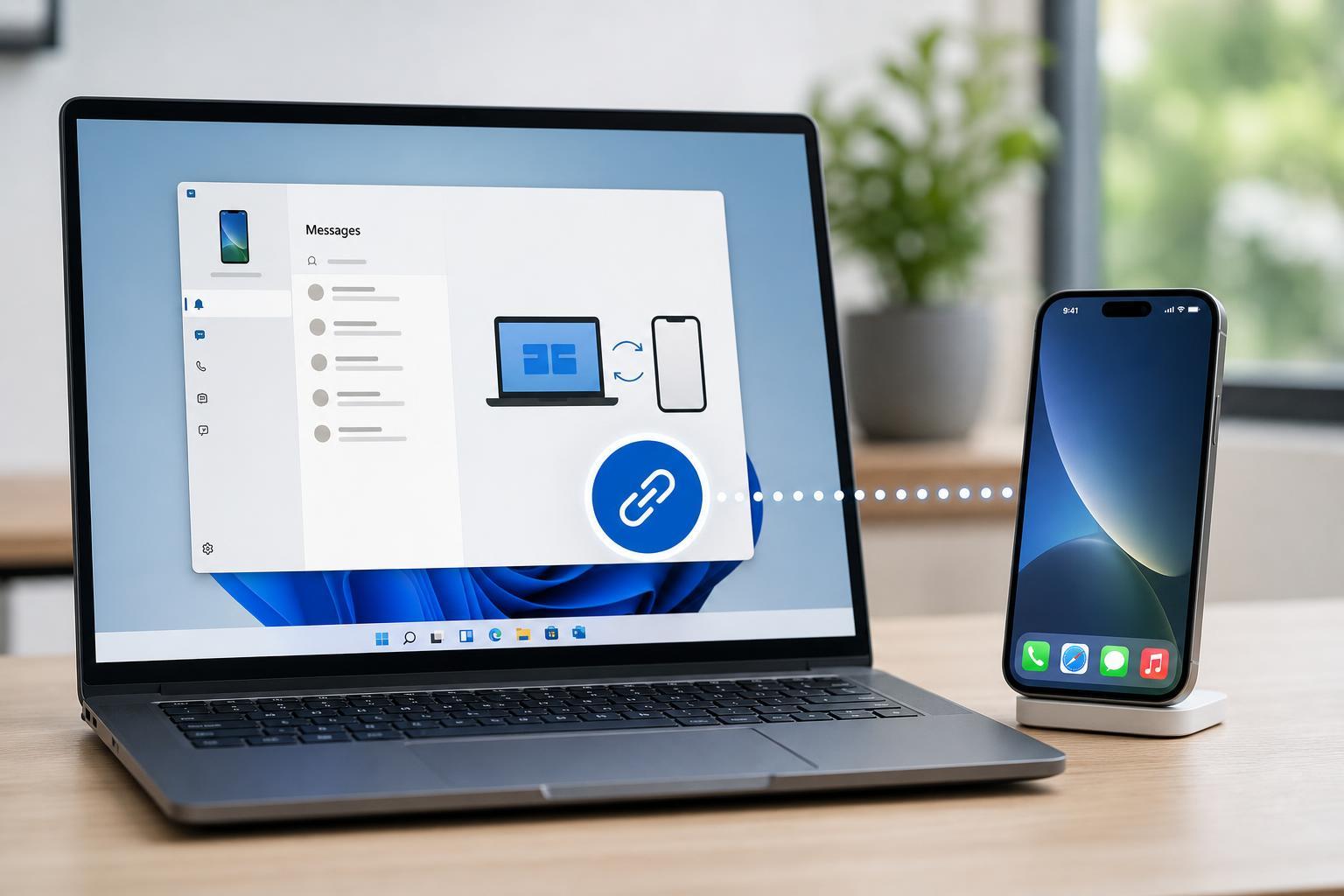
Microsoft’s Phone Link app can connect your Windows PC to an iPhone so you can handle calls, messages, and notifications more easily from your computer. The setup is a little different from Android, and the features are more limited, but it is still useful if you want a simpler way to stay in touch while working on Windows.
This guide shows you how to link an iPhone to Phone Link on Windows, what you need first, what the app can and cannot do, and how to fix common connection problems.
What You Need Before You Start
- A Windows 11 PC with the Phone Link app installed
- An iPhone running a recent version of iOS
- Bluetooth turned on for both devices
- The same Microsoft account signed in on your PC
- An internet connection for the initial setup
How to Link Phone Link to an iPhone
- On your Windows PC, open the Phone Link app. If you do not have it, install it from the Microsoft Store.
- Sign in with your Microsoft account if prompted.
- Choose iPhone when the app asks what type of phone you want to connect.
- Open the pairing option in Phone Link and keep the QR code or setup screen visible.
- On your iPhone, open the Camera app and scan the QR code shown on your PC, or follow the pairing prompt if one appears.
- Tap the link or pairing notification on the iPhone and allow the requested Bluetooth and notification permissions.
- Follow the remaining prompts on both devices until pairing finishes.
- Confirm that your iPhone appears in Phone Link and test a call, message, or notification sync feature.
What Phone Link Can Do With an iPhone
- Make and receive calls from your PC
- Send and receive text messages
- See certain notifications on Windows
- Check basic phone status information
- Keep your iPhone within reach while working on your PC
Limitations to Expect
- iPhone support is not as complete as Android support
- Some notification types may not appear
- Media syncing and deep app integration are limited
- Certain message features may behave differently from Android
- The iPhone must stay nearby and connected for the features to keep working
If the iPhone Will Not Link
- Check that Bluetooth is enabled on both the iPhone and the Windows PC.
- Make sure both devices are close to each other during setup.
- Confirm that you are signed in to Phone Link with a Microsoft account.
- If pairing stalls, cancel the setup and start the link process again from the beginning.
- On the iPhone, look for any permission prompts you may have missed and allow them.
- Update iOS and Windows if the pairing option does not appear or the app behaves unexpectedly.
- If needed, remove the iPhone from Phone Link and pair it again from scratch.
If Messages or Notifications Do Not Show Up
- Recheck notification permissions on the iPhone
- Make sure Focus mode or Do Not Disturb is not suppressing alerts
- Verify that Phone Link is allowed to run in the background on Windows
- Confirm the app is still connected and not signed out
- Test with a new text or notification to rule out an app-specific issue
When to Reinstall or Reset
If Phone Link repeatedly fails to pair, crashes during setup, or stops syncing after previously working, removing the connection and setting it up again is often the most effective next step. If that does not help, reinstalling the Phone Link app on Windows can clear corrupted app data.
What This Means for iPhone Users
Phone Link is a convenient bridge between Windows and iPhone, especially if you mainly want calls, texts, and a cleaner way to stay informed while working. It is not a full iPhone management tool, but it can still save time and reduce how often you need to switch between devices.





