
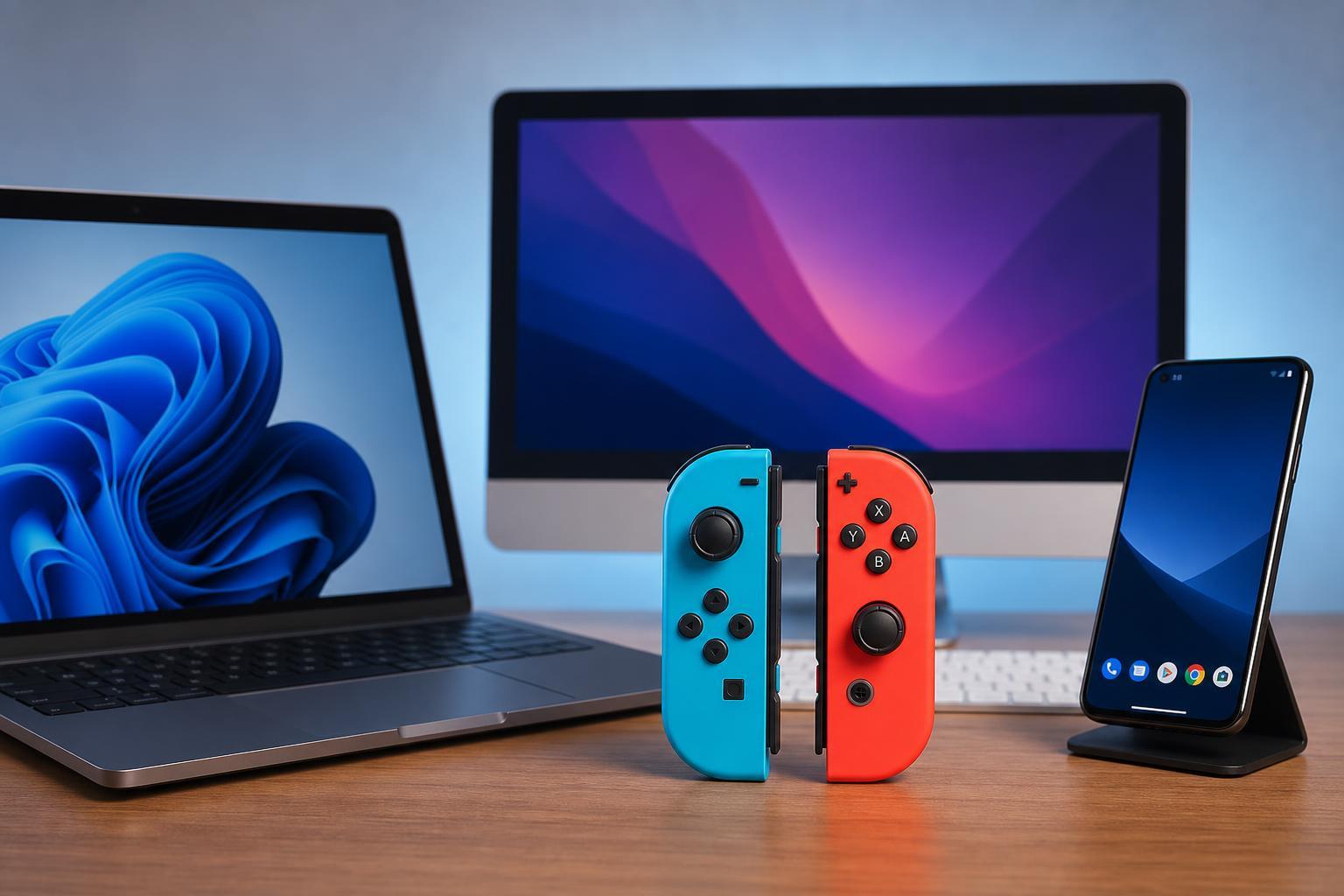
Nintendo Joy-Cons are not limited to the Switch. Because they use Bluetooth, you can pair them with Windows, macOS, and Android devices for games, emulators, and other Bluetooth-supported apps. The connection process is simple, but the experience is not identical on every platform.
This guide explains how to connect Joy-Cons to each device, what features you can expect, and the most common limitations you may run into.
What You Need Before You Start
- A pair of Nintendo Joy-Cons with charge remaining
- Bluetooth on the device you want to connect to
- A game or app that supports external controllers
- Optional controller-mapping software on Windows or macOS if the app does not recognize Joy-Cons directly
How to Put a Joy-Con in Pairing Mode
- Detach the Joy-Con from the Switch if it is attached.
- On the Joy-Con, press and hold the small SYNC button until the lights start blinking.
- Keep the controller close to the device you want to pair with while it searches for Bluetooth devices.
- If pairing works, the blinking lights will usually stop or change to show a stable connection.
Connect Joy-Cons to Windows
- Open Settings on your PC and go to Bluetooth & devices.
- Turn Bluetooth on if it is not already enabled.
- Select Add device, then choose Bluetooth.
- Put the Joy-Con into pairing mode by holding the SYNC button.
- Select the Joy-Con when it appears in the list of available devices.
Windows will usually see each Joy-Con as a separate Bluetooth controller. That means you can use them individually, or try to combine them with software that presents them as a single gamepad if the game supports that setup.
Connect Joy-Cons to a Mac
- Open System Settings on your Mac.
- Go to Bluetooth and make sure Bluetooth is turned on.
- Hold the Joy-Con SYNC button until the lights flash.
- Wait for the Joy-Con to appear in the device list, then click Connect.
On macOS, Joy-Cons can work for supported apps and games, but behavior can vary more than on a Switch. Some software may recognize the controller immediately, while other apps may need extra configuration or a controller utility.
Connect Joy-Cons to Android
- Open Settings on your Android device.
- Go to Bluetooth or Connected devices, depending on your phone or tablet.
- Turn Bluetooth on.
- Press and hold the Joy-Con SYNC button until the LEDs begin flashing.
- Tap the Joy-Con when it appears in the list of available devices.
Android can pair with Joy-Cons, but actual game support varies widely. Some mobile games and emulators handle them well, while others may only support touchscreen controls or require manual button mapping.
What Works Well and What Doesn’t
- Basic button input usually works once paired
- Individual Joy-Cons often appear as separate controllers
- Motion controls may work only in certain apps
- Rumble support is inconsistent outside the Switch
- Some games require manual button remapping
- Button labels may not match the game’s on-screen prompts
If Your Joy-Cons Will Not Connect
- Make sure the Joy-Con is charged.
- Confirm Bluetooth is turned on and the device is not already maxed out with other paired accessories.
- Remove the Joy-Con from the Switch first if it seems to reconnect there automatically.
- Move closer to the device during pairing.
- Forget the Joy-Con in Bluetooth settings and try pairing again.
- Test the Joy-Con on the Switch to check whether the controller itself is working.
Should You Use Joy-Cons on Other Devices?
Joy-Cons are a convenient option if you already own them, especially for casual gaming or quick controller access. They are lightweight, portable, and easy to pair over Bluetooth. However, they are not always the best choice for long sessions or games that depend on precise stick input, because their small size and mixed software support can be limiting.
If you mainly want reliable PC or mobile gaming, a controller designed specifically for Windows, Mac, or Android may be easier to use. But if you want to make the most of hardware you already own, Joy-Cons can still be a useful cross-platform controller.





