
Removing a Chrome extension is usually simple, but some add-ons keep showing up again, stay synced across devices, or leave behind settings you still want gone. If you want an extension removed for good, you need to uninstall it the right way and check a few extra places where it may still be active.
This guide explains how to remove Chrome extensions permanently on Windows, macOS, and ChromeOS, along with the extra steps that help prevent them from returning.
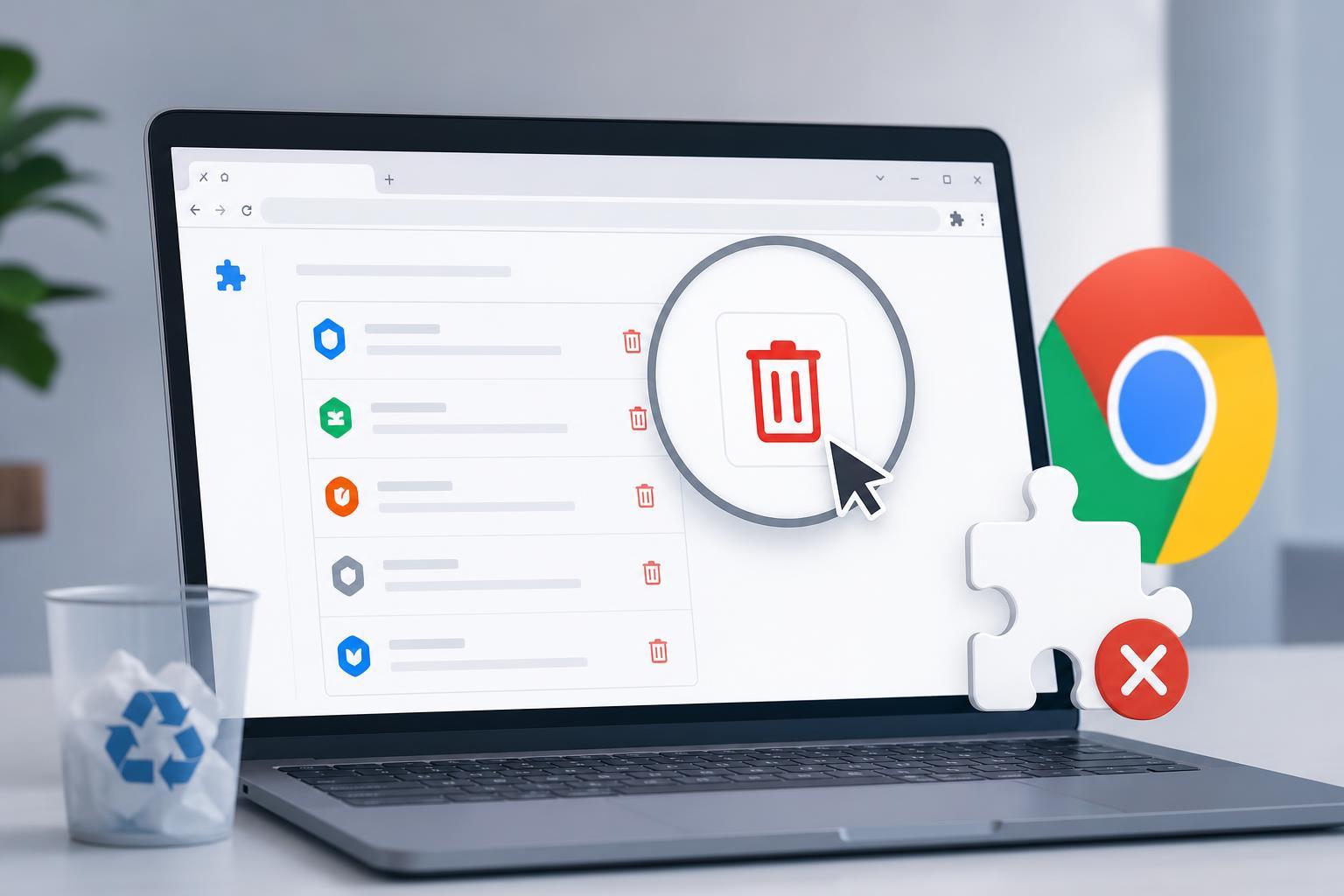
Remove the Extension from Chrome
- Open Google Chrome.
- Click the three-dot menu in the top-right corner.
- Go to Extensions, then select Manage Extensions.
- Find the extension you want to remove.
- Click Remove.
- Confirm the removal when Chrome asks you to.
Make Sure It Is Not Coming Back Through Sync
If you use Chrome sync, an extension removed on one device can sometimes reappear if another synced device still has it installed.
- On every device where you use the same Google account, check Chrome’s Extensions page.
- Remove the extension from each device.
- If it keeps coming back, open Chrome settings and check your Sync settings.
- Pause sync temporarily if needed, then remove the extension again.
- Once all devices are cleaned up, turn sync back on.
Check Whether Chrome Is Reinstalling It Automatically
Some extensions are not really user-installed in the normal sense. They may be installed by enterprise policy, by another application, or by browser management software. In those cases, Chrome can show the extension as managed or prevent full removal.
- The extension appears as managed by your organization
- The Remove button is missing or disabled
- The extension returns after a browser restart
- You did not knowingly install the extension yourself
- Open Chrome and go to chrome://extensions.
- Look for messages saying the extension is installed by policy or managed by your organization.
- On Windows, check whether a recently installed program added the extension.
- Uninstall suspicious software from Windows Apps, macOS Applications, or your device’s app manager.
- Restart Chrome and check again.
Remove Leftover Site Access and Permissions
Even after uninstalling an extension, it is a good idea to check that it no longer has access to your browsing data or saved site permissions.
- Open Chrome settings.
- Go to Privacy and security, then Site settings.
- Review any unusual permissions such as notifications, pop-ups, camera, microphone, or clipboard access.
- If the extension changed browser behavior, clear related site permissions for the websites it affected.
- Check your Google account security page if the extension asked for access to account data.
Delete the Extension Data if You Want a Clean Reset
Most extensions store data such as settings, cached files, and local preferences. Removing the extension usually stops it from running, but the stored data may remain until you clear it.
- Open Chrome settings.
- Go to Privacy and security.
- Open Clear browsing data if you want to remove related cache and cookies.
- If you want a deeper cleanup, go to Site settings and review saved permissions for sites the extension used.
- If the extension had a companion website or account, sign in there and remove any synced settings from your profile.
What to Do If the Extension Will Not Go Away
If Chrome keeps restoring the extension even after you remove it, the cause is usually one of three things: sync, policy, or another program reinstalling it.
- Sync is restoring the extension from another signed-in device
- A managed policy is forcing it to stay installed
- Another app or browser helper is reinstalling it
- Sign out of Chrome sync on all devices and remove the extension again.
- Check whether the extension is marked as managed.
- Remove suspicious programs that may be tied to browser add-ons.
- If needed, create a new Chrome profile and see whether the extension still appears there.
- As a last step, reset Chrome settings if the browser appears broadly modified.
Best Way to Prevent Unwanted Extensions in the Future
- Install extensions only from trusted publishers
- Review the permissions an extension requests before adding it
- Avoid downloading browser add-ons from third-party sites
- Check Chrome’s extensions page regularly for unfamiliar items
- Keep an eye on programs you install, since some bundle browser add-ons
When Removal Works and When It Does Not
In most cases, removing a Chrome extension from the Extensions page is enough. If it comes back, the problem is usually not the uninstall itself but a second source restoring it. Once you identify whether the source is sync, policy, or another application, you can remove it permanently instead of fighting the same extension over and over.





