
WhatsApp can build up a lot of temporary data over time, especially if you receive many photos, videos, voice notes, and documents. Clearing that cache can help free storage and sometimes improve app performance without removing your conversations.
The exact process is different on iPhone and Android. iPhone does not offer a true one-tap cache clear button for WhatsApp, while Android gives you more direct storage controls through the app and system settings.
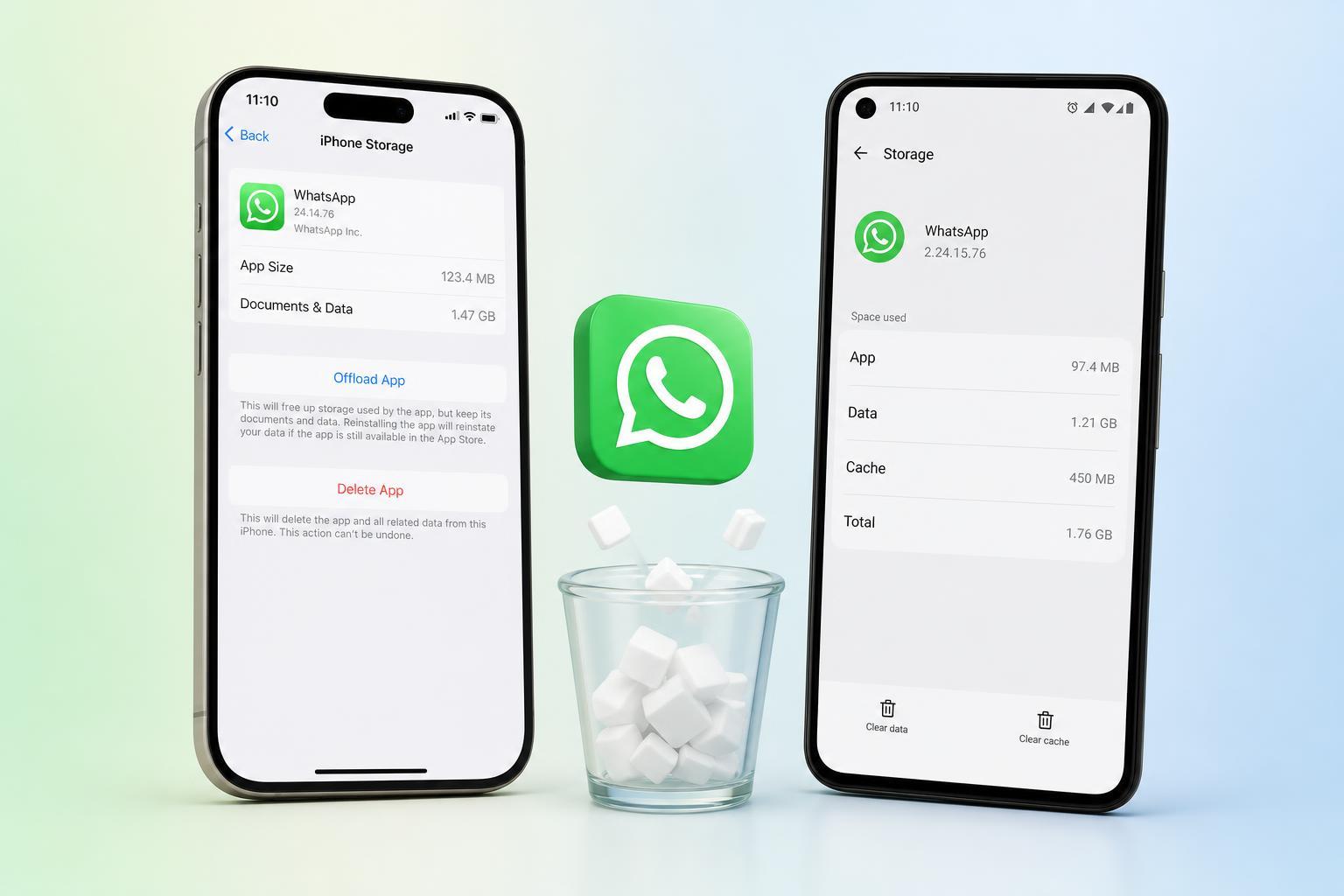
What WhatsApp Cache Actually Is
Cache is temporary data an app stores so it can load faster the next time you use it. In WhatsApp, that can include thumbnails, previews, temporary files, and other local data that helps messages and media open more quickly.
Over time, cached data can become large, especially if you are part of busy group chats or share a lot of media. Clearing it can help reclaim space, but it is not the same as deleting your chats or removing your account.
How to Clear WhatsApp Cache on Android
Android makes this process straightforward. You can clear only the cache, which removes temporary files but keeps your chats and most personal data intact.
- Open your phone’s Settings app.
- Tap Apps, Apps & notifications, or Application manager, depending on your device.
- Find and tap WhatsApp.
- Tap Storage & cache or Storage.
- Select Clear cache.
After this, WhatsApp may take a little longer to load some items the next time you open it, but your messages should remain in place.
How to Free WhatsApp Storage on iPhone
iPhone does not provide a direct cache-clearing button for WhatsApp in the same way Android does. Instead, you usually free space by removing large media files, managing chats, or reinstalling the app if necessary.
- Open WhatsApp and go to Settings.
- Tap Storage and Data.
- Tap Manage Storage to see large files and chats using the most space.
- Review photos, videos, voice notes, and forwarded items, then delete what you no longer need.
- If WhatsApp still takes up too much space, back up your chats first and then reinstall the app if you want to force it to rebuild its temporary files.
This approach is more targeted than deleting the entire app immediately, because media files often take up far more space than cache alone.
Manage WhatsApp Media Instead of Just Cache
Sometimes what looks like a cache problem is really a media storage problem. WhatsApp can save a surprising amount of photos, videos, documents, and audio files locally.
- Delete large videos you no longer need.
- Remove forwarded images or memes from group chats.
- Clear voice notes and documents that are no longer useful.
- Turn off automatic media saving if WhatsApp is filling your camera roll or gallery too quickly.
- Use WhatsApp’s storage management tools to find the biggest space users first.
When Clearing Cache Helps Most
- WhatsApp is running slowly or feels sluggish.
- The app takes a long time to open media previews.
- Your phone storage is nearly full.
- WhatsApp is behaving oddly after receiving lots of media.
- You want to remove temporary files without losing chat history.
If WhatsApp is crashing, refusing to download media, or showing storage warnings, clearing cache is a reasonable first step on Android and a useful storage check on iPhone.
What to Do If WhatsApp Still Uses Too Much Space
- Check WhatsApp’s storage page and sort by largest items if available.
- Delete large group chat media you no longer need.
- Remove old backups from cloud storage if they are taking up space elsewhere.
- Update WhatsApp to the latest version.
- If needed, back up your chats and reinstall the app to start with a cleaner local storage footprint.
A Quick Difference Between iPhone and Android
- Android: you can usually clear WhatsApp cache directly from the app’s system storage settings.
- iPhone: you typically manage storage inside WhatsApp or by reinstalling the app after backing up chats.
- Both platforms: deleting large media is often more effective than clearing cache alone.
- Neither platform: clearing cache should not be the same thing as deleting your account or chat history.
Which Method Should You Use?
If you are on Android, start with Clear cache. It is fast, low-risk, and often enough to reduce unnecessary temporary data. If you are on iPhone, use WhatsApp’s storage manager to remove large files first, because that is usually the most practical way to reclaim space.
If your main goal is simply to free up storage, focus on media cleanup. If your goal is to fix an app that feels bloated or sluggish, cache clearing and a careful storage review are the best places to start.





