
TikTok stores temporary files called cache to help videos, images, and parts of the app load faster. Over time, that cache can take up space or cause the app to behave strangely.
This guide shows how to clear TikTok cache on Android, iPhone, and in a web browser, along with what to expect after you do it.
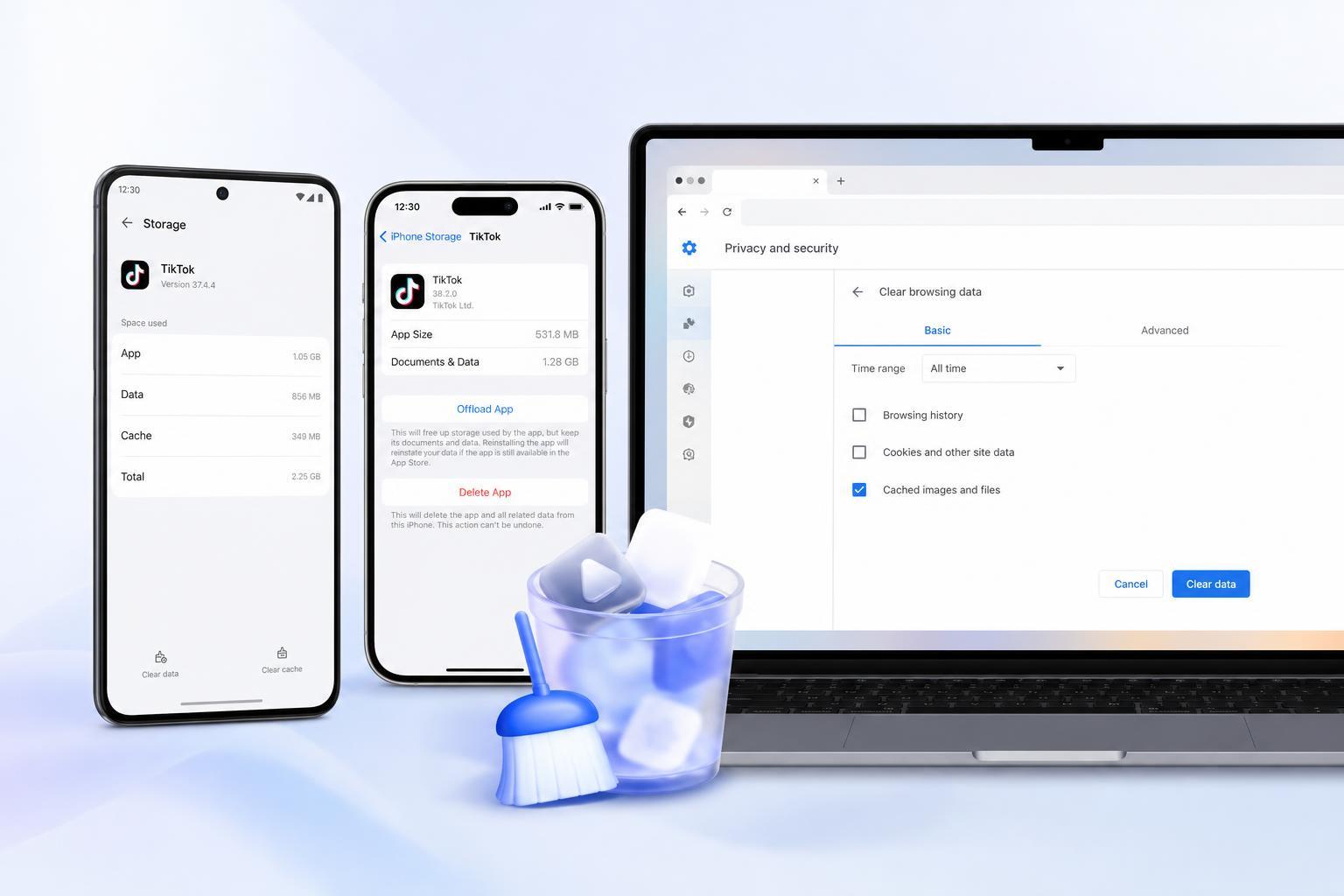
What Clearing TikTok Cache Actually Does
Clearing cache removes temporary files the app has saved locally. It can help if TikTok is taking up too much storage, videos are loading poorly, or the app is acting a bit buggy.
How to Clear Cache on TikTok for Android
- Open the TikTok app on your Android phone.
- Tap Profile in the bottom-right corner.
- Tap the menu button in the top-right corner.
- Choose Settings and privacy.
- Tap Free up space or Cache and Cellular Data, depending on the version of the app.
- Tap Clear next to Cache.
On some Android versions, TikTok may also show separate options for downloads, drafts, or unused storage. If you only want to remove temporary files, stick to the cache option.
How to Clear Cache on TikTok for iPhone or iPad
- Open TikTok on your iPhone or iPad.
- Tap Profile in the bottom-right corner.
- Tap the menu button in the top-right corner.
- Go to Settings and privacy.
- Tap Free up space.
- Tap Clear next to Cache.
If your iPhone is low on storage, clearing TikTok cache can free up some space without removing the app itself. The exact menu names may vary slightly depending on your TikTok version.
How to Clear TikTok Cache on the Web
TikTok's web version does not usually include a built-in cache-clearing button inside your account settings. If you want to clear TikTok data in a browser, you need to remove the site's stored files through your browser settings.
- Open your browser's settings or privacy section.
- Find site data, cookies, or cached files.
- Search for tiktok.com in the stored site data list.
- Remove the data for TikTok only, or clear cached files for the browser if needed.
- Close and reopen the browser, then sign back into TikTok if required.
When Clearing Cache Can Help
- TikTok is using more storage than expected
- Videos are buffering or loading slowly
- The app seems stuck on old content
- Images, comments, or pages are not refreshing properly
- The app is behaving oddly after an update
Cache vs Data: What Is the Difference?
Cache is temporary support data that helps the app run faster. App data is broader and can include saved settings, logins, downloaded content, and other information tied to the app's local storage.
If Clearing Cache Does Not Fix the Problem
- Check whether TikTok is updated to the latest version.
- Make sure your phone has enough free storage.
- On mobile, try force-closing and reopening the app if it is frozen.
- If the problem only happens in a browser, clear TikTok's cookies and site data for that browser.
- As a last step, uninstall and reinstall TikTok if the app is still malfunctioning.
Best Practice for Regular Cleanup
You usually do not need to clear TikTok cache every day. Doing it occasionally is enough for most people, especially if the app starts taking up too much space or begins to misbehave.





