
If your Android TV or Google TV feels sluggish, apps take too long to open, or streaming apps keep freezing, clearing the cache is often a good place to start. Cache files are temporary data that apps store to load faster, but over time they can become bloated or corrupt.
This guide shows you how to clear cache on Android TV and Google TV, when it helps, and what to do if you want to clear app data instead.
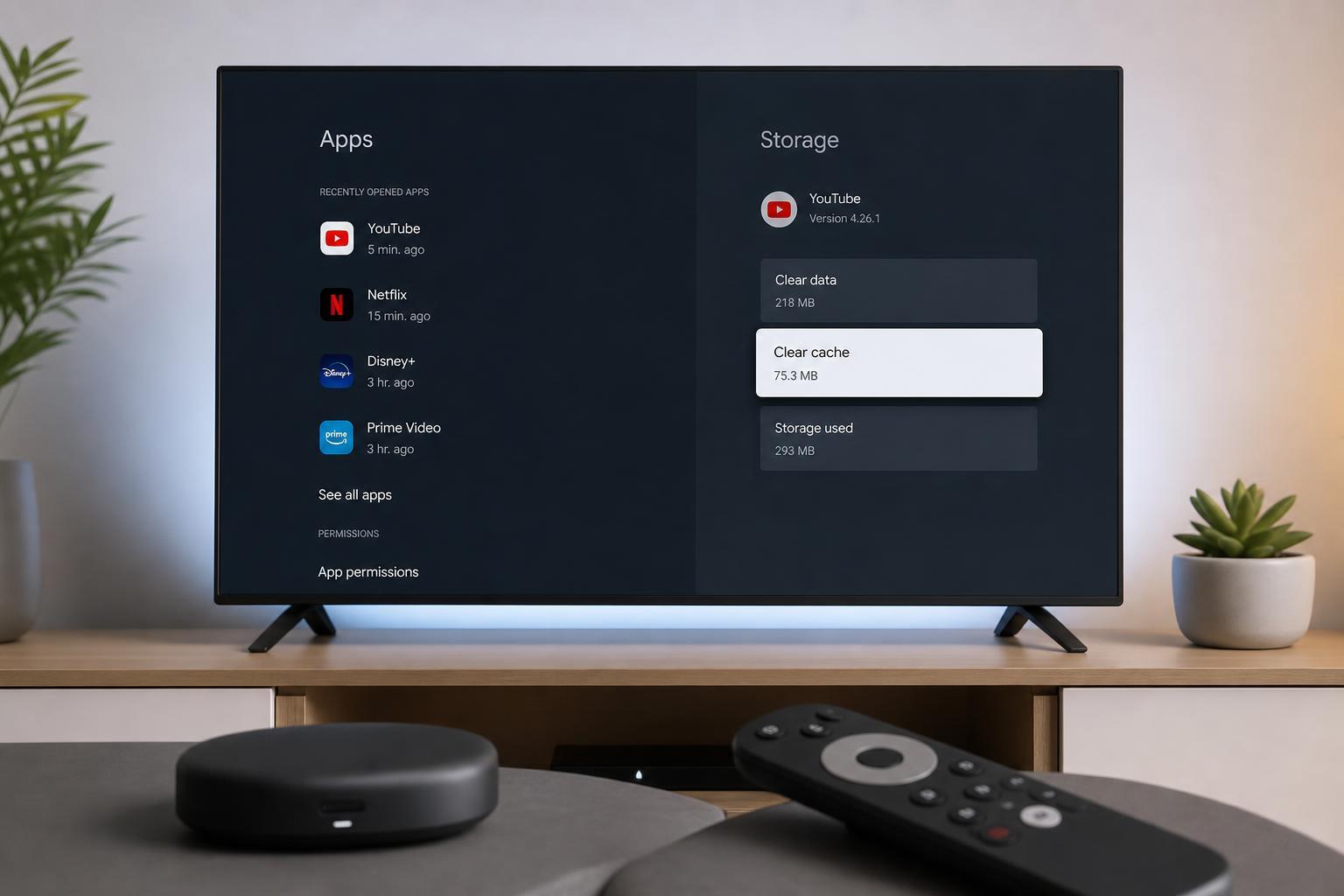
What Cache Does on Android TV and Google TV
Cache is temporary storage used by apps and parts of the system to speed up common tasks. On a streaming device, that can include app thumbnails, login helpers, preview images, and saved page data.
How to Clear Cache for an App
- On your Android TV or Google TV home screen, open Settings.
- Go to Apps, then select See all apps or App management, depending on your device.
- Choose the app that is causing problems.
- Select Clear cache.
- Open the app again and check whether the issue is gone.
How to Clear Cache on Google TV
Google TV uses a different home screen, but the cache-clearing steps are still similar. You usually need to open the device settings, find the app, and open its storage options.
- Press the Settings icon on the Google TV home screen, or hold the Home button on your remote and open Settings.
- Select Apps, then All apps.
- Choose the app you want to fix.
- Open Storage & cache or Storage.
- Select Clear cache.
If the app is still behaving badly after clearing cache, you may need to force stop it, update it, or clear its data.
When You Should Clear Cache
- An app keeps crashing or freezing
- A streaming app loads slowly or buffers oddly
- Menus or thumbnails look broken or outdated
- An app will not open even though the internet connection is fine
- You want to free a small amount of storage without deleting the app
How to Clear Cache for System-Level Apps
Some TVs let you clear cache for built-in system apps, but not all. These can include the launcher, input services, or Google Play services components.
- Open Settings.
- Go to Apps and select the system app.
- Open Storage & cache or Storage.
- Choose Clear cache.
Cache vs. Clear Data: What’s the Difference?
Clear cache removes temporary files. Clear data removes the app’s stored settings, local files, login state, and other saved information.
- Clear cache: safer first step, usually no sign-in required
- Clear data: deeper reset, often logs you out and restores the app to its default state
- If cache clearing does not help, clear data only if you are prepared to set the app up again
If You Cannot Find the Cache Option
- Open the app’s Storage or Storage & cache menu instead of looking for a separate cache screen
- Use the Settings search function if your TV has one
- Check whether the app is a built-in system app with limited storage controls
- Make sure your device software is up to date, since menu names can change between updates
What to Try If Clearing Cache Does Not Fix the Problem
- Force stop the app and open it again.
- Update the app from the Play Store if an update is available.
- Check whether the TV software itself has an update.
- Clear the app data if you are willing to sign in again.
- Uninstall and reinstall the app if the problem keeps returning.
When Cache Clearing Helps Most
Clearing cache is most useful when a problem is limited to one app or when the app’s interface has become sluggish after repeated use. It is a low-risk troubleshooting step that can often fix strange behavior without affecting the rest of your TV setup.





