
Screen time reports can help you see how long you spend on your phone or laptop, which apps take most of your attention, and whether your device use is creeping up without you noticing. The exact place to check this depends on whether you use an iPhone, Android phone, Windows PC, or Mac.
This guide walks through the built-in tools on each major platform and explains what the numbers actually mean, so you can compare usage more accurately.
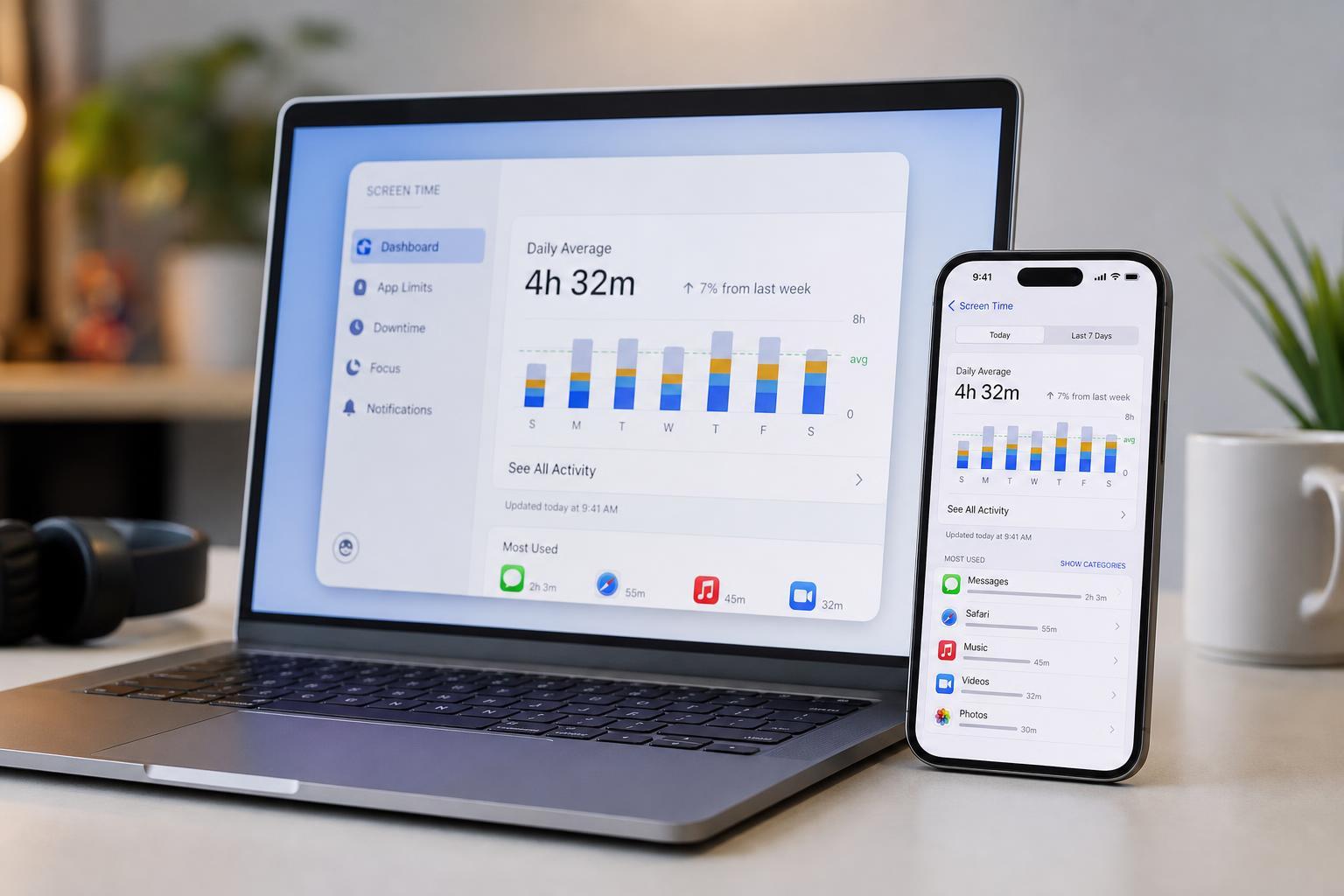
Check Screen Time on iPhone
Apple includes a built-in Screen Time dashboard on iPhone. It shows daily and weekly usage, app categories, pickup counts, notifications, and time spent on specific apps or websites.
- Open Settings.
- Tap Screen Time.
- If Screen Time is not already enabled, tap Turn On Screen Time and follow the prompts.
- Tap See All App & Website Activity to view detailed usage.
- Use the Day and Week tabs to compare short-term and longer-term activity.
Check Screen Time on Android
Most Android phones use Digital Wellbeing, though the menu name can vary a little by manufacturer. It usually shows app timers, unlock counts, notifications, and how long the screen has been active.
- Open Settings.
- Tap Digital Wellbeing and parental controls. On some phones, this may be under a different name such as Digital Balance or Device Care.
- Open the dashboard or usage panel.
- Review today’s screen time and app usage.
- Tap an app to see more detailed timing or set app limits if available.
Check Screen Time on Windows Laptop
Windows does not always label this feature as screen time, but you can still see how long you have been active on the device. If you sign in with a Microsoft account, Windows can also show activity data tied to that account in some views.
- Press Windows + I to open Settings.
- Go to Accounts.
- Select Family or Email & accounts, depending on your setup.
- If you use Microsoft Family Safety, open the Family Safety app or website to review device time for a child account.
- For basic activity tracking, open Task Manager or app-specific usage tools when you want to see how long a program has been running.
Check Screen Time on Mac
Mac includes its own Screen Time feature, similar to iPhone. It can show app usage, notifications, pickups, downtime, and activity by category. If you use the same Apple ID on Mac and iPhone, you may also be able to compare usage across devices.
- Click the Apple menu.
- Open System Settings or System Preferences, depending on your macOS version.
- Select Screen Time.
- Review app usage, notifications, and pickups.
- Use the options inside Screen Time to see daily and weekly trends or set limits.
What the Screen Time Numbers Usually Mean
Screen time tools do not all measure things in exactly the same way, so it helps to know what you are looking at. Some tools track only foreground app use, while others also include website activity, background time, or device pickups.
- App usage: How long an app was open and actively used.
- Website activity: Time spent in browsers or specific sites, if supported.
- Pickups or unlocks: How often you checked the device.
- Notifications: How many alerts reached you and how often they may have interrupted you.
- Foreground time: Time spent with the app visible and active, not just running in the background.
If You Want More Accurate Tracking
Built-in tools are useful, but they can miss some details or group apps in a way that makes the results hard to read. If you want a clearer picture of your usage, focus on the platform’s dashboard first, then check whether it allows app limits, usage summaries, or family reports.
- Use the same account on all devices when possible.
- Check the daily and weekly views, not just today’s total.
- Look at top apps rather than the overall number alone.
- Compare pickup or unlock counts if you are trying to reduce habit-checking.
- Set app limits if your device offers them and you want a practical way to cut back.
When Screen Time Is Missing or Empty
Sometimes the feature is turned off, permissions are not enabled, or the device has not collected enough data yet. In those cases, the screen time panel may appear blank or show very little information.
- Make sure the feature is turned on in Settings.
- Confirm you are signed into the correct account.
- Check whether parental controls or device management software are overriding the built-in report.
- Wait a few hours if the device was just set up or reset.
- On shared devices, make sure you are viewing the correct user profile.
Which Device Should You Check First?
If you use multiple devices, start with the one you use most often. Phone screen time usually gives the clearest picture of daily habits, while laptop activity is more useful when you spend long periods working, studying, or gaming on a computer.
The best approach is to use the built-in report on each device, then compare the results by day and by app. That gives you a better idea of where your time is actually going and which habits are easiest to change.





