
Your Zoom name is what other people see in meetings, webinars, and chat. If it shows the wrong name, a nickname, or an old account name, you can usually update it in just a few steps on desktop or mobile.
This guide explains how to change your Zoom name before a meeting, during a meeting, and in your Zoom account so the change sticks the way you want it to.
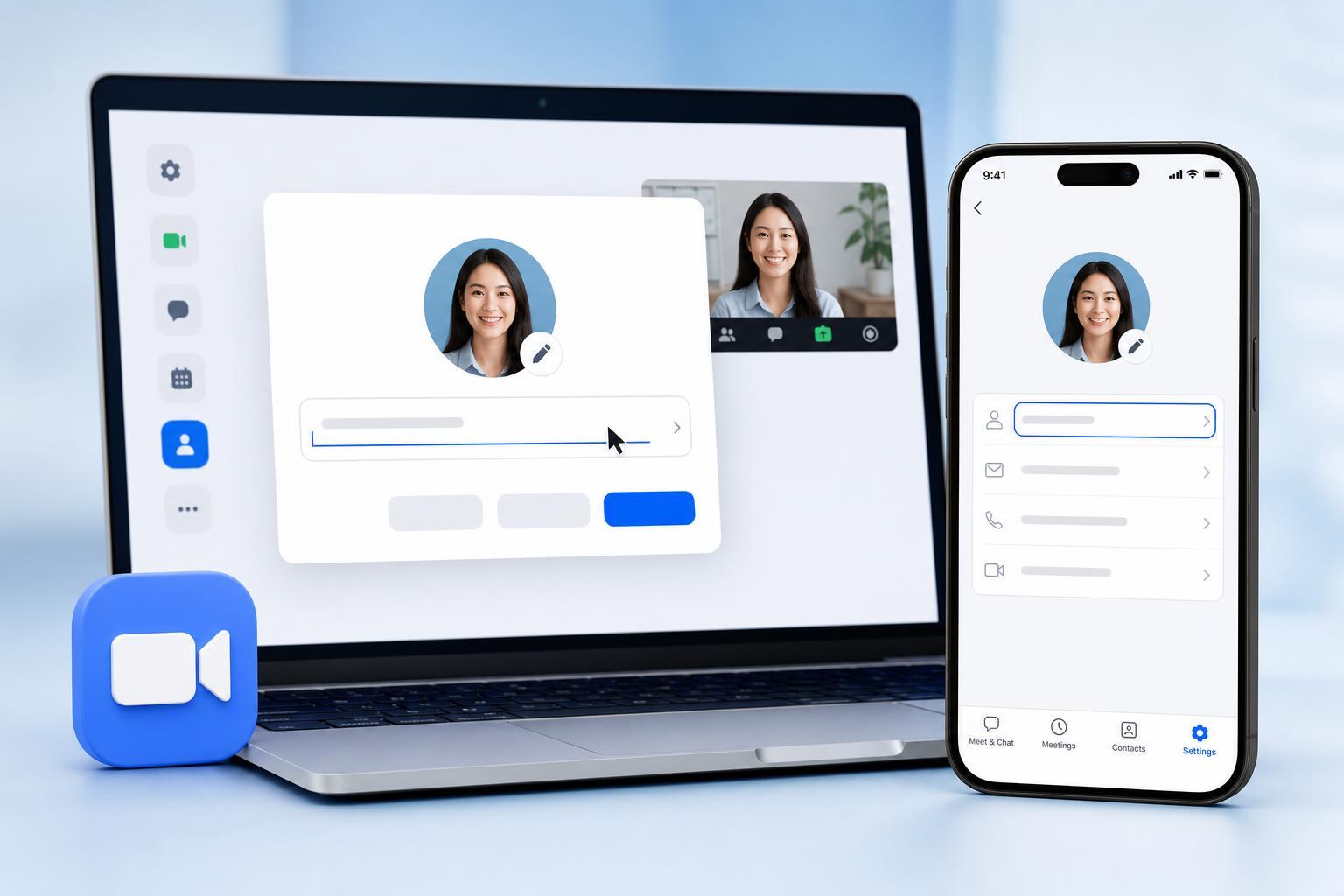
What Kind of Zoom Name Are You Changing?
Zoom can show more than one kind of name, and the steps depend on which one you want to change. In many cases, the name shown in a meeting is a display name, while the name saved in your Zoom account may be different.
- Display name for meetings and webinars
- Zoom account profile name
- Name shown when you join from a phone or tablet
- Name shown to a host in the waiting room or participant list
How to Change Your Zoom Name on Desktop
You can change your name from the Zoom desktop app before joining a meeting, or from your account settings if you want the change to stay consistent.
- Open the Zoom desktop app and sign in.
- Click your profile picture in the top-right corner.
- Select your current name or choose Profile.
- Update the First Name and Last Name fields, or edit the display name if that option appears.
- Save the changes.
If you are joining a meeting and want a one-time name change, you can usually rename yourself from the participant list after entering the meeting.
- Join the meeting.
- Click Participants at the bottom of the Zoom window.
- Find your name in the list.
- Hover over your name and select More.
- Choose Rename, enter the new name, and confirm.
How to Change Your Zoom Name on Mobile
On the Zoom mobile app for iPhone, iPad, and Android, you can change your account name in the app settings or rename yourself during a meeting if the host allows it.
- Open the Zoom app.
- Tap Settings in the lower-right corner.
- Tap your profile name at the top of the screen.
- Select Display Name or Profile Name, depending on what your app shows.
- Enter the new name and save it.
To rename yourself during a meeting on mobile:
- Join the meeting.
- Tap Participants.
- Tap your name in the list.
- Choose Rename if it is available.
- Type the new name and tap Done or Save.
How to Change Your Name Before Joining a Meeting
If you only need a temporary change, Zoom usually lets you edit the name shown before you enter the meeting room.
- Open the meeting link.
- Look for a name field before joining.
- Type the name you want displayed.
- Join the meeting.
This is helpful if you are using a shared device, joining a class, or need a different name for a specific meeting.
How to Change Your Zoom Name in a Web Browser
If you manage your Zoom account through the web portal, you can update the name there too. This is often the best way to make sure the change applies everywhere.
- Go to the Zoom website and sign in.
- Open your profile page.
- Select Edit next to your name.
- Change the first and last name or display name.
- Save the update.
Why Your Zoom Name Might Not Change
If your new name does not appear right away, one of these common issues is usually the reason:
- You changed only the name for one meeting, not your account profile
- The meeting host restricted participant renaming
- Your account is managed by a school or workplace
- You are signed in with a different Zoom account
- The app has not refreshed the updated profile yet
What to Do If the Rename Option Is Missing
If you cannot find the Rename option during a meeting, try the following:
- Check whether you are signed in to the correct Zoom account
- Leave and rejoin the meeting after updating your profile name
- Ask the host whether renaming has been disabled
- Update Zoom to the latest version on desktop or mobile
- Use the web portal if the app does not show profile editing options
How to Make the Change Stick Across All Devices
If you use Zoom on a laptop and a phone, change your profile name in your Zoom account rather than only inside the app. That way, the same name should appear on both devices when you sign in with the same account.
Which Method Should You Use?
- Use in-meeting Rename for a quick one-time change
- Use profile settings for a permanent name change
- Use the web portal if the app does not show editing options
- Use your organization’s admin if the account is managed by school or work
If you only need to correct your name for a single class, interview, or meeting, the in-meeting rename option is usually enough. If you want Zoom to always show the correct name, update your account profile instead.





