
WhatsApp lets you speed up voice messages so you can listen faster without skipping important details. The playback speed control is simple on mobile, and in many cases it also works on WhatsApp Desktop and WhatsApp Web. If you do not see the option, the problem is usually related to the app version, message type, or whether the message has been fully loaded.
How WhatsApp audio speed works
WhatsApp does not change the speed of every type of audio in the app. The playback speed control is mainly meant for voice messages. That means recorded audio notes sent through chats usually have a speed option, while other media such as videos, music files, or forwarded audio attachments may not behave the same way.
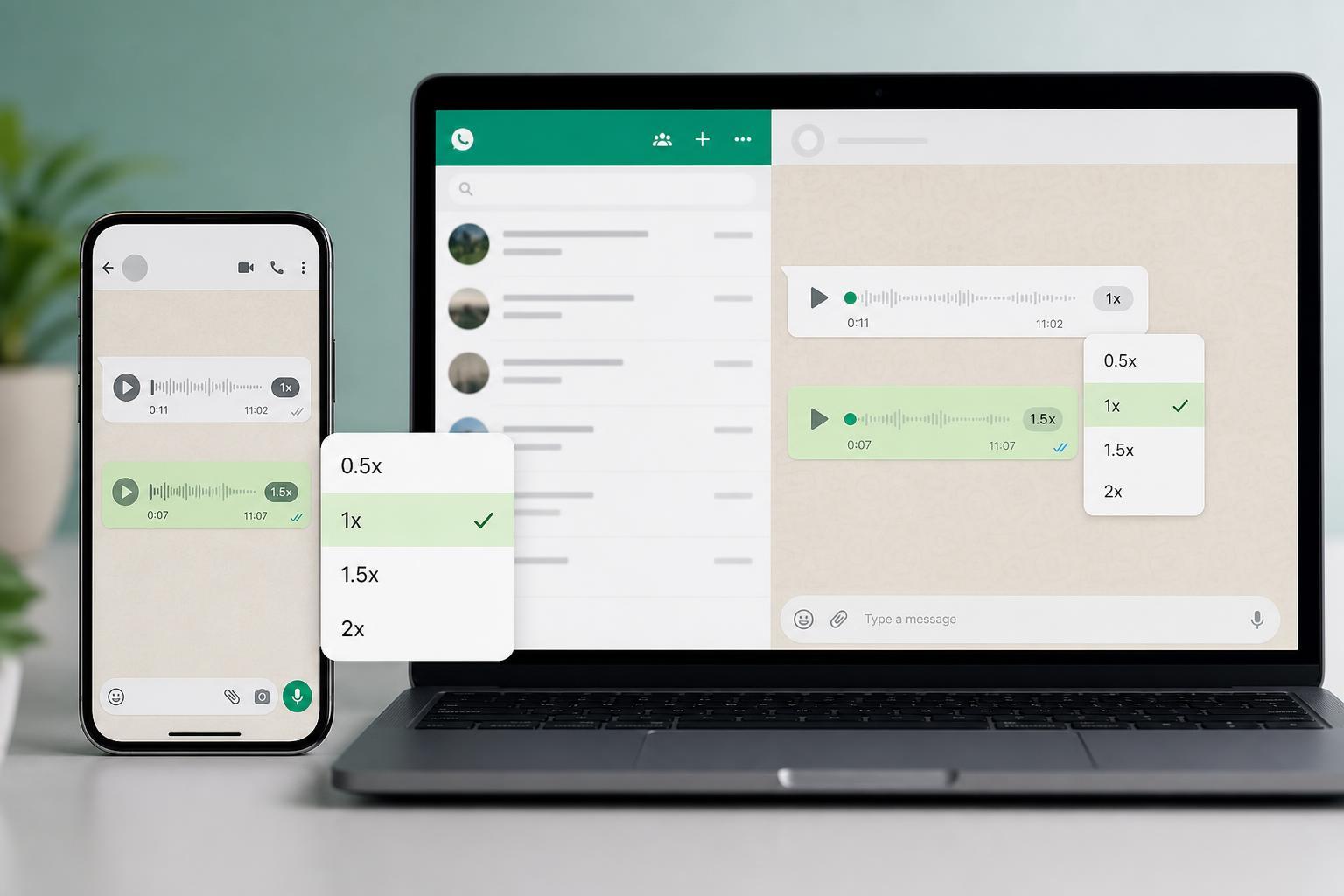
Change WhatsApp voice message speed on iPhone and Android
- Open WhatsApp and go to the chat that contains the voice message.
- Tap the voice message to start playback.
- Look for the speed label near the message, usually showing 1x.
- Tap the speed label to cycle through the available options, such as 1.5x and 2x.
- Stop when you reach the speed you want. The setting applies only while that message is playing, and you can change it again at any time.
Use audio speed controls on WhatsApp Desktop and WhatsApp Web
On WhatsApp Desktop or WhatsApp Web, voice messages usually include the same playback speed option as the mobile app. The control may appear as a small label or button next to the message playback bar.
- Open WhatsApp Desktop or WhatsApp Web and sign in if needed.
- Open the chat with the voice message.
- Play the message.
- Click the speed control on or near the voice note to switch between the available playback speeds.
- Select the speed you want and keep listening.
If the playback speed option is missing
If you cannot see the speed button, the most likely reason is that the message is not a standard WhatsApp voice note. It may also be an older app version, a temporary loading issue, or a desktop/web session that has not fully synced yet.
- Make sure you are playing a voice message, not a video or file attachment.
- Update WhatsApp on your phone or computer.
- Wait for the message to finish loading before tapping playback controls.
- Log out and back in on WhatsApp Web if the desktop controls look incomplete.
- Try another chat to check whether the issue is specific to one message.
Tips for listening to voice messages faster without missing details
Speeding up voice notes is helpful, but it is easy to lose context if the speaker talks quickly or if the message contains names, numbers, or directions. If a message matters, listen once at normal speed before switching to a faster rate.
- Use 1.5x for longer messages that are still easy to understand.
- Use 2x for short updates or familiar contacts.
- Pause and replay sections that contain addresses, codes, or instructions.
- Switch back to 1x when the speaker is unclear or the audio quality is poor.
Troubleshooting a WhatsApp audio speed problem
If the control is visible but not responding, the issue is often temporary and tied to the app session or loading state. A weak connection can also prevent the voice note from loading correctly, which makes playback controls behave unpredictably.
- Check your connection and wait for the voice message to load fully.
- Close and reopen the chat.
- Update WhatsApp from the App Store, Google Play, or the desktop app source you use.
- If you use WhatsApp Web, refresh the page and sign in again if needed.
- If only one message is affected, test a different voice note to see whether the issue is message-specific.
Which speed should you use?
- 1x: best for important or hard-to-hear messages
- 1.5x: a good balance for most voice notes
- 2x: best for very long updates when you already know the context





