
Apple Mail lets you change the font used when you write new messages, reply to emails, and format text in your signatures. If the default look feels too small, too plain, or just not right for your message, you can adjust the font settings directly in Mail and, in some cases, through the Mac system appearance settings.
The exact options available depend on whether you want to change the font for a single email, the default font for outgoing messages, or the way Mail looks on your Mac overall.
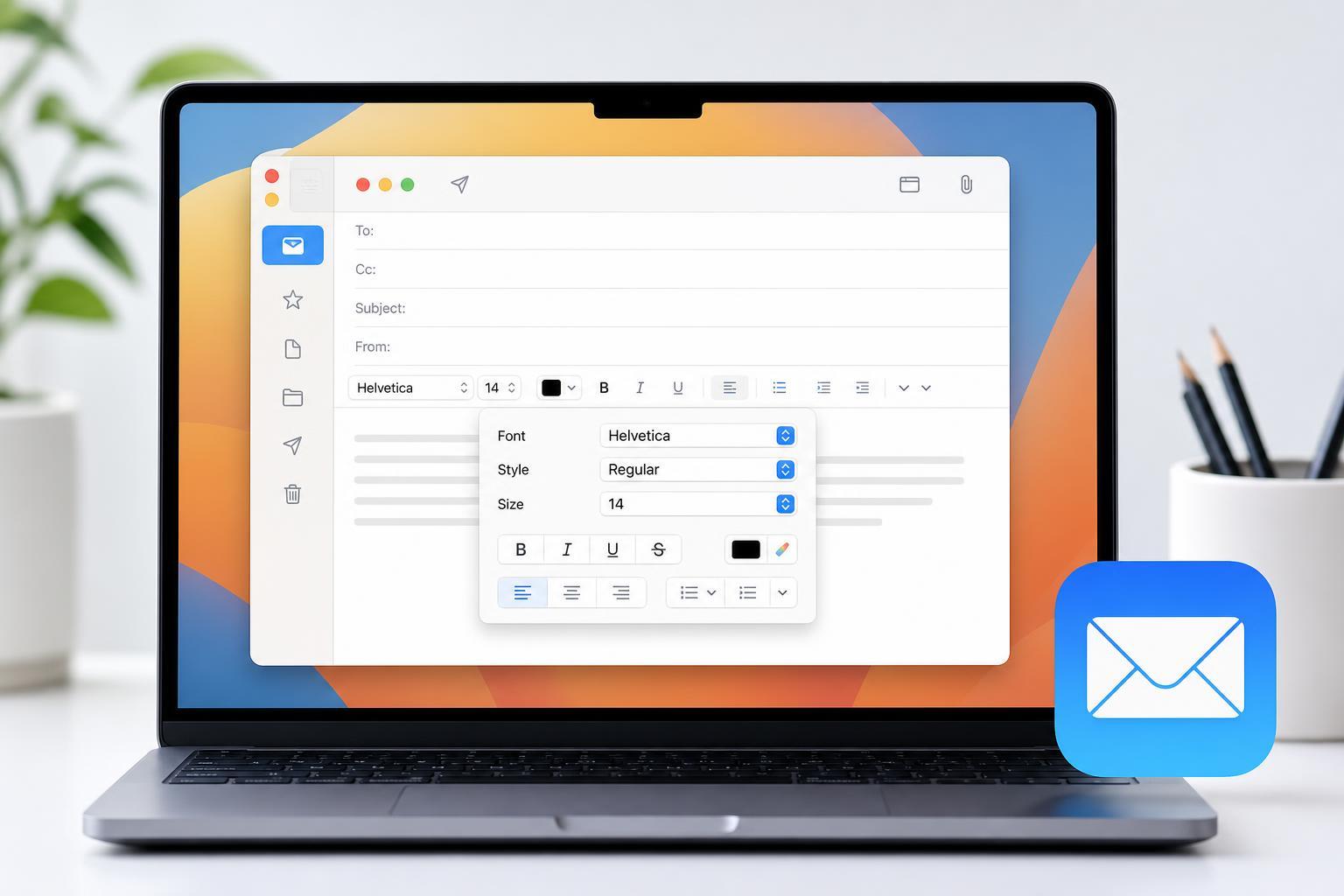
Change the Font in a Single Email
If you only want to change the style or size for one message, use the formatting toolbar in the message window.
- Open Apple Mail and start a new message or reply to an email.
- Click in the message body where you want to type.
- If the formatting bar is hidden, look for the formatting button or use the Format menu.
- Select the text you want to change, then choose a different font, size, bold, italic, or color option from the toolbar.
- Continue typing with the updated formatting, or change back to the default style when you are done.
Set a Default Font for New Emails
If you want Mail to use a specific font every time you write a new message, you can change the default composing font in Mail’s settings.
- Open Mail.
- In the menu bar, choose Mail, then Settings or Preferences, depending on your macOS version.
- Click the Fonts & Colors tab.
- Click the Select button next to the message font setting.
- Choose your preferred font and size, then confirm your choice.
- Close the settings window and create a new email to check the result.
Change the Font in Signatures
Mail signatures can use their own font formatting. If your signature looks different from the rest of your email, edit the signature and apply the formatting you want there.
- Go to Mail settings and open the Signatures tab.
- Select the account and signature you want to edit.
- Click in the signature text area and highlight the text.
- Use the formatting controls to change the font style or size.
- Send yourself a test message to make sure the signature looks correct.
Adjust the Size of Mail Text in macOS
If your goal is to make Mail easier to read, you may not need to change the message font itself. You can often improve readability by adjusting Mac display settings or Mail’s message list appearance instead.
- Use a larger system text size in macOS accessibility settings if you want the whole interface easier to read.
- Change the message list preview size if the inbox text feels too small.
- Increase display scaling on a smaller screen if Mail looks cramped.
- Use zoom shortcuts in a message if you only need temporary enlargement.
If You Do Not See Font Options
Sometimes Mail limits formatting because the message is set to plain text, or because the formatting toolbar is hidden. In other cases, the settings you want may not be available in the exact spot you expected because Apple changes menu names slightly between macOS versions.
- Make sure the message is being composed as rich text, not plain text.
- Check the Format menu for font and text options.
- Confirm that you are editing the message body, not just the address fields.
- Look in Mail settings for Fonts & Colors if you want a default composing font.
What to Expect When Changing Fonts in Mail
Font changes in email are not always guaranteed to display exactly the same way for every recipient. Email clients can replace certain fonts, strip formatting, or show messages in a simplified view. For that reason, it is best to use common fonts and moderate sizes if you want your message to remain easy to read everywhere.
Choosing a Practical Font Style
- Use a clean, widely supported font for better compatibility.
- Avoid very small text if your emails need to be read on phones.
- Use bold or italics sparingly so the message stays readable.
- Keep signatures simple so they display well in different email apps.





