
If your Windows PC is running low on space, Netflix downloads can quickly fill up the drive where the app stores offline videos. The exact steps depend on whether you are using the Netflix app from Microsoft Store and which Windows version you have, because Netflix controls download storage through the app and Windows storage settings rather than a simple folder picker.
This guide explains how Netflix download storage works on Windows, how to change the storage location when the option is available, and what to do if your version of the app does not let you choose a different drive.
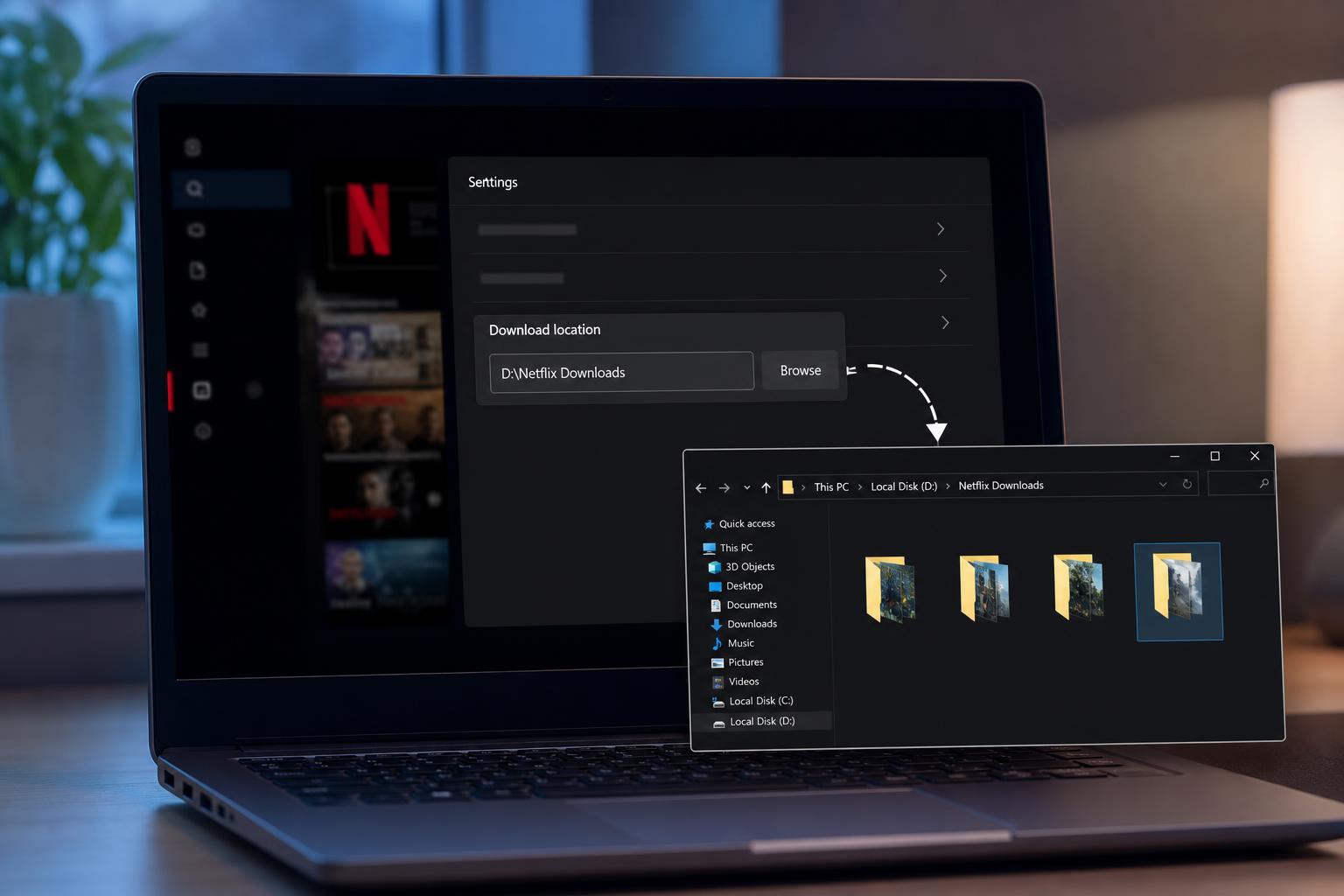
Can You Change the Netflix Download Location on Windows?
Yes, but with a limit: Netflix downloads on Windows are managed inside the Netflix app, and the app may let you move the download storage location only in certain Windows versions and app setups. In other cases, Windows decides where app data is stored, and Netflix downloads remain tied to that location.
Change the Netflix Download Location in the App
- Open the Netflix app on your Windows PC.
- Select your profile if prompted.
- Open the app’s Menu or More options area.
- Look for Settings, App settings, or Download location.
- If available, choose a different drive or storage location.
- Confirm the change and wait for Netflix to apply it before downloading new titles.
If you see a storage or download location option, pick a drive with enough free space. An internal secondary drive is usually the best choice because it is faster and more reliable than removable storage.
If You Do Not See a Download Location Option
Some Windows installations do not expose a manual Netflix download folder setting. If that happens, the app may be using the default Windows app storage path, and you will need to change where Windows stores new apps and app data instead.
- Open Windows Settings.
- Go to System, then Storage.
- Open Advanced storage settings or Where new content is saved, depending on your version of Windows.
- Look for the setting that controls where new apps are saved.
- Choose the drive you want Windows to use for app storage.
- Apply the change and reopen Netflix if needed.
Move Existing Netflix Downloads
In many cases, Netflix does not let you manually move downloaded videos from one folder to another like regular files. Downloads are often encrypted and managed by the app, so simply copying them to another drive will not work.
- Download the title again after changing the storage location, if the app supports the new location.
- Delete old downloads from the previous location through the Netflix app to recover space.
- Use Windows Storage settings to clear unused app data if Netflix downloads are taking up too much room.
Check the Drive Before Downloading
Before you start a large download, confirm that the chosen drive has enough free space. Netflix titles vary in size, and higher-quality downloads can use significantly more storage than you might expect.
- Check free space in File Explorer under This PC.
- Avoid using nearly full drives, since downloads may fail or Windows may slow down.
- Prefer internal drives over USB flash drives for better reliability.
- Keep some extra free space so Windows can continue operating normally.
Troubleshooting Missing or Failed Download Location Changes
If Netflix still saves downloads to the wrong drive, or the setting does not appear to stick, these are the most likely causes.
- The Netflix app version does not support manual location changes.
- Windows is overriding app storage through system-level app settings.
- The target drive is formatted or configured in a way the app cannot use.
- You do not have permission to write to the selected drive.
- The drive is nearly full or temporarily unavailable.
- Close the Netflix app completely and open it again after changing storage settings.
- Check that the destination drive is accessible in File Explorer.
- Make sure the drive is internal or properly connected if it is external.
- Verify that you have enough free space for the new downloads.
- If needed, sign out of Netflix and sign back in to refresh the app state.
What to Do If You Want More Control Over Downloads
Windows Netflix downloads are intentionally limited compared with normal file downloads. If you need full manual control over where offline videos are stored, the built-in Netflix app may not offer that flexibility.
- Use a larger drive for Windows app storage when possible.
- Keep downloaded titles to a minimum and remove them after watching.
- Store other large files, such as videos or game installs, on separate drives to preserve space for Netflix.
- Check whether your device or Windows version supports app storage migration features.
A Simple Rule for Choosing the Best Location
If Netflix gives you a choice, use the fastest drive with plenty of free space. If it does not, change the Windows app storage drive only if you are comfortable affecting other Store apps too. For most people, the best setup is keeping Windows on the SSD and using a second internal drive for large offline media whenever the app permits it.





