
Changing the font style in Microsoft Outlook helps you make emails easier to read and gives your messages a more consistent look. You can set a default font for new messages, replies, and forwards, or change formatting just for a single email when needed.
The exact steps vary a little depending on whether you use classic Outlook for Windows, the new Outlook app, Outlook on the web, or Outlook for Mac, but the overall process is straightforward.
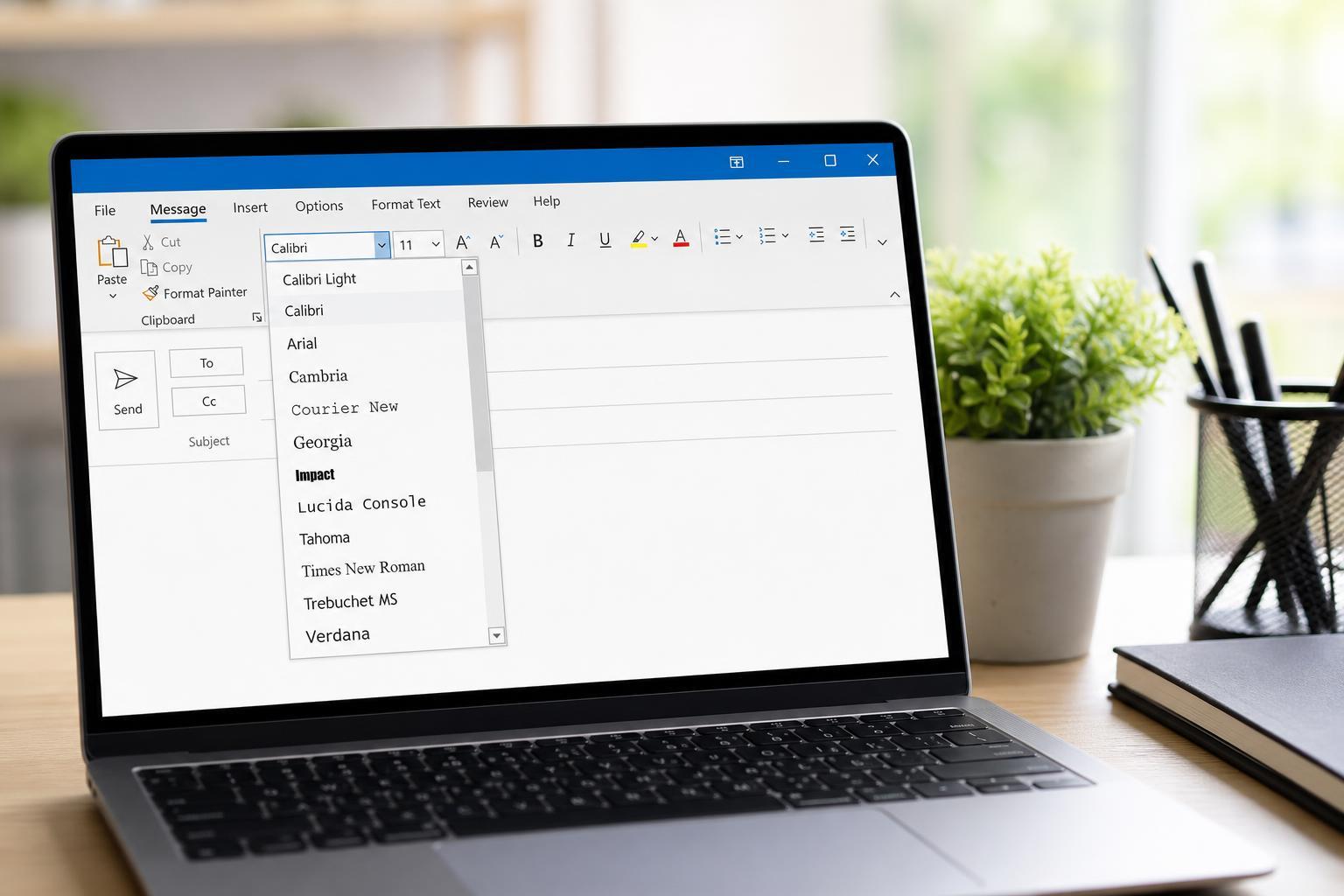
Change the Default Font in Outlook for Windows
In classic Outlook for Windows, the default font settings control how your outgoing messages look before you start typing. This is the best option if you want every new email to use the same style automatically.
- Open Outlook and click File in the top-left corner.
- Select Options, then choose Mail.
- Under Compose messages, click Stationery and Fonts.
- In the Signatures and Stationery window, choose the font settings for New mail messages, Replying or forwarding messages, and Plain text messages if needed.
- Select the font, size, style, and color you want, then click OK to save your changes.
- Click OK again to close Outlook Options.
Change the Font in New Outlook for Windows
The new Outlook app uses a simpler interface, but you can still adjust the default message font from the compose settings. The menu names may differ slightly depending on updates.
- Open Outlook.
- Click the Settings gear icon in the top-right corner.
- Go to Mail, then choose Compose and reply.
- Find the Message format or Font settings section.
- Choose your preferred font, size, and style for outgoing messages.
- Save the changes and close Settings.
Change the Font in Outlook on the Web
If you use Outlook in a browser, you can set a default font for new messages directly in the web settings. This is useful if you switch between devices and want the same writing style everywhere.
- Sign in to Outlook on the web.
- Click the Settings gear icon.
- Select View all Outlook settings.
- Go to Mail, then Compose and reply.
- Under Message format, choose your default font, size, and formatting options.
- Save your changes.
Change the Font in Outlook for Mac
Outlook for Mac also lets you set a default font for composing messages. The steps are different from Windows, but the idea is the same: adjust the settings for new mail, replies, and forwards in the account or preferences area.
- Open Outlook for Mac.
- Click Outlook in the menu bar, then choose Settings or Preferences.
- Open the Fonts or Composing section.
- Select the default font for new messages and, if available, replies and forwards.
- Close the settings window to keep your changes.
Change the Font in a Single Email
If you only want to change the font style for one message, you can format the text while composing the email without changing your defaults. This is useful for emphasis, headings, or a one-off message style.
- Start a new email or open a reply.
- Highlight the text you want to change, or place the cursor where you want to type.
- Use the formatting toolbar to choose a different font, size, bold, italic, underline, or color.
- Continue writing the message with the new formatting.
What to Do If the Font Won't Change
If Outlook does not seem to keep your font changes, the problem is usually one of a few common issues. The app version, message format, or account settings may be overriding the font you selected.
- Check whether you are using classic Outlook, new Outlook, Mac, or the web version, since each has different settings.
- Make sure you changed the font for the correct message type, such as new mail versus replies and forwards.
- Verify that the email is being composed in HTML or rich text format if you want fonts and colors to appear.
- Look for organization policies or signature templates that may override your selected font.
- If the formatting toolbar is missing, expand the compose window or switch to a supported message format.
Choosing a Font That Works Well in Email
A good email font should be easy to read on both desktop and mobile devices. Simple fonts usually work better than decorative styles, especially for business or professional messages.
- Use a clean, readable font such as Arial, Calibri, Segoe UI, or Times New Roman.
- Avoid overly decorative or script fonts that may be hard to read.
- Keep the font size large enough to read comfortably, especially for longer emails.
- Use bold or italic formatting sparingly to highlight important points.
- Test your email appearance if you send messages to clients or large groups.
Set Different Fonts for New Mail and Replies
Many people want a polished-looking default for new messages but prefer a simpler style for replies and forwards. Outlook lets you adjust these separately in most desktop and web versions, which gives you more control over how your messages appear.





