
If you want to take iPhone calls without holding the phone, you can answer them through a Bluetooth headset, earbuds, speaker, or car system once the device is paired correctly. The exact button or touch control depends on the accessory, but the iPhone side is usually simple.
This guide shows how to connect a Bluetooth device, answer and end calls, and troubleshoot the most common problems when calls still ring on the iPhone instead of the accessory.
What You Need Before You Start
- An iPhone with Bluetooth turned on
- A Bluetooth headset, earbuds, speaker, or car kit that supports phone calls
- The accessory charged and in pairing mode
- The device already paired with your iPhone if you want to use it right away
Pair the Bluetooth Device with Your iPhone
- Open Settings on your iPhone and tap Bluetooth.
- Turn Bluetooth on if it is off.
- Put your headset, earbuds, or car system into pairing mode.
- Under Other Devices, tap the name of the accessory when it appears.
- If prompted, confirm the pairing code or tap Pair.
Answer a Call Through the Bluetooth Device
- When a call comes in, answer it using the control on your Bluetooth device.
- For many headsets or earbuds, press the main multifunction button once.
- For some earphones, double-tap or press and hold the touch control, depending on the model.
- For a car system, use the car’s call button or on-screen answer option.
- Speak normally after the call connects. Your iPhone should use the Bluetooth microphone and audio path automatically.
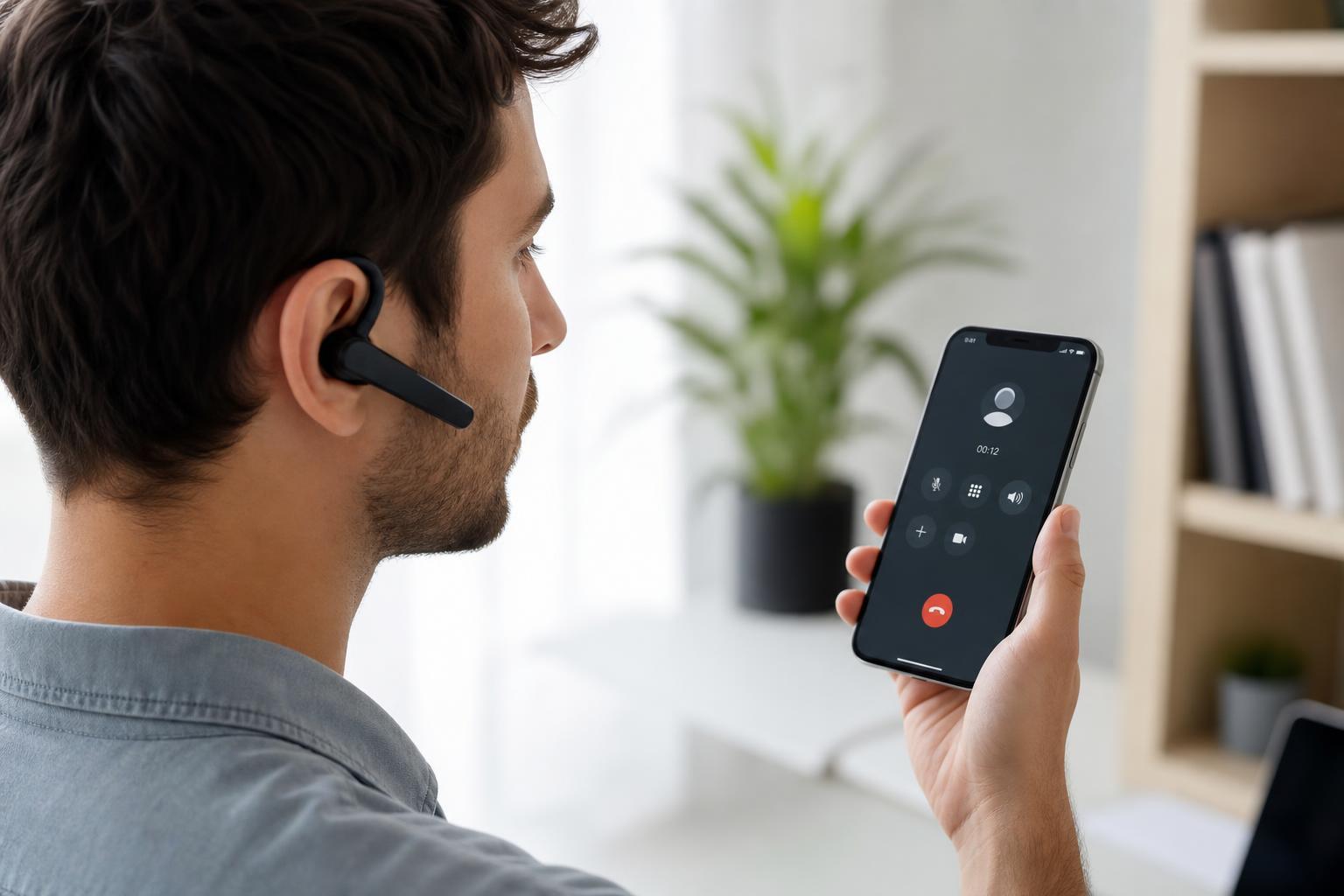
If the call still rings on the iPhone, check the device name shown on the call screen or Control Center audio output. On most Bluetooth call-capable accessories, the audio should switch over as soon as the call is answered.
End or Decline Calls with Bluetooth Controls
- Press the same call button again to end the call on many headsets.
- On some earbuds, use the touch control assigned by the manufacturer.
- To decline an incoming call, press and hold the call button for a few seconds on supported devices.
- If your accessory does not support call control, end or decline the call on the iPhone screen instead.
Choose the Bluetooth Device for Call Audio
Sometimes the iPhone connects to the Bluetooth accessory for music but not for calls. If that happens, you can manually switch the audio route during a call.
- Start or answer the call.
- Tap the Audio button on the call screen.
- Choose the Bluetooth device from the list.
- If the device does not appear, disconnect and reconnect Bluetooth or unpair and pair the accessory again.
If Calls Do Not Go to the Bluetooth Device
- Check that the accessory is powered on and close enough to the iPhone.
- Make sure the device supports hands-free calling, not just audio playback.
- Confirm Bluetooth is enabled on the iPhone.
- Disconnect from other nearby Bluetooth devices that may be taking the call connection.
- Forget the accessory in Bluetooth settings and pair it again if the connection seems stuck.
- Update iOS if the Bluetooth connection problem keeps happening.
When Your Bluetooth Headset Connects but You Still Cannot Hear Calls
- Increase the volume on both the iPhone and the accessory.
- Check whether the headset is muted or in a special mode.
- Test the microphone by making a call to another number or using Voice Memos.
- Try another app or call type to see whether the issue affects all audio or only phone calls.
- Restarting the accessory or iPhone is not usually the first step, but power-cycling the accessory can help if it stopped responding.
Useful Things to Remember
- Bluetooth call controls vary by brand and model.
- If your accessory has a companion app, it may provide button mapping or firmware updates.
- Some accessories reconnect faster if they are kept charged.
- If the iPhone switches to speakerphone after answering, tap the audio route button and choose the Bluetooth device again.
Once your accessory is paired correctly, answering calls from a Bluetooth device on iPhone is usually just a matter of using the headset button or car control. If the audio ever stops routing correctly, the problem is usually with the connection, the accessory’s call support, or the iPhone’s selected audio output rather than the phone app itself.





