
Apple Pages makes it easy to add accents, currency signs, math symbols, arrows, and other special characters without leaving your document. You can use built-in macOS tools, keyboard shortcuts, and Pages features to insert the exact symbol you need.
This guide also covers a few practical Pages tricks that can save time while you write, format, and edit documents.
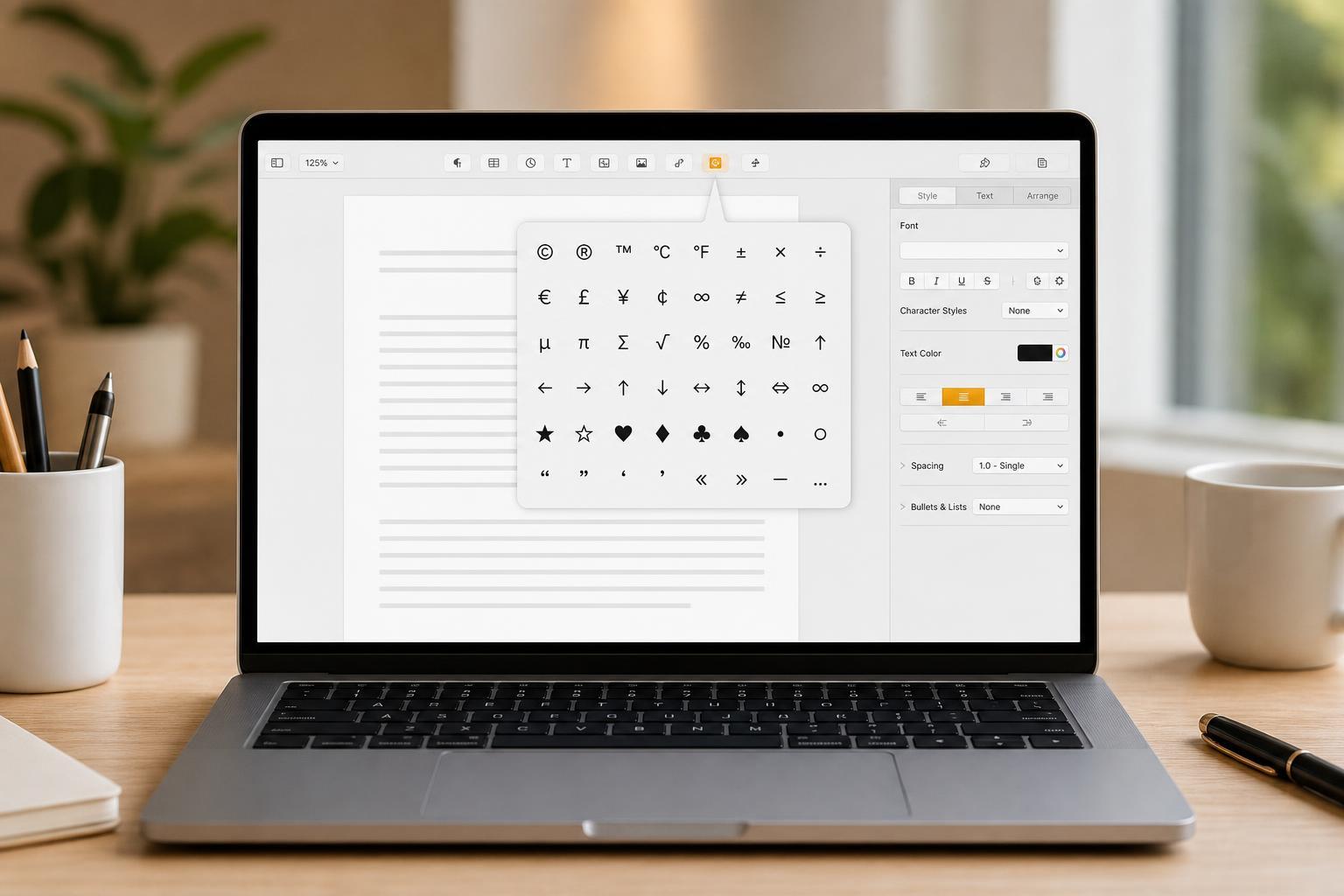
Use the Character Viewer to Find Symbols
The fastest general-purpose way to add special characters in Pages is with the macOS Character Viewer. It gives you access to symbols, emoji, punctuation, arrows, currency signs, math notation, and accented letters.
- Place the cursor where you want the symbol to appear in Pages.
- Press Control + Command + Space to open the Character Viewer.
- Use the search box to find a symbol by name, such as "copyright," "degree," or "check mark."
- Double-click the character to insert it into your document.
- If you use a symbol often, click the Add to Favorites or pin option if it appears in your version of macOS.
Type Accented Letters with Press-and-Hold
For letters with accents, macOS often offers a press-and-hold menu. This is especially useful for writing names, foreign words, and language exercises.
- Type and hold the letter you want to accent, such as e, a, or n.
- Wait for the accent menu to appear.
- Choose the version you want by pressing the corresponding number key or clicking it.
- Continue typing normally.
Quick Keyboard Shortcuts for Common Symbols
Some special characters have direct keyboard shortcuts, which is faster than opening the Character Viewer every time.
- Option + 2: trademark symbol (™) on many keyboard layouts
- Option + G: copyright symbol (©) on many keyboard layouts
- Option + 8: bullet (•) on many keyboard layouts
- Option + Shift + 8: degree symbol (°) on many keyboard layouts
- Option + Shift + -: em dash (—) on many keyboard layouts
Insert Symbols from AutoCorrect and Substitutions
Pages can work with macOS text substitutions, which let you replace a short typed shortcut with a symbol or phrase. This is helpful if you repeatedly use the same characters.
- Open System Settings on your Mac.
- Go to Keyboard and then Text Input or Text Replacements, depending on your macOS version.
- Add a replacement such as "(c)" for © or "->" for →.
- Return to Pages and type the shortcut to see the replacement appear automatically.
Make Pages Easier to Use for Symbol-Rich Documents
If you write documents with lots of symbols, formulas, or formatted content, a few Pages habits can make the process smoother.
- Keep the Character Viewer open in a separate window while editing.
- Use text substitutions for recurring symbols.
- Copy and paste symbols you use repeatedly into a note for quick reuse.
- Switch to a font that supports the characters you need if a symbol appears as a box or question mark.
- Use the ruler and alignment tools to keep lists and symbols neatly arranged.
Useful Pages Tricks for Faster Writing
Beyond special characters, Pages includes a few features that can make everyday writing easier and more polished.
- Use styles to format headings and body text consistently.
- Insert bulleted or numbered lists instead of typing symbols manually.
- Use Find and Replace to clean up repeated typos or change punctuation throughout the document.
- Turn on spell check and grammar suggestions to catch mistakes as you write.
- Use comments when reviewing a draft so changes are easier to track.
If a Symbol Does Not Appear Correctly
If Pages inserts a blank box, a question mark, or the wrong character, the issue is usually related to font support or keyboard layout rather than Pages itself.
- Try a different font that supports a wider range of Unicode characters.
- Make sure you are using the correct keyboard layout for your language.
- Paste the symbol from the Character Viewer instead of relying on a shortcut.
- Check whether the symbol is available in another app first to rule out a font problem.
Best Approach for Different Needs
The best method depends on how often you need the symbol and how specific it is.
- Use keyboard shortcuts for symbols you type constantly.
- Use press-and-hold for accented letters.
- Use the Character Viewer for rare symbols, math signs, and special punctuation.
- Use text substitutions for symbols you want to insert with a custom shortcut.
A Simple Workflow That Saves Time
If you regularly work with special characters, build a small system: keep your favorite shortcuts memorized, use text replacements for repeated symbols, and rely on the Character Viewer for everything else. That combination covers most writing tasks without slowing you down.





