If you need to give someone administrative access on a Mac, or take that access away, the process is simple once you know where to look. macOS manages admin rights through user accounts, so you can change permissions in System Settings without installing anything extra.
This guide explains how to add a new admin account, change an existing standard user into an admin, and remove admin privileges safely without locking yourself out of the Mac.
What an Administrator Can Do on Mac
An administrator account has permission to make system-level changes. That usually includes installing apps, changing security settings, creating or deleting users, and approving actions that require a password.
Add a New Admin Account on Mac
If you want to give another person full access to manage the Mac, you can create a new user account and assign admin privileges during setup.
- Open System Settings from the Apple menu.
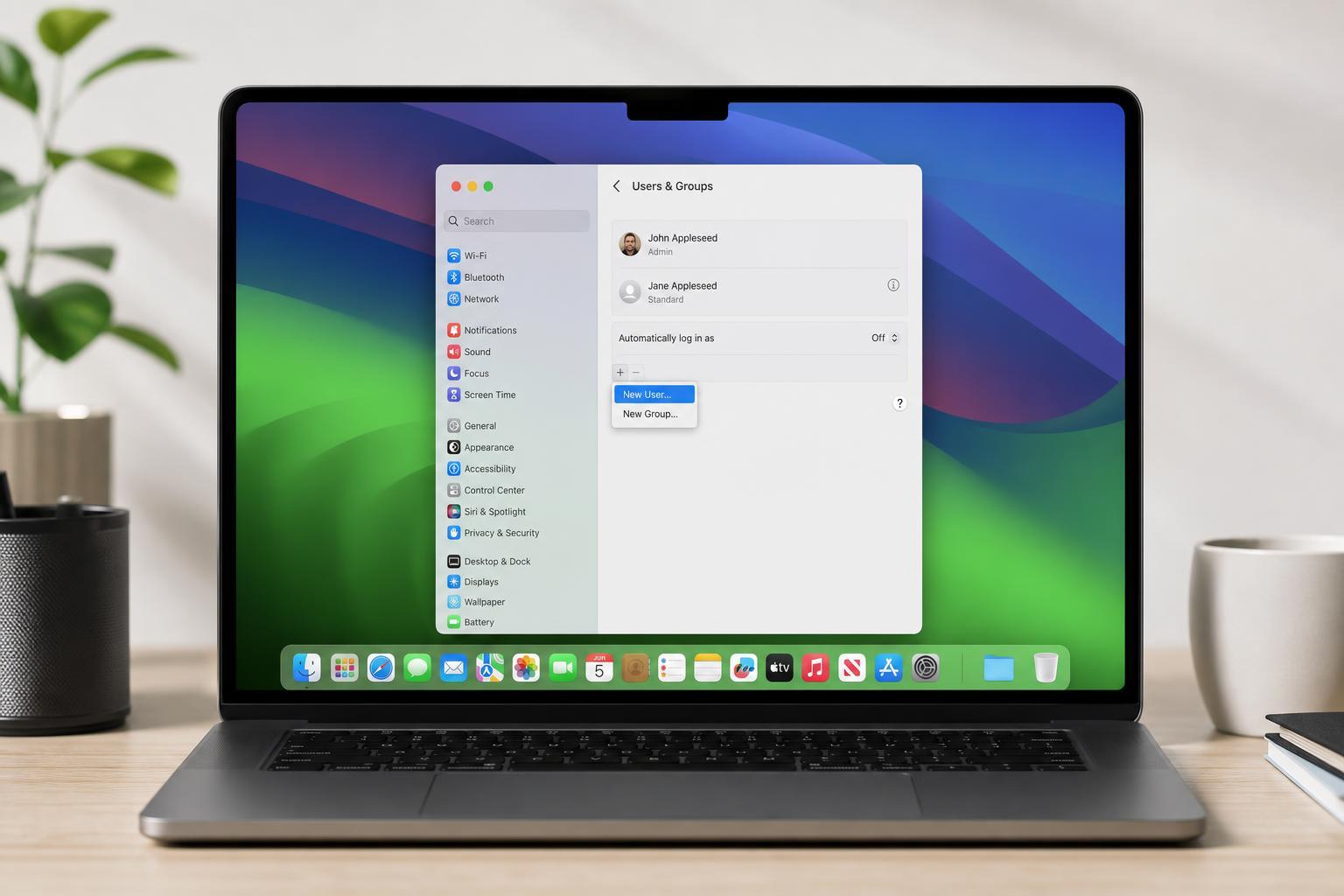
- Select Users & Groups.
- Click Add Account or the plus button, then authenticate if prompted.
- Enter the new user’s name, account name, and password.
- Set the account type to Administrator.
- Click Create User or Done to finish.
Change an Existing User to Admin
If the person already has an account on the Mac, you can promote that account to administrator status instead of creating a new one.
- Open System Settings.
- Go to Users & Groups.
- Unlock the settings with an admin password or Touch ID if needed.
- Select the user account you want to change.
- Turn on the option that allows the user to administer this computer, or change the account type to Administrator.
- Confirm the change if macOS asks for approval.
Remove Admin Rights from a User on Mac
To take away administrator access, change the account back to a standard user. This keeps the account active but removes admin-level control.
- Open System Settings and go to Users & Groups.
- Unlock the settings with an admin account.
- Select the administrator account you want to change.
- Switch the account type from Administrator to Standard, or turn off the admin permission.
- Save the change when prompted.
How to Remove an Admin Account Completely
If you want to delete the account entirely, first make sure another admin account exists. Then remove the user from Users & Groups.
- Sign in to another administrator account.
- Open System Settings and go to Users & Groups.
- Select the account you want to remove.
- Choose Delete User or the minus button.
- Pick whether to save the user’s home folder, create a disk image, or delete the home folder.
- Confirm the deletion.
If You Cannot Change Admin Settings
If the admin options are grayed out or you cannot unlock Users & Groups, the Mac may not be signed in to an admin account, or the account you are using may not have permission to make changes.
- Make sure you are signed in to an administrator account.
- Check whether the account you are using already has admin rights.
- Use Touch ID, your password, or another approved unlock method when prompted.
- If this is a work or school Mac, an organization profile may restrict account changes.
- On a Mac with only one account, some changes may require creating another admin first.
A Safer Way to Manage Admin Access
For most people, the safest setup is one admin account for maintenance and one standard account for everyday use. That reduces the risk of accidental system changes while still letting you install apps and adjust settings when needed.