
Netflix profiles let different people in the same household keep their own recommendations, watch history, and viewing preferences. If you want to set up a new profile for someone else or clean up an unused one, Netflix makes it fairly simple on both mobile and desktop.
The exact buttons can vary a little depending on whether you are using the Netflix app, a mobile browser, or a computer, but the process is the same in practice.
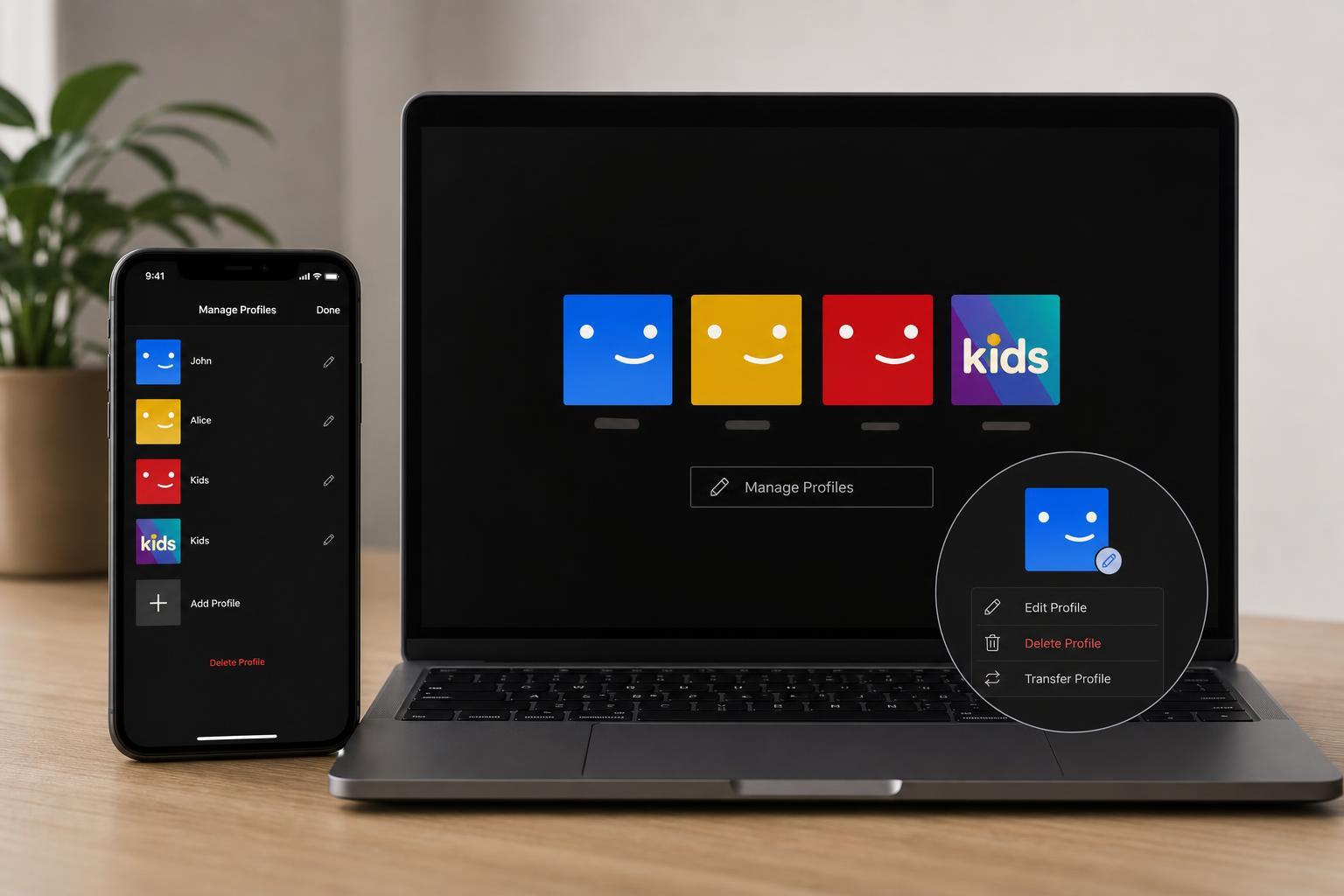
What a Netflix Profile Does
Each profile keeps its own separate watch activity, My List, language settings, and maturity settings. That means deleting a profile removes that profile’s viewing history and recommendations, while the account itself stays active.
How to Add a Netflix Profile on Desktop
- Open Netflix in a web browser and sign in to your account.
- Click your profile icon in the top-right corner.
- Select Manage Profiles or Edit Profiles.
- Choose Add Profile.
- Enter a profile name.
- If needed, check the Kids box to create a children’s profile.
- Select Save to finish.
How to Add a Netflix Profile on Mobile
- Open the Netflix app and sign in.
- Tap My Netflix or your profile icon.
- Tap Manage Profiles.
- Select Add Profile.
- Type the profile name.
- Turn on the Kids option if this profile is for a child.
- Tap Save.
How to Delete a Netflix Profile on Desktop
- Open Netflix in a browser and sign in.
- Click your profile icon.
- Select Manage Profiles or Edit Profiles.
- Choose the profile you want to remove.
- Click Delete Profile.
- Confirm the deletion when prompted.
How to Delete a Netflix Profile on Mobile
- Open the Netflix app and sign in.
- Tap My Netflix or your profile icon.
- Tap Manage Profiles.
- Select the profile you want to remove.
- Tap Delete Profile.
- Confirm the action when asked.
If You Cannot Delete a Profile
- Make sure you are signed in to the main account, not another profile.
- Check whether you are trying to delete the primary account profile, which is usually not removable.
- Try the desktop site if the app does not show the delete option.
- Update the Netflix app if profile settings are missing or appear broken.
- If the account is managed by a family plan or has restrictions, the account owner may need to make the change.
Things to Remember Before You Delete a Profile
- A deleted profile does not delete the Netflix account itself.
- Downloads tied to that profile may be removed from the device.
- Viewing history and recommendations for that profile are lost.
- You can always create a new profile later, but it starts fresh.
When Creating a New Profile Makes More Sense Than Deleting One
If someone in the household no longer uses Netflix, deleting the profile is a good way to tidy up the account. But if the profile belongs to a child, a guest, or someone who may return later, creating a new profile or keeping the old one may be more practical than removing it right away.





